
Custom tasks, texting & calling (including phone number lookups)
This guide covers:
Reminder: Sending texts, placing calls, and completing custom tasks are manual steps. Only phone number lookups can be automated.
Custom tasks
Custom tasks can be added to your outreach sequence to keep your workflow organized in one place. They can include text messages, phone calls, or reminders, allowing you to customize and streamline your candidate outreach.
To add a Custom Task step:
- Click "Add Step".
- Select "Custom Task" from the drop-down menu.
- Enter a task name and description.
- Click "Save".
Add a Reminder to Manually send a LinkedIn Connection Request or LinkedIn Message
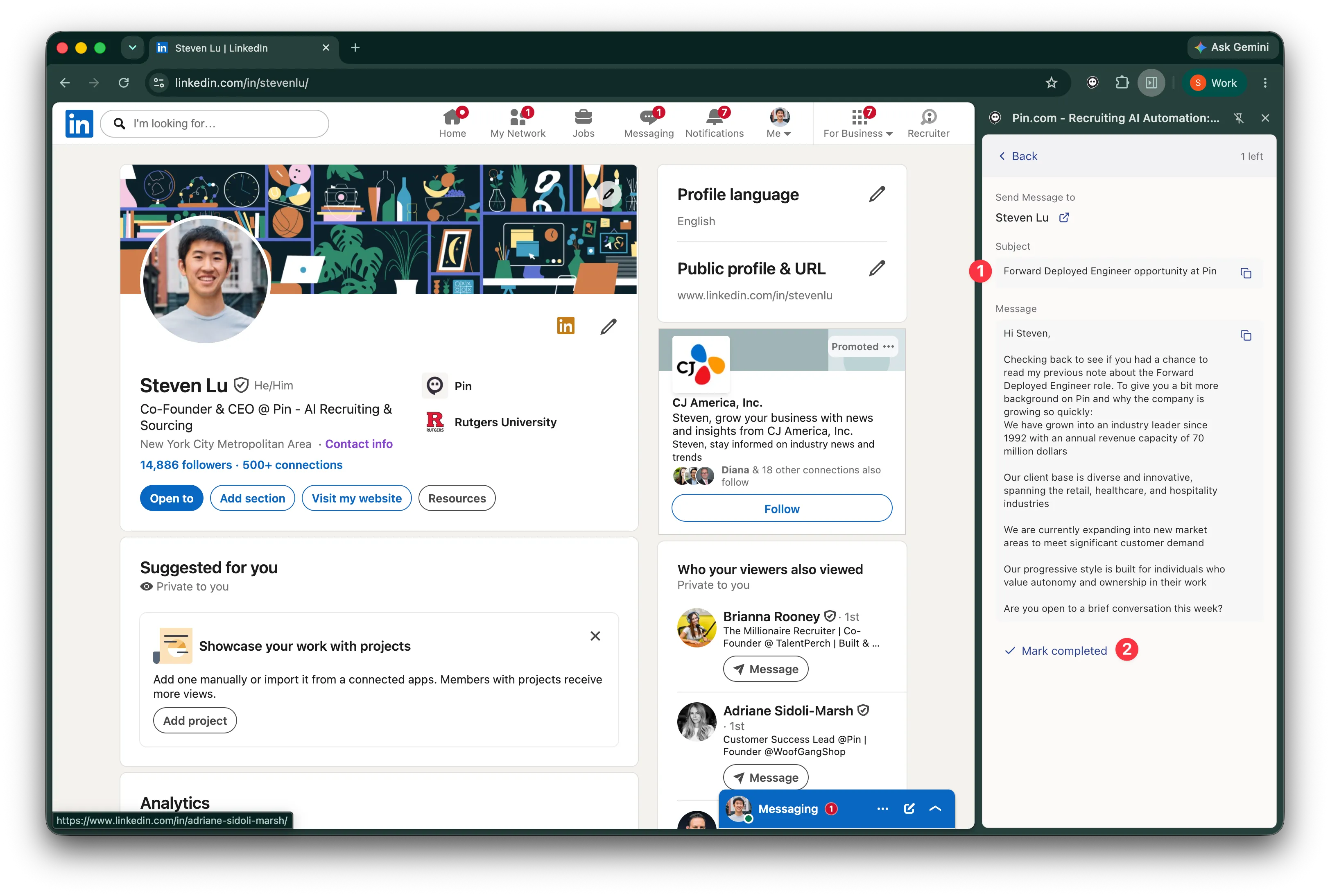
LinkedIn tasks can be added to your outreach sequence to remind you to log into LinkedIn to either send a Connection Request or LinkedIn Message.
When the task is up, the Pin Chrome extension will show that you have tasks waiting on you to complete.
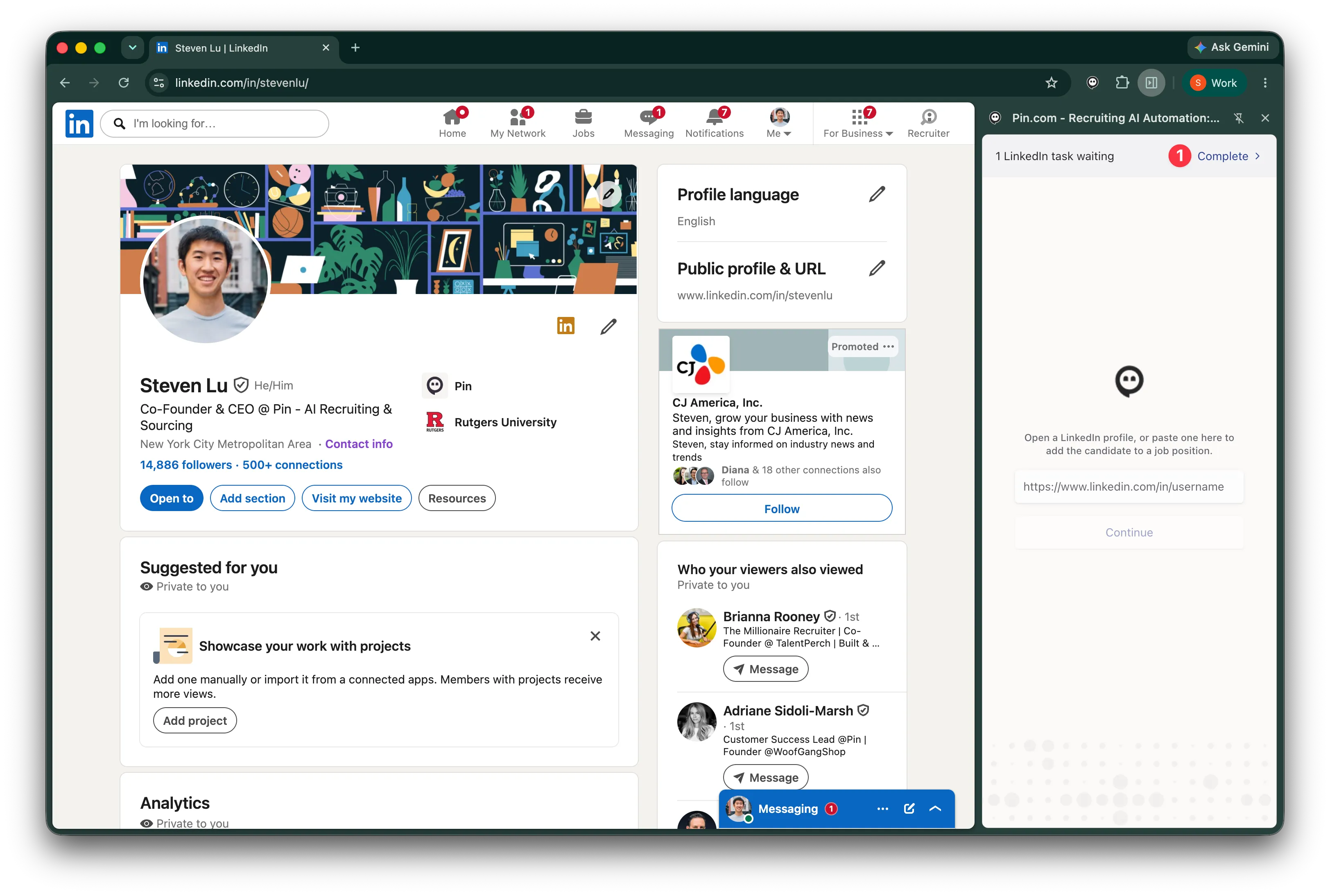
Pin then provides an easy way to copy each generated field into a LinkedIn message or connection request. When your done, mark it as completed and the sequence will continue as normal.
Manually search for candidates' phone numbers
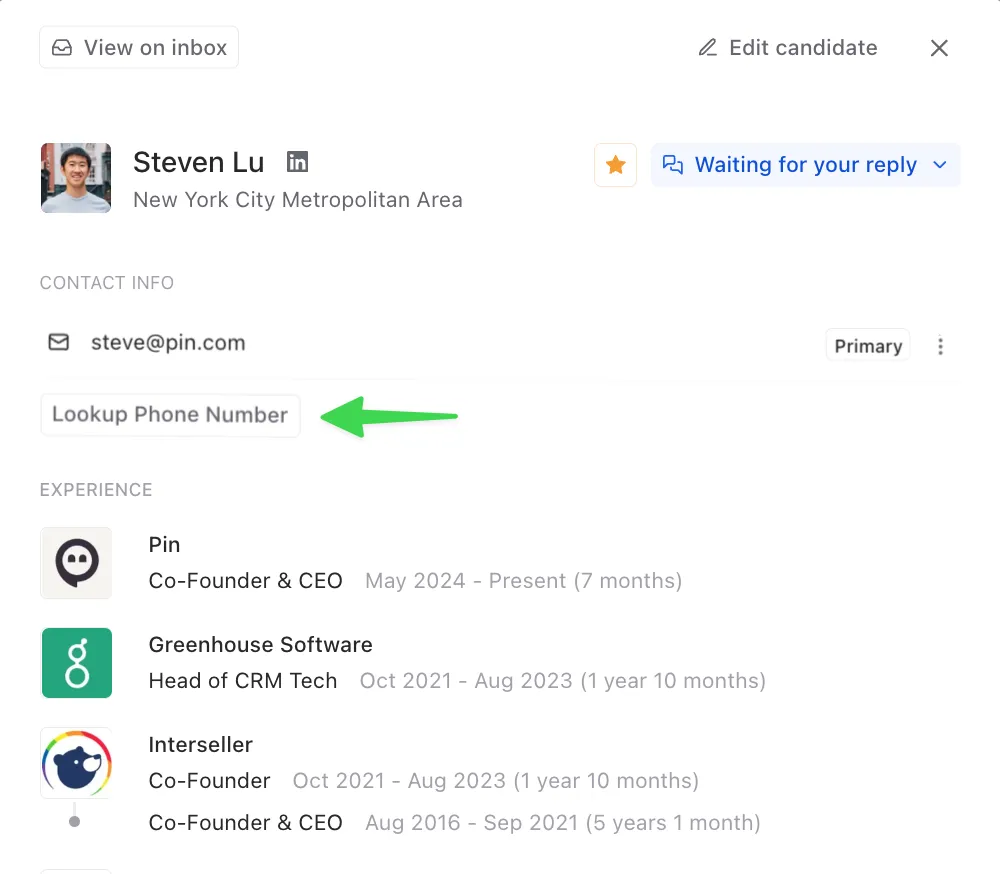
Once a candidate is added to your Outreach, you can open their profile and click "Lookup Phone Number" to manually search for their phone number.
Phone number lookups cost 1 credit. If Pin finds both an email and a phone number, the total cost is 2 credits. If Pin does not find an email but finds a phone number, the total cost is 1 credits.
If a phone number is not found, you’ll see a message that says "No phone number found".
Reminder: Candidates must be added to Outreach before you can run a phone number lookup. Because email lookups are triggered once candidates are added to Outreach, it is not possible to run only a phone number lookup without also running an email lookup.
You can also copy, edit, or remove the phone number in the drop-down menu.
Important: If you remove a candidate's phone number, you won’t be able to re-run the search for it, and we won’t be able to restore it.

Automatically search for candidates' phone numbers
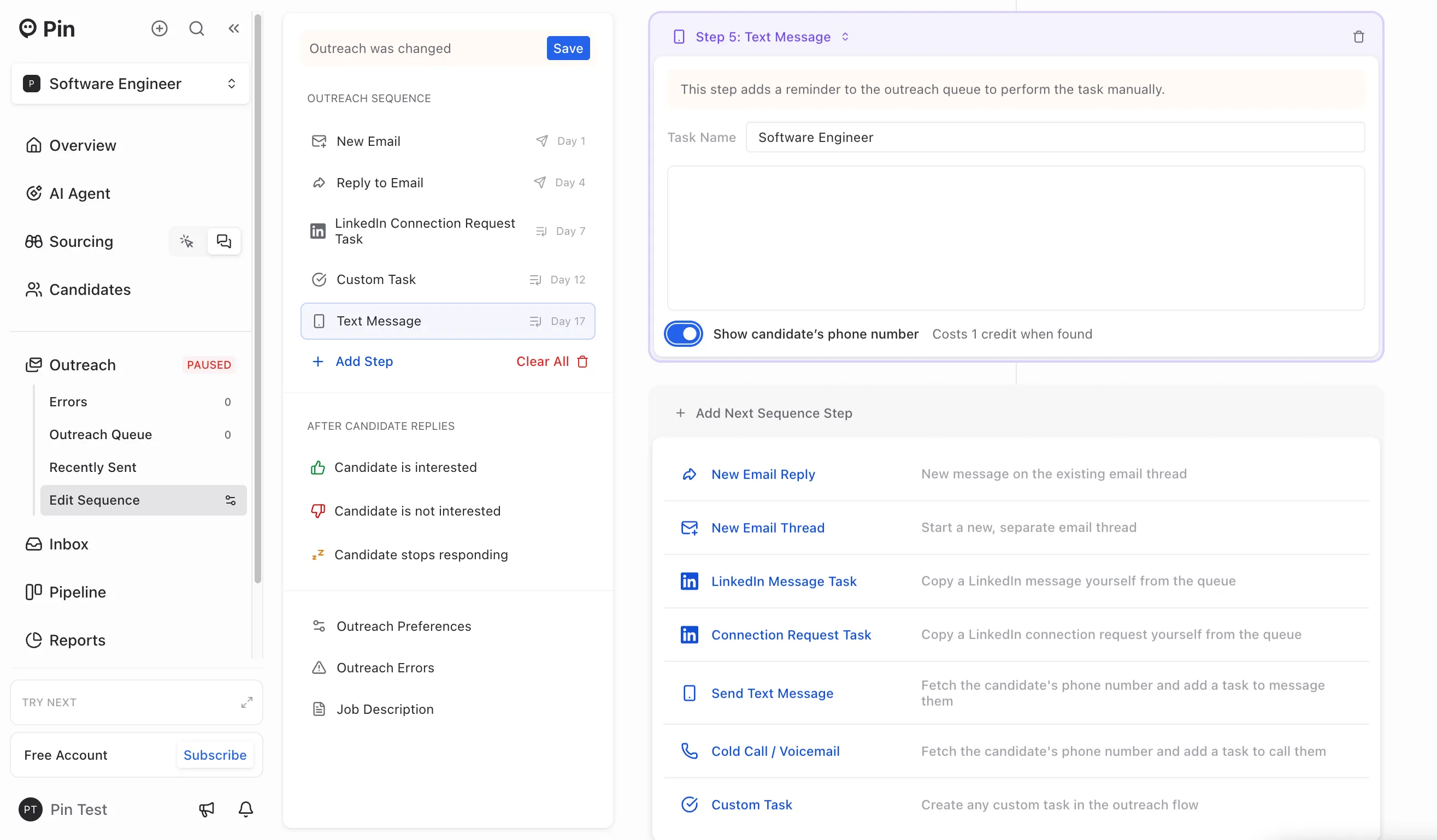
You can also look up candidates' phone numbers automatically by toggling on "Search for candidate's phone number" when adding a Text Message, Phone Call, or Custom Task step. It costs 2 lookup credits for every phone number Pin finds.
Reach candidates by text, phone call, or voicemail
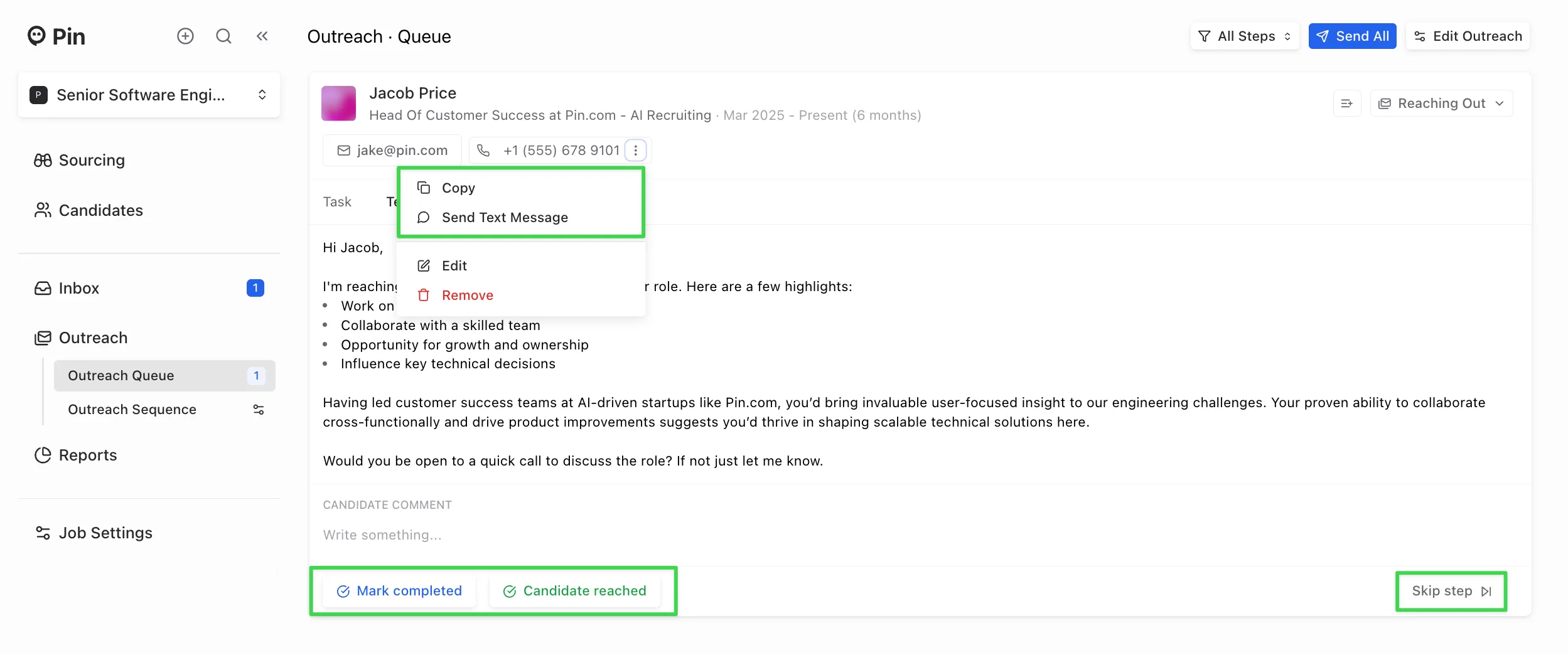
When candidates reach a Text Message, Phone Call, or Custom Task step step in your outreach sequence, you can take action directly from your Outreach Queue:
- Call/leave a voicemail – Use the phone number surfaced by Pin to place a call or leave a voicemail. This needs to be completed manually since Pin doesn’t support automated calling.
- Send a Text – This will open your computer’s default messaging app with the candidate’s number and message pre-filled. This needs to be completed manually since Pin doesn't automate sending text messages.
- Mark completed – Selecting this will mark the step as complete and automatically move the candidate to the next step, unless they’ve already responded by text or phone call.
- Candidate reached – Selecting this will mark the candidate as "Responded" and end the Outreach sequence, so they won’t receive any further steps.
- Skip step – Selecting this will skip the current step and automatically move the candidate to the next step.
Note: Bulk texting or calling is not available, so you’ll need to contact each candidate manually.
One-click SMS
You can send a text message with one click from your manual task queue, automatically opening your default messaging app on your computer with the phone number and message pre-filled.
To send a text, go to your Outreach Queue, click the drop-down menu next to the candidate’s phone number, and select "Send Text Message".
