
Integrating with Greenhouse (Updated v2->v3)
Greenhouse integration
Connect Pin to Greenhouse Recruiting to push sourced candidates, resumes, and applications directly into your Greenhouse pipeline — no CSV exports, no copy-paste.
Pin uses Greenhouse's Harvest V3 API with OAuth 2.0. You authorize Pin once from inside Greenhouse, and Pin receives a scoped, revocable connection to your organization. No API key is created, stored, or shared.
Migrating from an older Pin ↔ Greenhouse connection? Greenhouse is deprecating the Harvest V1/V2 API. If your Pin account was connected with a Harvest API key, you need to reauthorize using the steps below. Connections that aren't migrated will stop working once V1/V2 is turned off. Keep your existing V1/V2 API key in place until you've confirmed the new connection is working — see Migrating from an API key connection.
Before you start
Requirement | Detail |
|---|---|
Greenhouse permissions | Site Admin, or a user who can manage all of your organization's API credentials. Standard users cannot complete this authorization. |
Greenhouse product tier | Core, Plus, or Pro. |
Pin permissions | Admin on your Pin workspace. |
Login method | You'll sign in to Greenhouse with email and password, or with Sign in with Google if that's how your organization authenticates. |
Recommended: have a Site Admin run the connection so you can authorize with a service account (see Step 4). This keeps the integration working even if the person who set it up later leaves your company.
What Pin can access
During authorization, Greenhouse shows you exactly what Pin is requesting. Pin asks for the minimum set of permissions needed to source candidates into your pipeline:
Greenhouse category | Permission | What Pin uses it for |
|---|---|---|
Candidates & Prospects | Candidates — List | Checks whether a candidate already exists in Greenhouse before creating a duplicate |
| Candidates — Create | Adds candidates and prospects sourced in Pin |
| Candidates — Update | Keeps contact details and profile data in sync |
| Attachments — Create | Uploads resumes and other candidate documents |
| Sources — List | Tags candidates with the correct source so Pin-sourced hires are attributed properly in your reporting |
Applications | Applications — List | Reads existing applications to avoid re-adding a candidate to the same job |
| Applications — Create | Adds a candidate to the job you selected in Pin |
Jobs & Openings | Jobs — List | Lets you pick which Greenhouse job to send candidates to |
Users & Permissions | Users — List | Maps your Pin users to their Greenhouse accounts so activity is credited to the right recruiter |
Pin does not request: permission to reject candidates, move candidates between pipeline stages, edit jobs or job posts, or modify user accounts and permissions.
You can expand any category during authorization to see the individual permissions before you approve them.
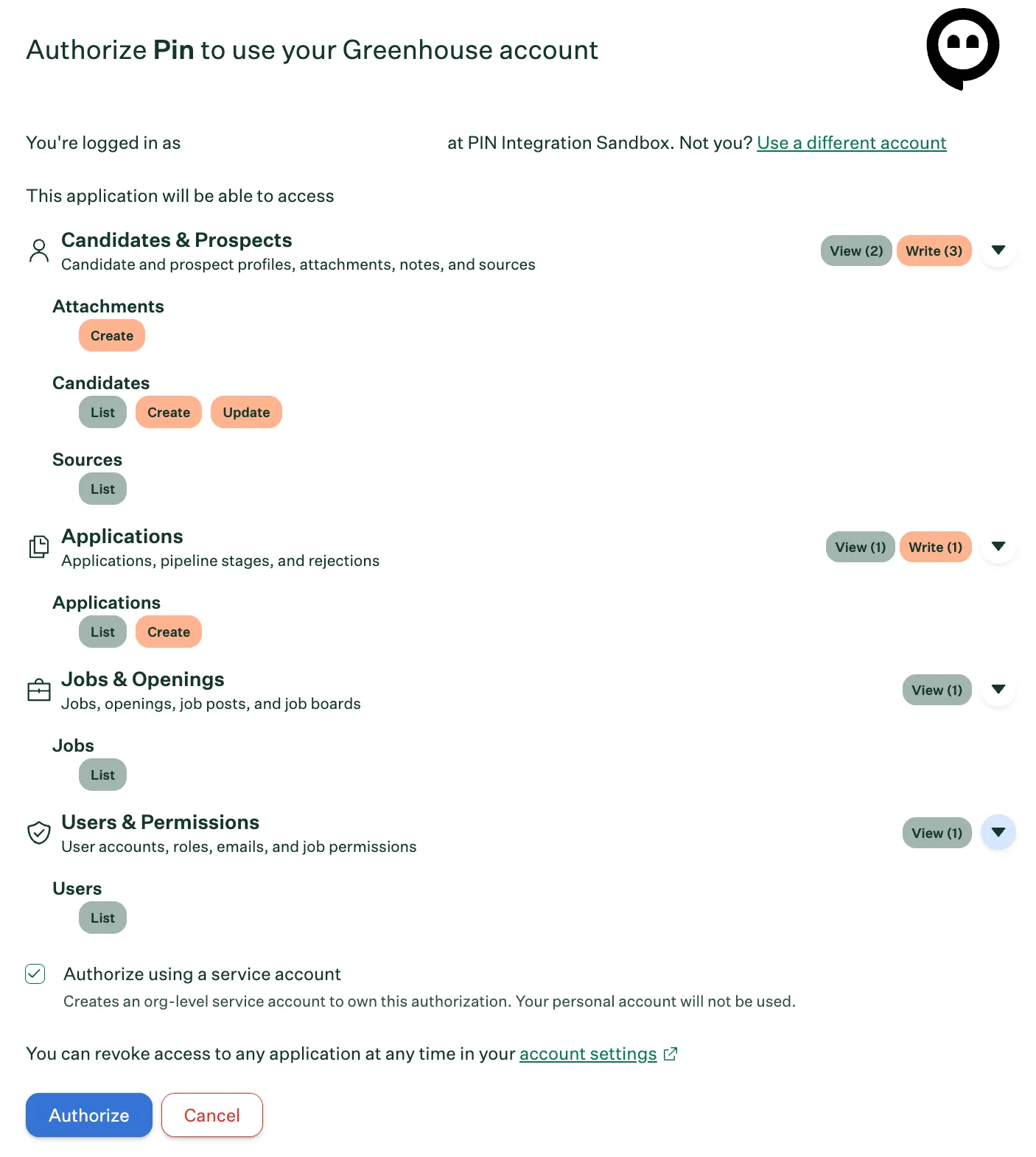
Connect Pin to Greenhouse
Step 1 — Start the connection in Pin
- In Pin, go to Settings → Integrations.
- Find the Greenhouse tile and click Connect.
You'll be redirected to Greenhouse to authorize the connection.
You can also start from the Greenhouse marketplace: click Integrations in your Greenhouse navigation bar and search for Pin. Either path launches the same OAuth flow.
Step 2 — Review the requested permissions
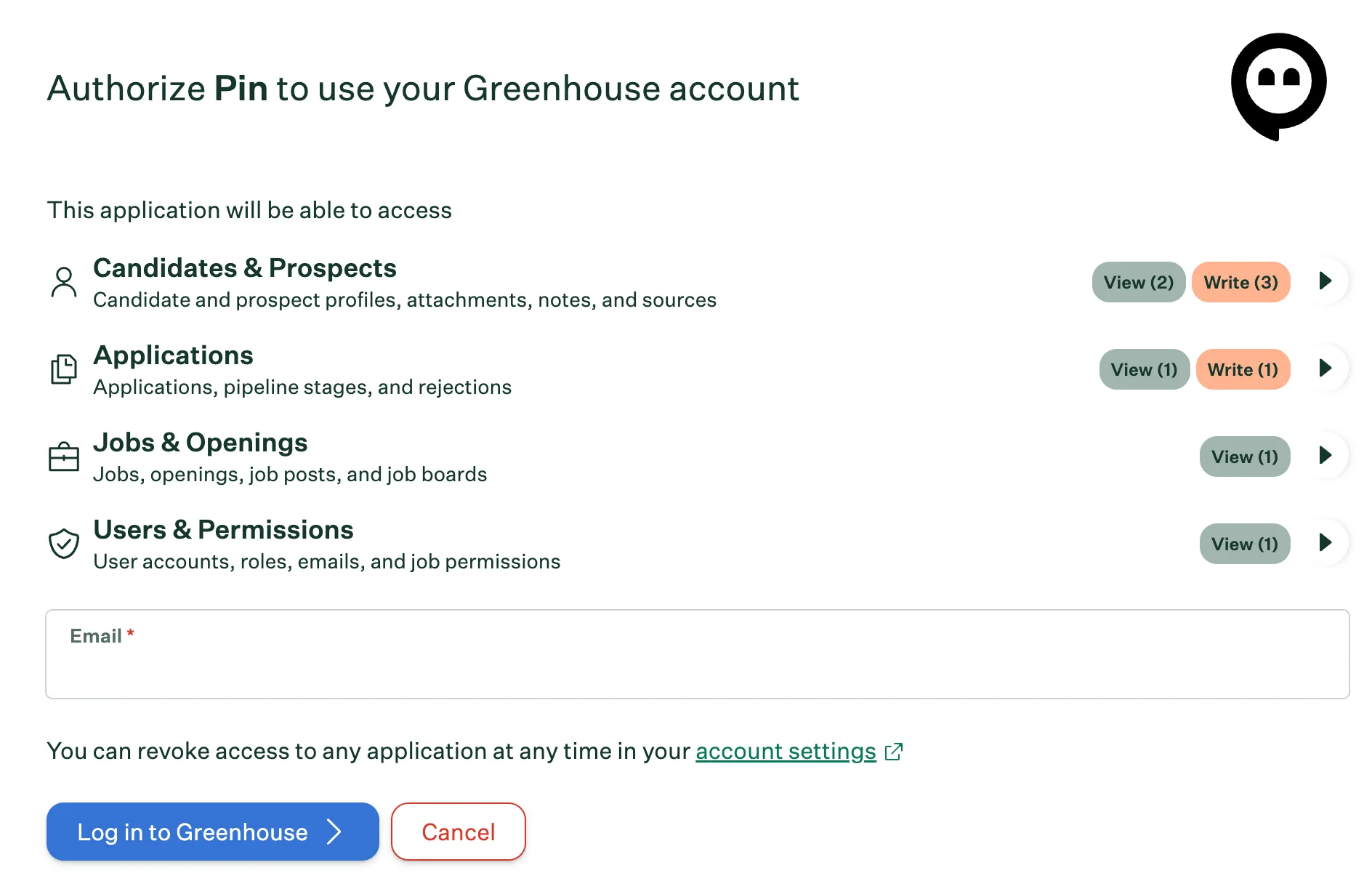
Greenhouse shows the permissions Pin is requesting before you log in. Review the summary, then enter the email address of the Greenhouse account you want to authorize with and click Log in to Greenhouse.
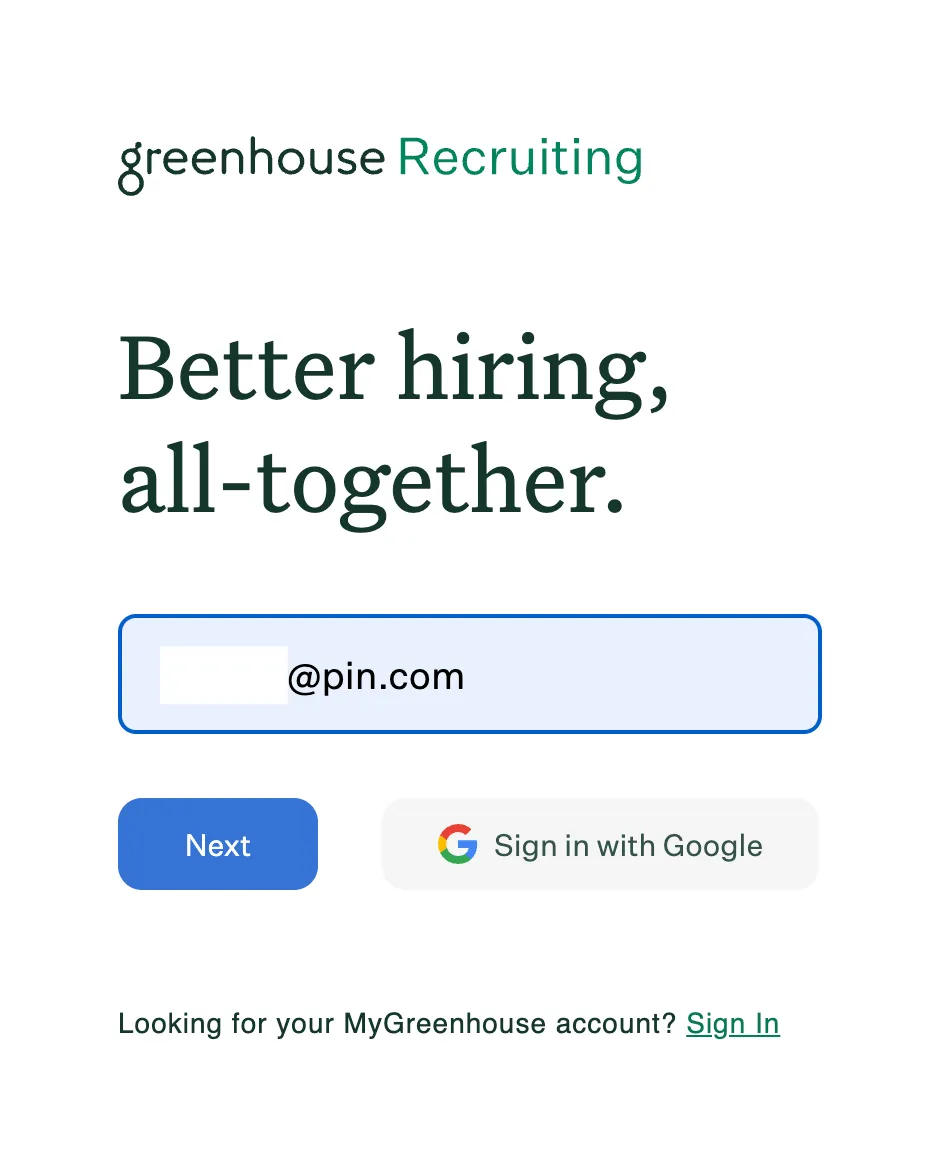
Step 3 — Sign in to Greenhouse
Enter your Greenhouse Recruiting credentials, or click Sign in with Google if your organization uses Google SSO.
Signing in as the wrong account? If you're already logged in to Greenhouse under a different user, click Use a different account on the next screen before authorizing.
Step 4 — Choose an authorization method
After signing in, Greenhouse shows the permissions again along with a checkbox: Authorize using a service account.
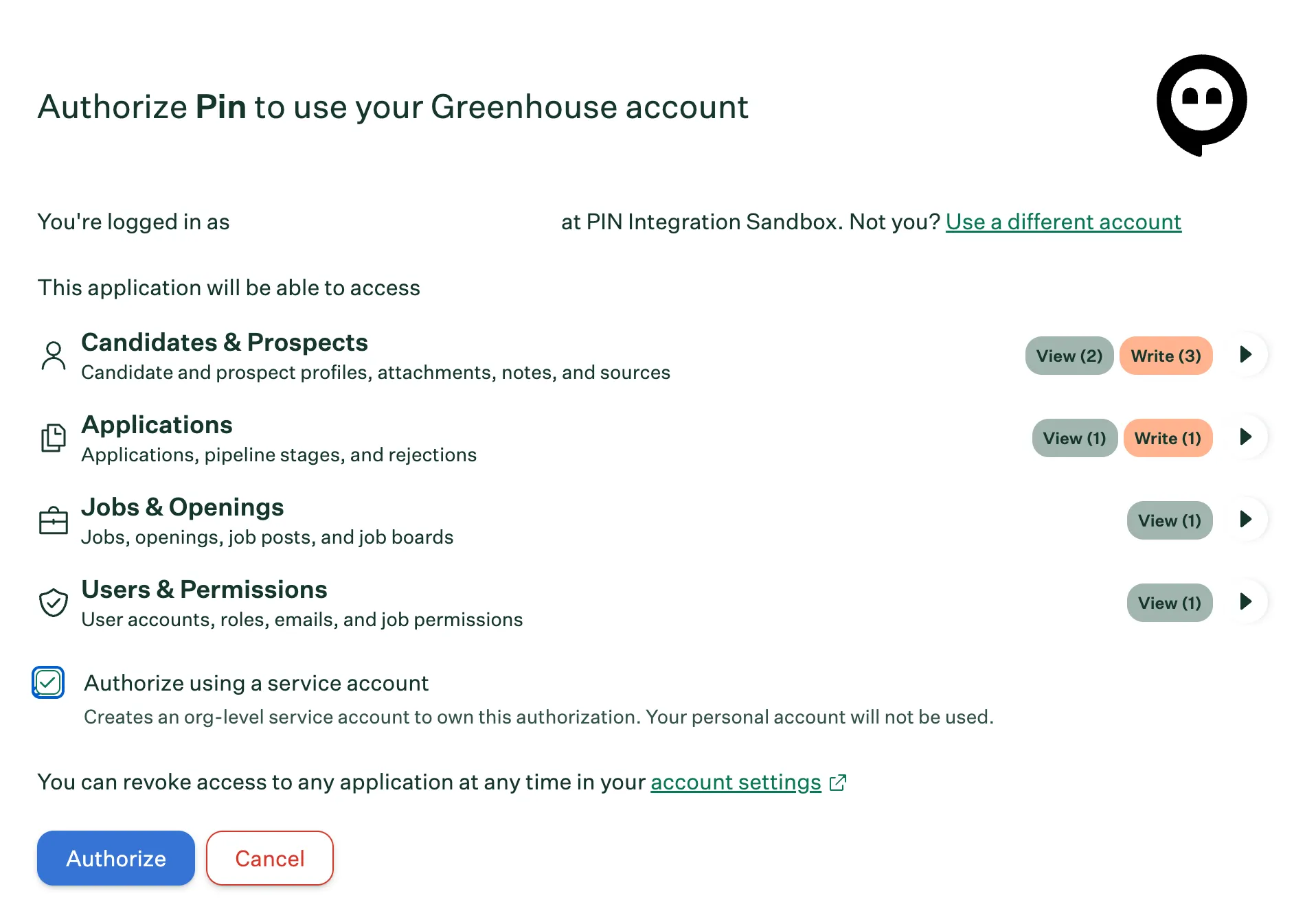
Pin recommends checking this box.
Method | What happens | When to use it |
|---|---|---|
With a service account (recommended) | Greenhouse creates an organization-level service account that owns the authorization. It has no username or password and persists until a permissioned user disconnects it. Pin's activity appears in Greenhouse as performed by the service account. | Almost always. The connection survives employee turnover and isn't tied to one person's account. Only available if you're a Site Admin. |
Without a service account | The authorization is tied to your personal Greenhouse user. Pin's activity appears as if you performed it. | Only if you aren't a Site Admin, or your team specifically wants activity attributed to an individual user. Note that the integration will break if that user is deactivated. |
Click Authorize. You'll be returned to Pin and the Greenhouse tile will show as connected.
Step 5 — Confirm the connection
In Pin: open Settings → Integrations → Greenhouse. The tile should show as Connected, and your Greenhouse jobs should appear when you send a candidate to Greenhouse.
In Greenhouse: click the Configure icon in your navigation bar, select Dev Center on the left, then click Connected integrations. Pin appears in the table with the account that authorized it and the date it was connected.
Send one test candidate to a job to confirm the connection end to end, then check that the candidate, their resume, and their source appear correctly in Greenhouse.
Migrating from an API key connection
If Pin was previously connected to Greenhouse with a Harvest V1/V2 API key, follow these steps:
- Leave your existing Harvest API key in place. Don't delete or revoke it yet — Pin will continue using it as a fallback until you've confirmed the new connection works.
- Notify your technical team to prioritize the migration and add it to your development roadmap. Documentation can be found here.
- You are required to submit updated support documentation for the Greenhouse support site using this template and a demo mp4. Send your content to [email protected] for review.
- Stop! Wait for approval from the Greenhouse team! When approved, Greenhouse will update the older version of your integration to [legacy] and publish the new version on their support center. After 3 months, legacy support documentation will be deprecated.
- In Pin, go to Settings → Integrations → Greenhouse and click Reauthorize (or Update available).
- Complete the OAuth flow above. Check Authorize using a service account if you're a Site Admin.
- Send a test candidate and confirm it lands in Greenhouse as expected.
- Once confirmed, you can retire the old Harvest V1/V2 API key in Greenhouse under Configure → Dev Center → API credentials.
If you have question for the Greenhouse team, please contact them at the emails below: General: [email protected] Technical: [email protected]
Your existing candidate and job mappings in Pin carry over — you don't need to reconfigure them.
Manage or revoke access
Access is revoked from Greenhouse, not from Pin:
- In Greenhouse, click the Configure icon, then Dev Center → Connected integrations.
- Click Pin, or select View details from the ellipsis (…) menu, to review the authorized permissions and see which account owns the connection.
- Select Disconnect to revoke access.
Disconnecting takes effect immediately. Pin will stop reading from and writing to Greenhouse, and any queued candidate pushes will fail. You can reconnect at any time by repeating the OAuth flow — nothing is deleted from Greenhouse when you disconnect.
Troubleshooting
"You don't have permission to authorize this integration" — Your Greenhouse user isn't a Site Admin and can't manage all of your organization's API credentials. Ask a Site Admin to complete the connection.
The "Authorize using a service account" checkbox is missing — This option only appears for Site Admins. Either have a Site Admin authorize instead, or proceed without a service account and be aware the connection is tied to your individual user.
Candidates aren't appearing in Greenhouse
- Confirm the connection still shows on Greenhouse's Connected integrations page. If it's gone, the integration was disconnected and needs to be reauthorized.
- If the connection was authorized without a service account, check whether that user has been deactivated in Greenhouse. Deactivating the authorizing user breaks the connection — reauthorize with a service account.
- Confirm the target job is open and visible to the authorizing account.
The connection worked, then stopped after a period of inactivity — Greenhouse expires the connection's refresh token after 24 hours without use. If your Pin workspace goes quiet — over a long weekend or a hiring freeze — the connection may need to be reauthorized. Repeat the steps in Connect Pin to Greenhouse; nothing already synced is affected.
Duplicate candidates in Greenhouse — Pin matches on email address before creating a candidate. If a candidate exists in Greenhouse under a different email, Pin can't match them and will create a new record. Merge the profiles in Greenhouse.
Resumes aren't attaching — Confirm the candidate had a resume on file in Pin at the time of the push. Pin attaches whatever document was on the profile when the candidate was sent; adding a resume in Pin afterward doesn't retroactively push it.
Still stuck? Contact Pin support with the candidate name, the target Greenhouse job, and the approximate time of the failed push.
Syncing candidates to Greenhouse
To sync candidates from each job in Pin to a specific job in Greenhouse:
- Go to Job Settings -> Position Details.
- Scroll to the ATS Integration section.
- Choose when to sync candidates by selecting one of the following triggers:
- Never
- Contact information is found
- They receive their first message
- They reply to an email
- They reply to an email and are interested
- Select the Greenhouse job you want to sync candidates to.
Once you've selected your preferred triggers, Pin will automatically update the settings and sync candidates to the selected job in Greenhouse based on the chosen trigger.
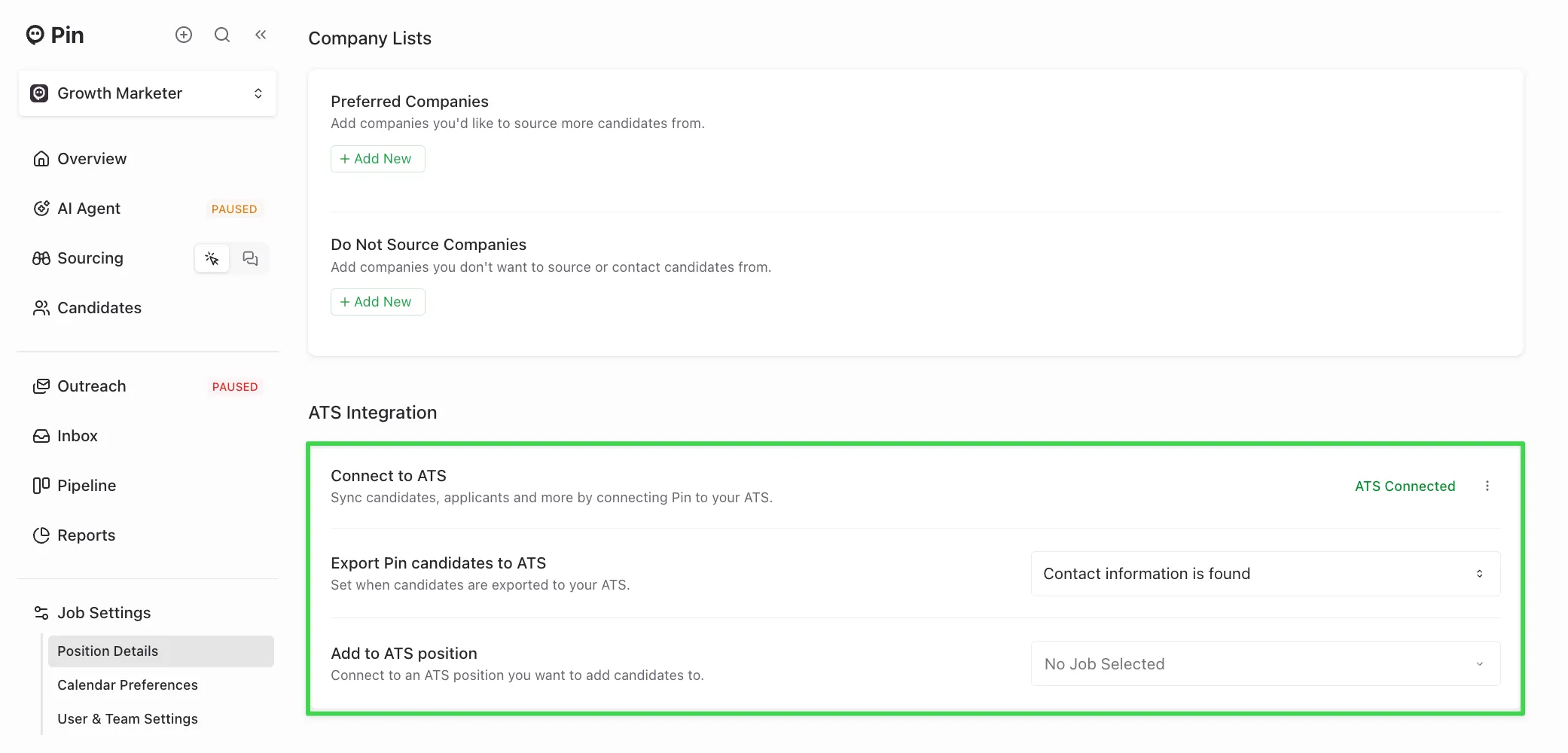
Candidate data synced to Greenhouse
The following candidate data will sync to Greenhouse from Pin:
- Full name
- Phone number
- LinkedIn profile URL
- Location (city, state, country)
- Current job and company
- A Pin-generated resume PDF
Note: All candidates will automatically sync into Greenhouse as prospects.
When candidates sync to Greenhouse
Once the selected trigger occurs, candidates will sync to Greenhouse within a few minutes.
For example: if you choose the trigger “Export candidates when contact information is found”, the candidate will automatically sync to Greenhouse a few minutes after being added to Outreach.
Manually syncing a candidate to Greenhouse
If the candidate hasn’t synced yet:
- Go to All Candidates and select the checkmark next to the candidate.
- Click “Export to ATS”.
- Choose the Greenhouse job you want to sync the candidate to, then click “Export” to complete the sync.
- After exporting, refresh the page, and you should now see the Greenhouse logo appear on their profile.
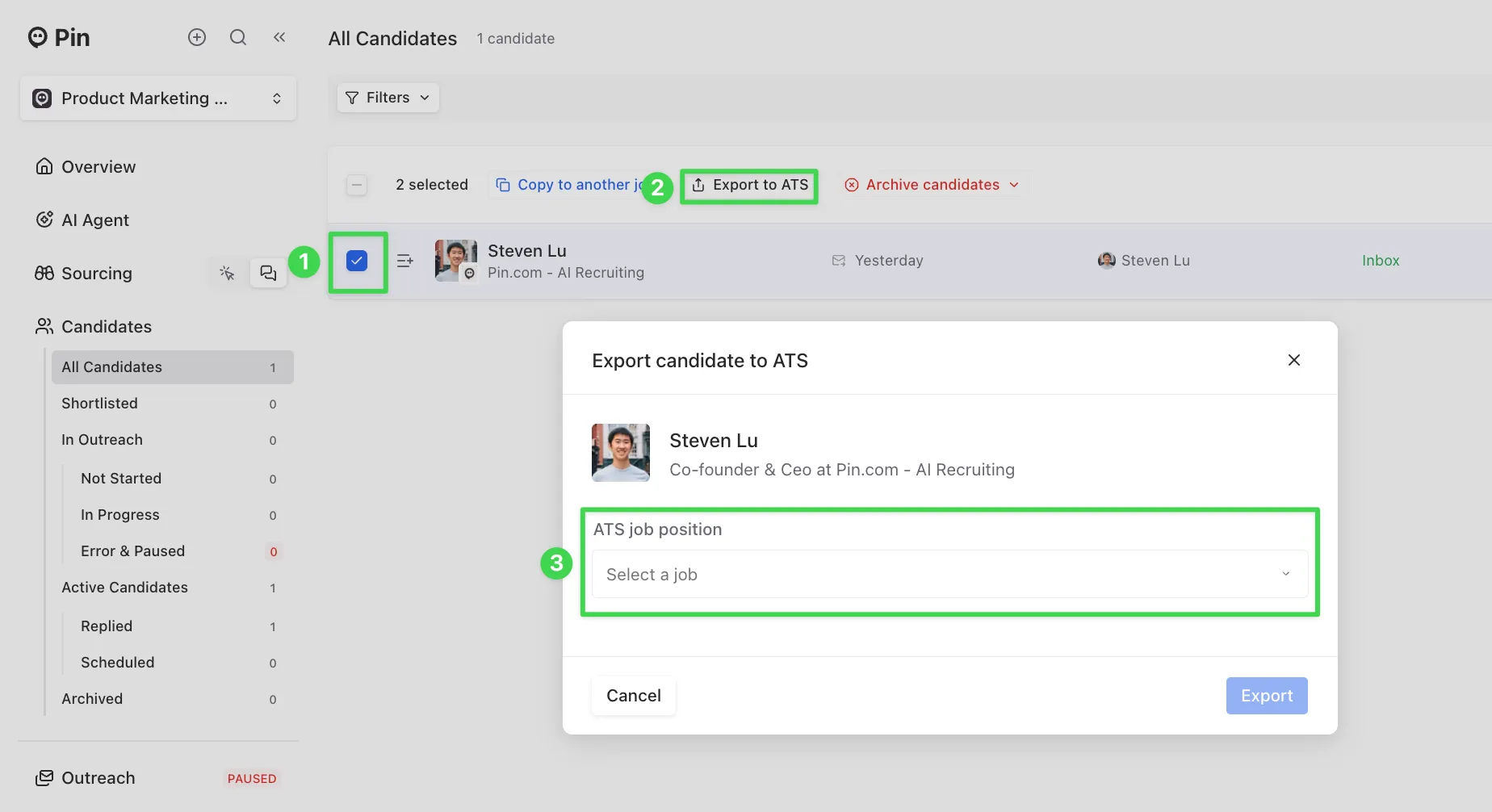
Important:
- Once a candidate is synced to Greenhouse, their contact information cannot be re-synced. If some information didn’t sync, you’ll need to manually update that candidate’s profile in Greenhouse.
- The "Export to ATS" button only works for candidates who haven’t already synced to Greenhouse. If an integration was connected after the selected trigger, Pin won’t retroactively sync those candidates. In that case, use the "Export to ATS" button to sync them over.
How Pin checks for duplicates in Greenhouse
Pin runs a check before syncing whenever a candidate is added to Outreach to prevent duplicate profiles. For Greenhouse duplicates are checked against:
- Email address
- LinkedIn URL
If a match is found on either field, Pin will not create a new candidate profile in Greenhouse.
Source candidates from Greenhouse
After connecting Greenhouse to Pin, you can use the “ATS Candidates” filter to include or exclude candidates from your ATS when searching for candidates.
