
Integrating with Recruiterflow
This guide covers:
Creating an API Key
To connect Pin with Recruiterflow, you’ll first need to reach out to Recruiterflow's Support team to get an API key.
Connecting Recruiterflow to Pin
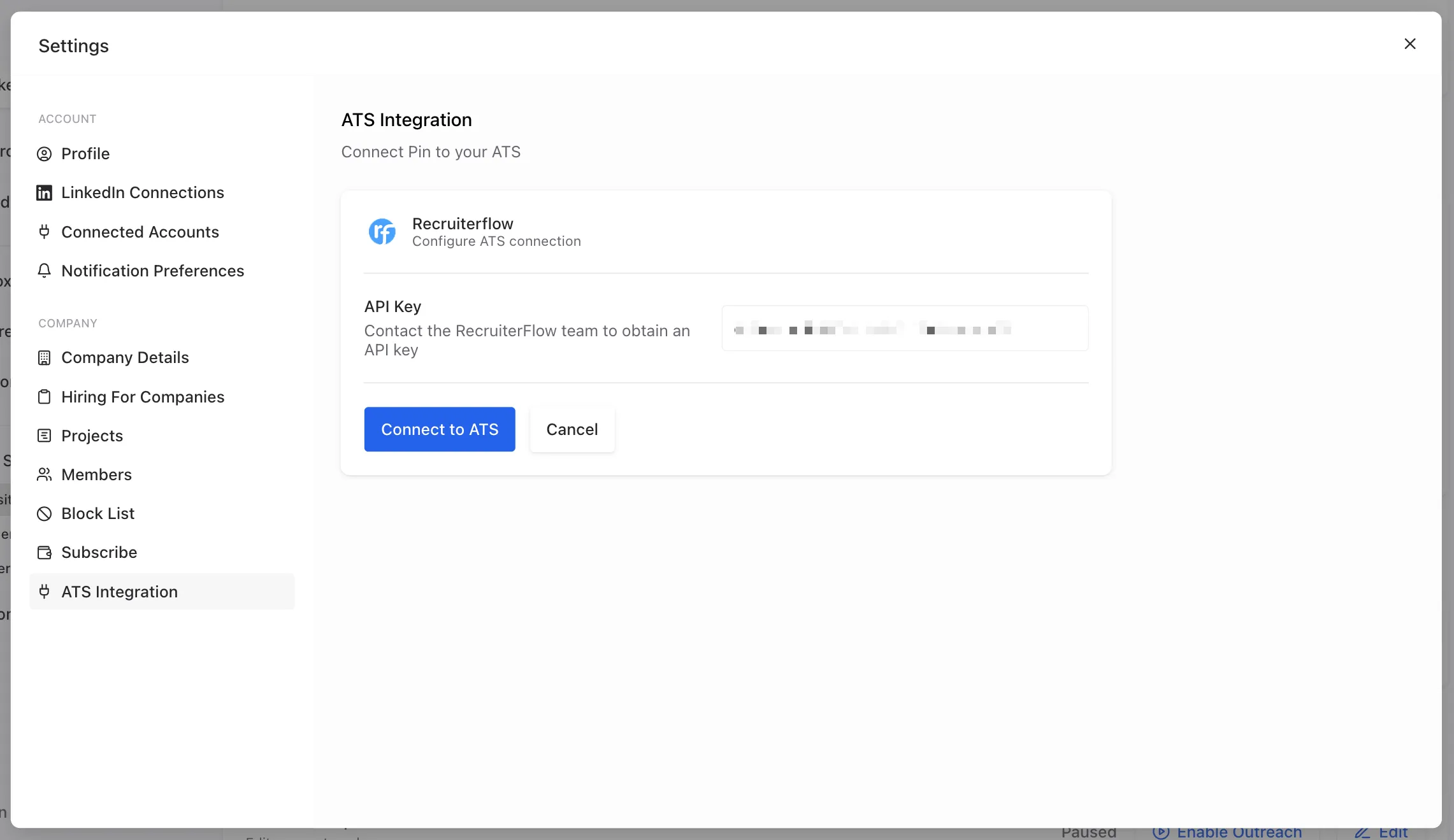
- Navigate to Settings -> ATS Integration and select Recruiterflow from the list.
- Enter your Recruiterflow API key in the API key field.
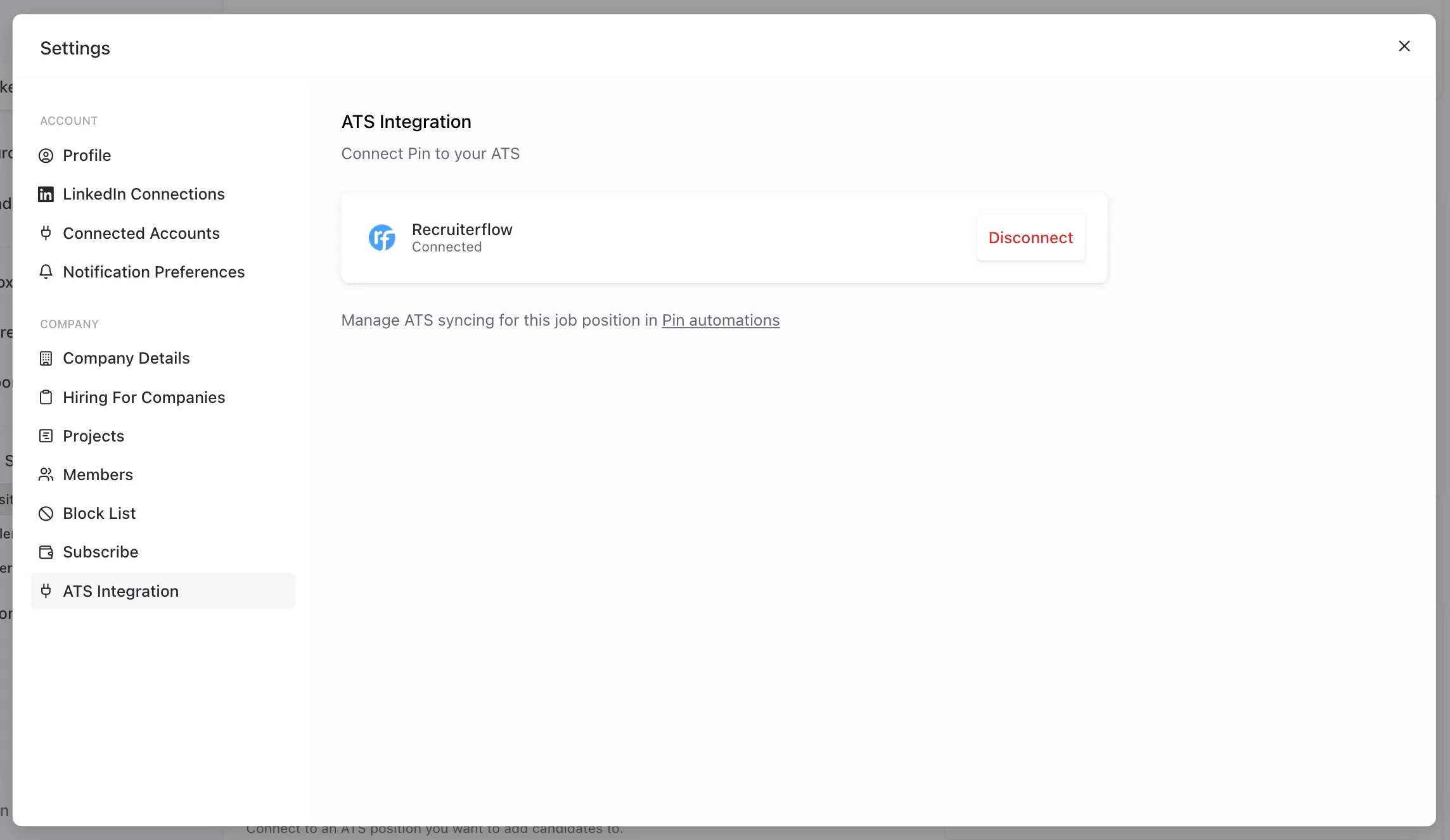
- After entering your API key, the integration will be connected.
Syncing candidates to Recruiterflow
To sync candidates from each job in Pin to a specific job in Recruiterflow:
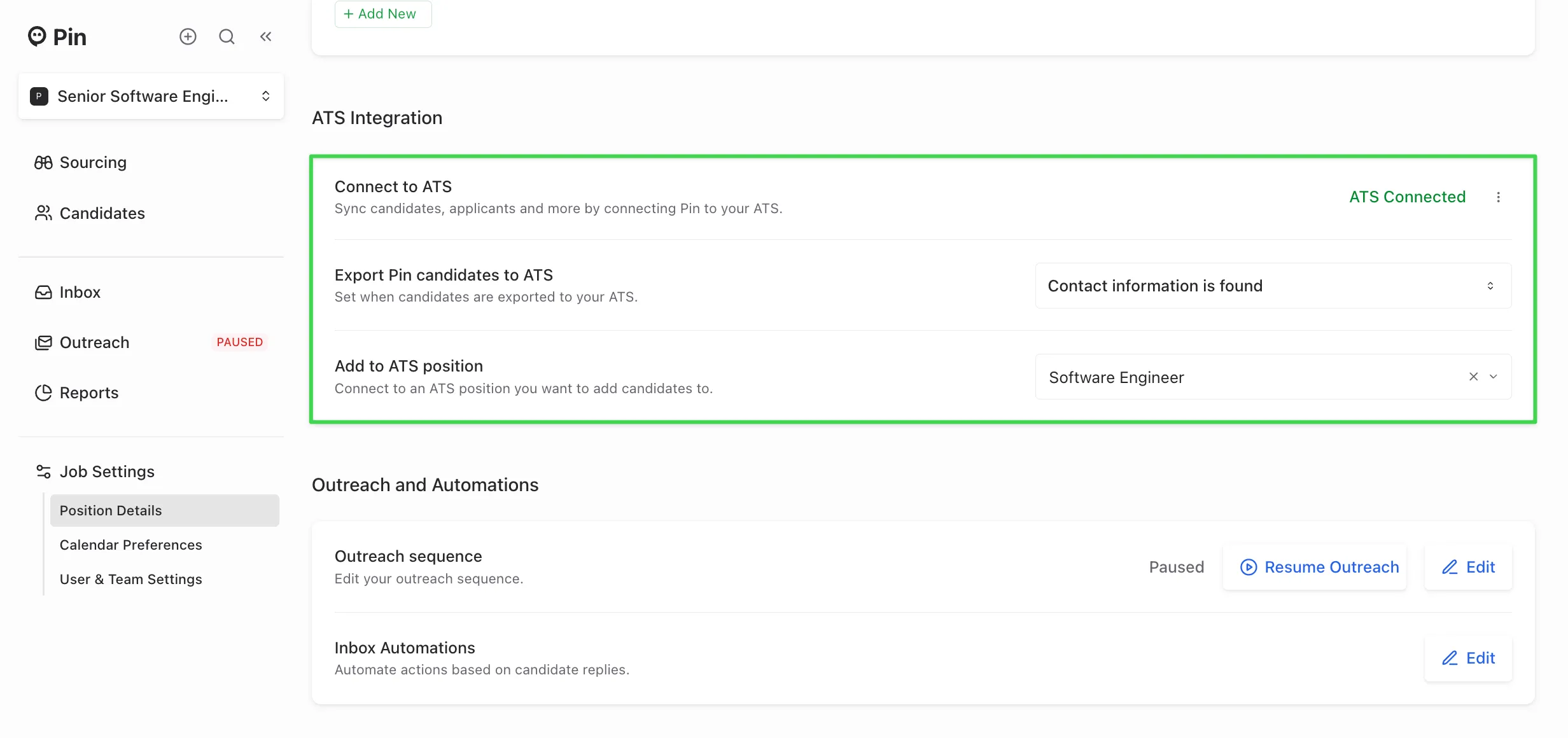
- Go to Job Settings -> Position Details.
- Scroll to the ATS Integration section.
- Choose when to sync candidates by selecting one of the following triggers:
- Never
- Contact information is found
- They receive their first message
- They reply to an email
- They reply to an email and are interested
- Select the Recruiterflow job you want to sync candidates to.
Once you've selected your preferred trigger, Pin will automatically update the settings and sync candidates to the selected job in Recruiterflow based on the chosen trigger.
Reminder: You’ll need to set up the syncing for each job you want to send from Pin to Recruiterflow in the Position Details tab within the Job Settings. We recommend setting up the job sync before adding candidates to Outreach. This ensures candidates sync correctly to the job without issues.
If you prefer not to sync candidates to a job, you can still set up a trigger and leave the job field empty.
When candidates sync to Recruiterflow
Once the selected trigger occurs, candidates will sync to Recruiterflow within a few minutes.
For example: if you choose the trigger “Export candidates when contact information is found”, the candidate will automatically sync to Recruiterflow a few minutes after being added to Outreach.
Checking if a candidate synced to Recruiterflow
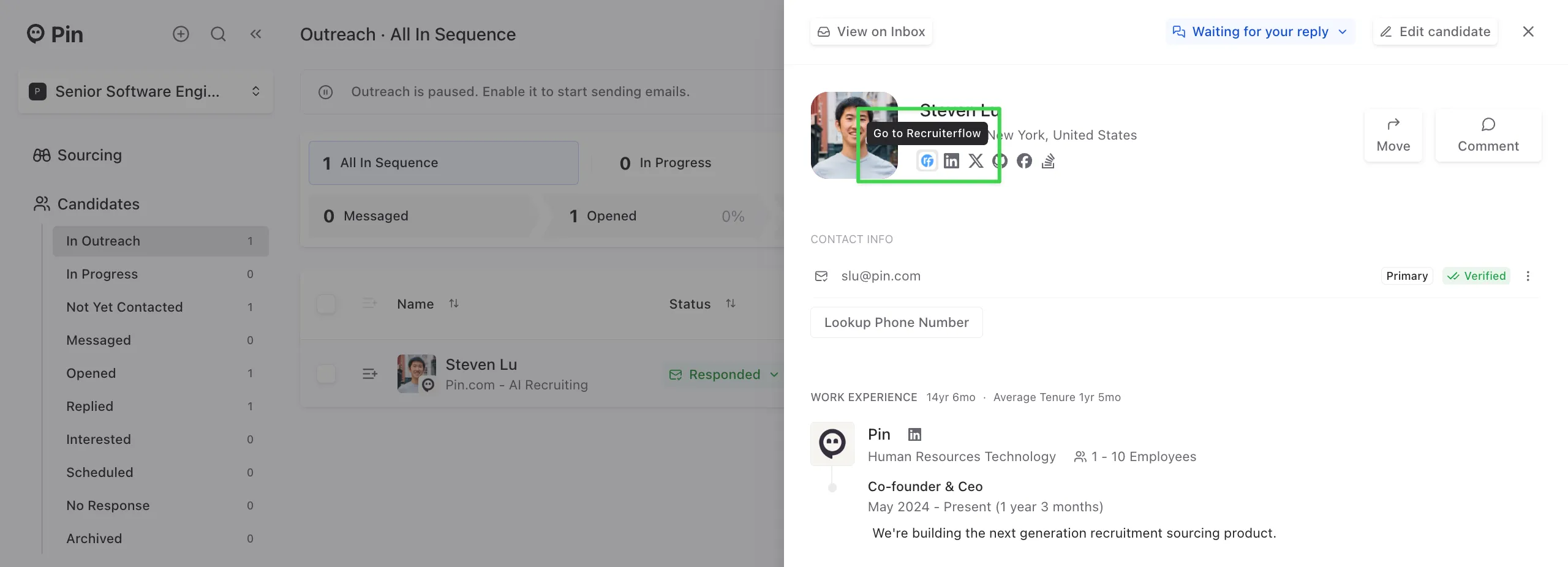
To confirm if a candidate has synced to Recruiterflow, you can open their profile in Pin. If you see the Recruiterflow logo, this means that they’ve been successfully synced. Clicking the logo will take you directly to their profile in Recruiterflow.
Manually syncing a candidate to Recruiterflow
If the candidate hasn’t synced yet:
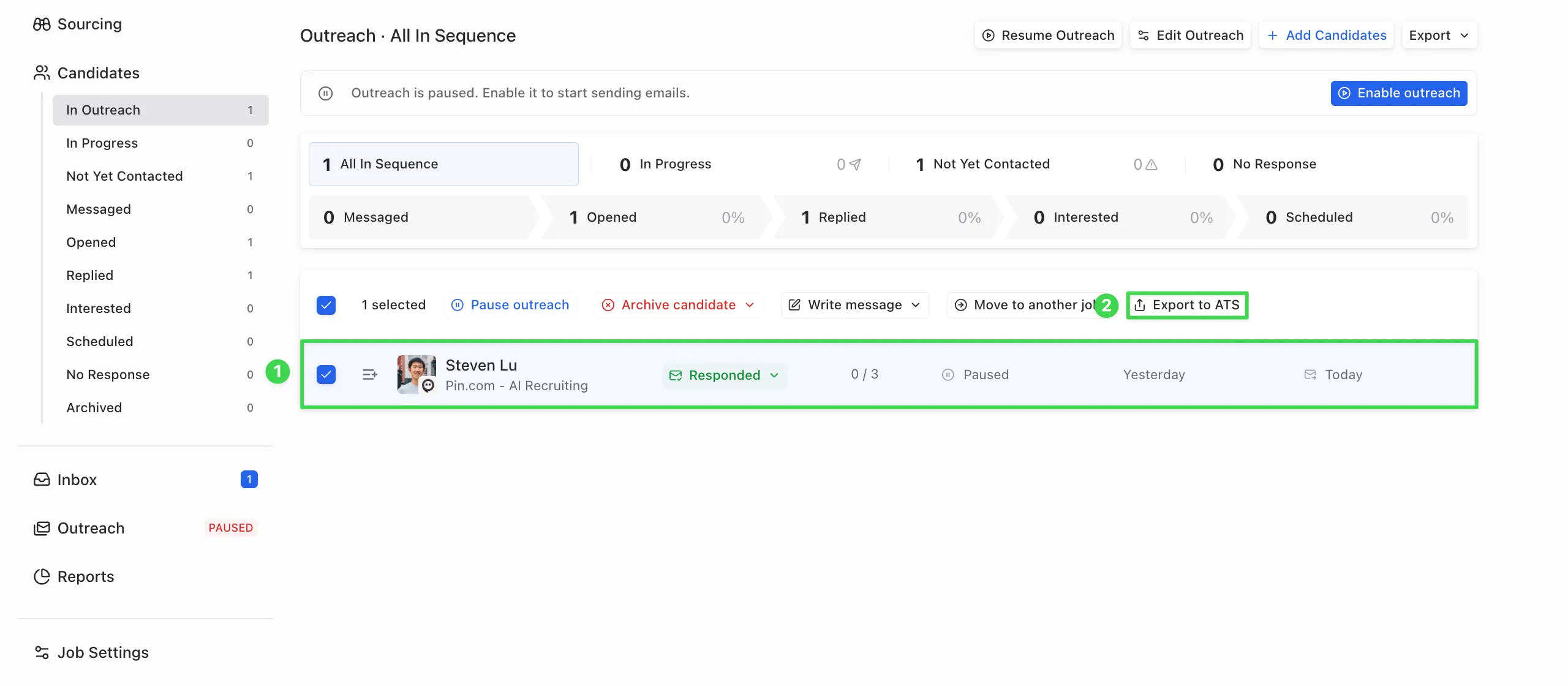
- Select the candidate in Pin.
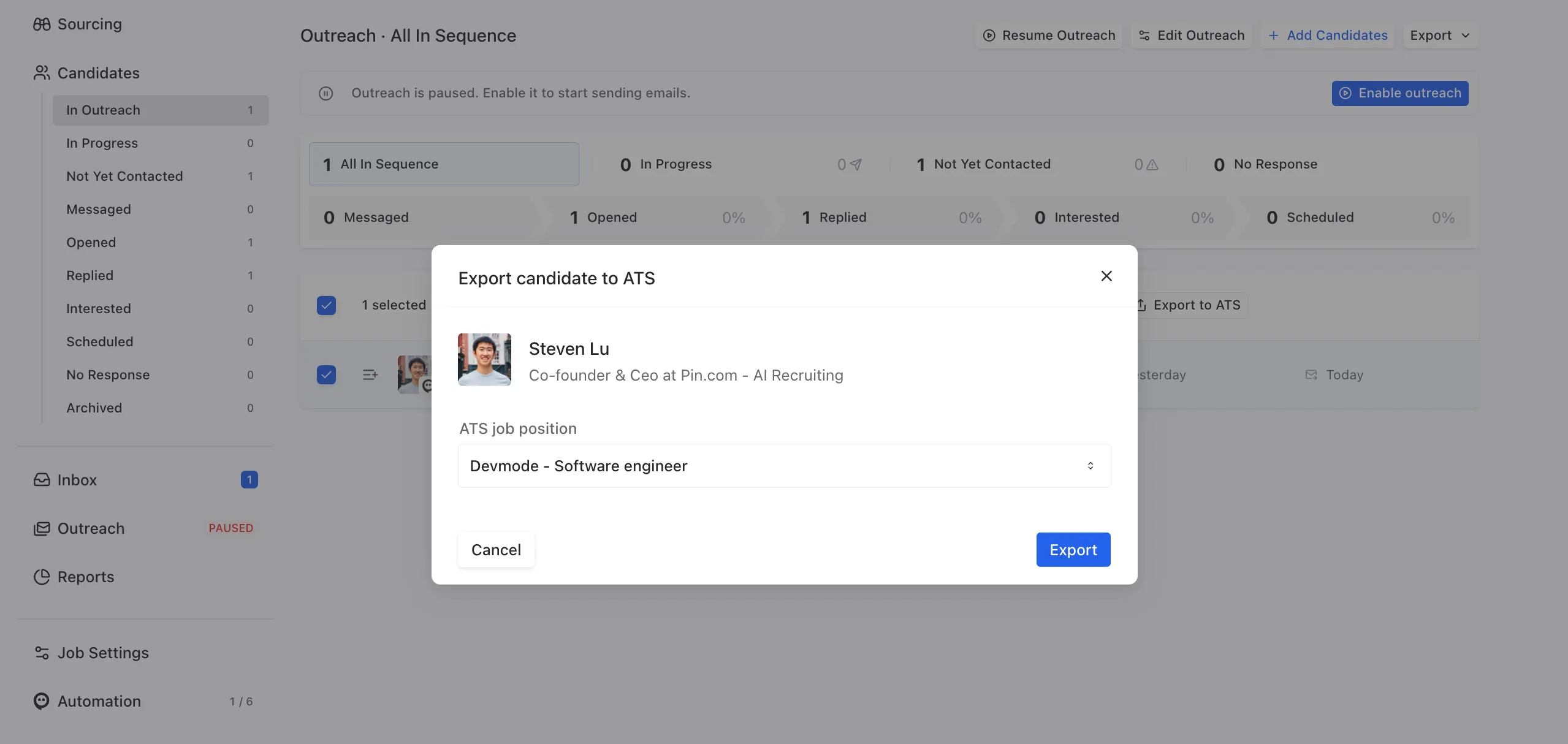
- Click “Export to ATS”.
- Choose the Recruiterflow job you want to sync the candidate to, then click “Export” to complete the sync.
- After exporting, refresh the page, and you should now see the Recruiterflow logo appear on their profile.
Important:
- Once a candidate is synced to Recruiterflow, their contact information cannot be re-synced. If some information didn’t sync, you’ll need to manually update that candidate’s profile in Recruiterflow.
- The "Export to ATS" button only works for candidates who haven’t already synced to Recruiterflow. If an integration was connected after the selected trigger, Pin won’t retroactively sync those candidates. In that case, use the "Export to ATS" button to sync them over.
Candidate data synced to Recruiterflow
The following candidate data will sync to Recruiterflow from Pin:
- Full name
- Phone number
- LinkedIn profile URL
- Location (city, state, country)
- Current and previous roles
- Education
- If the candidate was sourced from Pin
- Which team member sourced the candidate
How Pin checks for duplicates in Recruiterflow
Pin runs a check before syncing whenever a candidate is added to Outreach to prevent duplicate profiles. For Recruiterflow, duplicates are checked against:
- Email address
- LinkedIn URL
If a match is found on either field, Pin will not create a new candidate profile in Recruiterflow.
Add Recruiterflow candidates to Pin
To add Recruiterflow candidates to Pin, export them from Recruiterflow as a CSV, then upload that file to the relevant job in Pin. To avoid import errors, you can download and use Pin’s CSV template, and ensure your column headers and data formats match the template. You can download the CSV template here.
Note: The “ATS Candidates” search filter is not supported on Recruiterflow. The only way to add Recruiterflow candidates to Pin is via CSV import.