
Inviting a team member
2 min
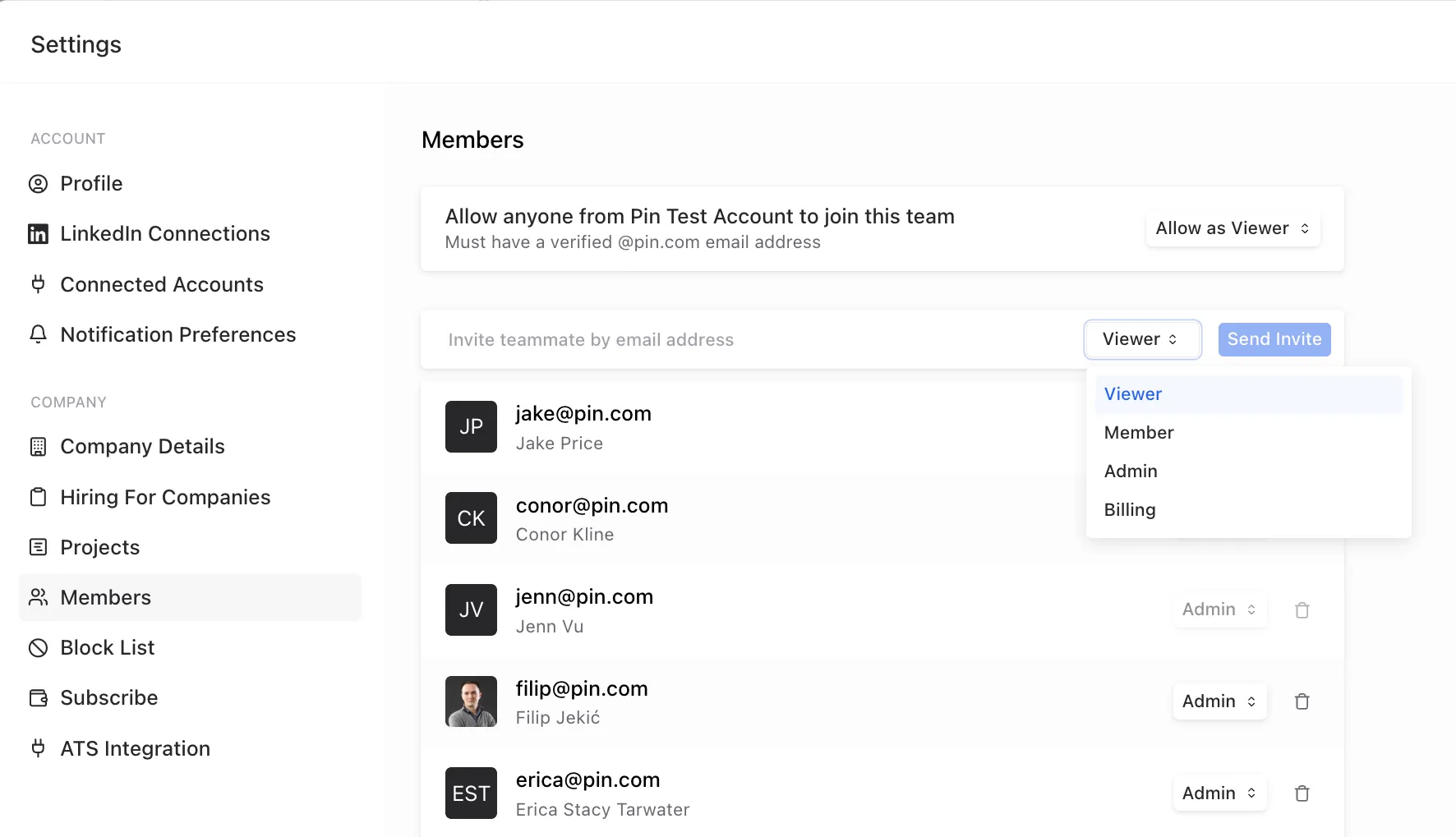
During your account setup, you'll be able to invite team members. If the "Allow anyone from your company to join this org" setting is enabled, they'll need to have a verified email address with your company domain to join.

If you'd like to invite a team member to join later, navigate to Job Settings -> User & Team Settings -> Members. In the Members tab, enter your team member's email address, the role they'll be assigned, and click Send Invite.
User Permissions
After your team member joins, you can update their permission level and assign them the following roles:
- Admin:
- Admin seats are active and billed
- Can source candidates, send outreach, and reply to candidates
- Can make billing changes and manage user roles
- Member:
- Member seats are active and billed
- Can source candidates, send outreach, and reply to candidates
- Billing
- Billing seats are not billed since they are inactive
- Can make billing changes and manage user roles
- Most functions will appear greyed out
- Viewer:
- Viewer seats are not billed since they are inactive
- Can view candidate searches and email sequences, but cannot edit or make any changes
- Most functions will appear greyed out
Note: When inviting a team member, double-check the role they're assigned. If you don’t want to add a paid seat, assign them the Viewer or Billing role.