Source candidates from your LinkedIn network
Search for candidates who are connected to you or your team on LinkedIn — and optionally use those connections as a sourcing filter when building a search.
This article covers two parts of the feature:
- Importing your LinkedIn connections (Settings → LinkedIn Connections)
- Using connections as a sourcing filter (Criteria List → Sourcing Preferences)
1. Importing Your LinkedIn Connections
Before Pin can filter by LinkedIn connections, you need to import your connections list. LinkedIn doesn't offer a direct API for this, so the import is done via a CSV export from LinkedIn's own data request tool.
To import your connections:
- Go to Settings → LinkedIn Connections.
- Go to the LinkedIn data download request page.
- Request your data archive.
- Wait for LinkedIn to email your data (this can take a few minutes to a day or more, depending on LinkedIn's processing time).
- Once you receive the archive, locate the Connections.csv file inside it.
- Back in Pin, click Upload Connections CSV and select that file.
Once uploaded, this panel will show a confirmation like:
292 LinkedIn connections imported
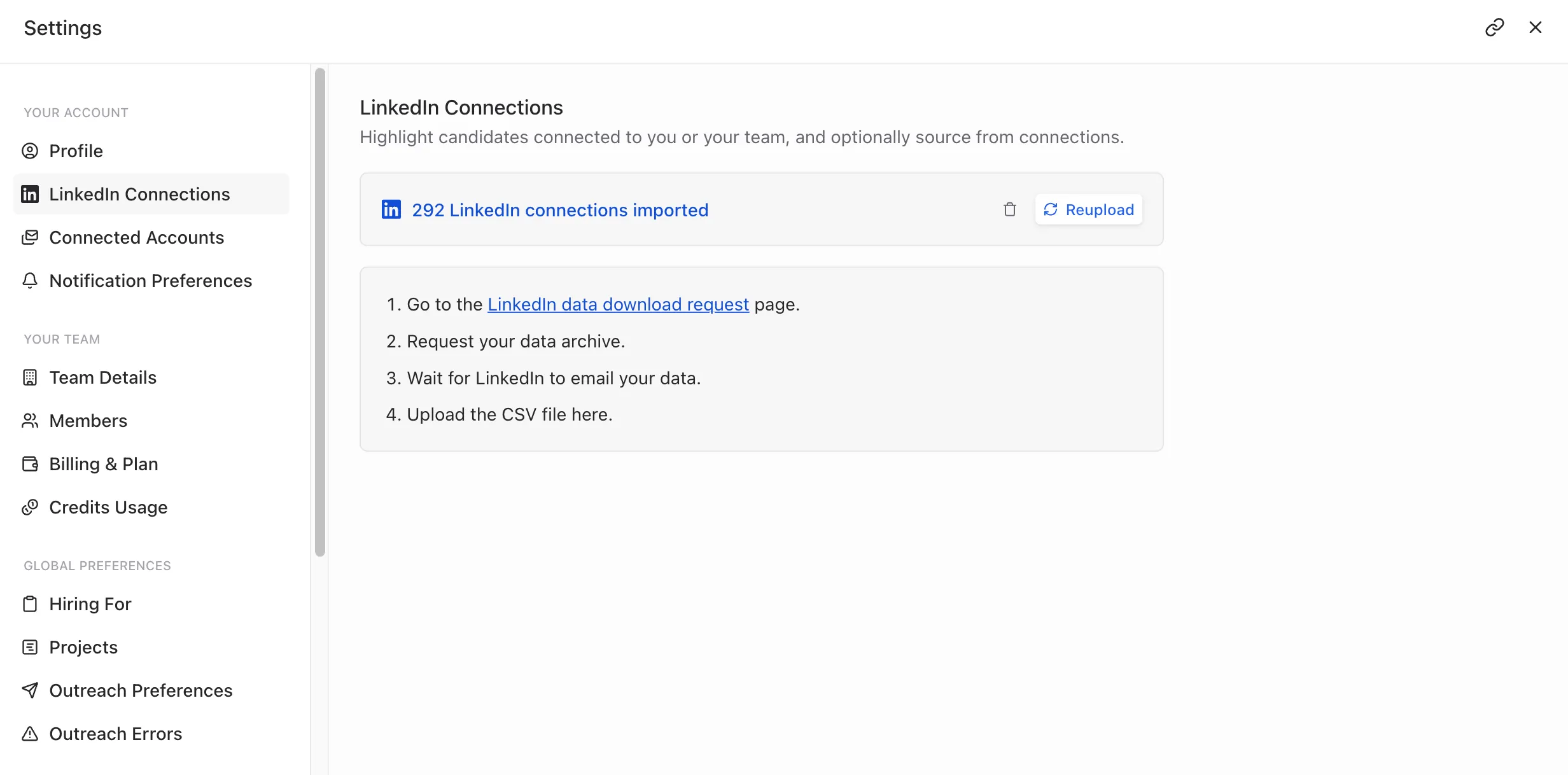
Updating your connections list: Your connections list is a snapshot from the time you uploaded it — it doesn't sync automatically. To refresh it:
- Return to Settings → LinkedIn Connections.
- Click Reupload, and go through the LinkedIn data request steps again with a fresh export.
- To remove your imported connections entirely, click the trash icon next to the import summary.
Note: Each team member can upload their own LinkedIn connections. This is what powers the "Any team member" vs. specific member options in the sourcing filter below.
2. Using LinkedIn Connections as a Sourcing Filter
Once connections are imported, you can use them inside a search's criteria to prioritize or require candidates connected to you or your team.
To set this up:
- Open a search and go to Criteria List.
- Select Sourcing Preferences from the left-hand filter list.
- Find the LinkedIn Connections filter and open it.
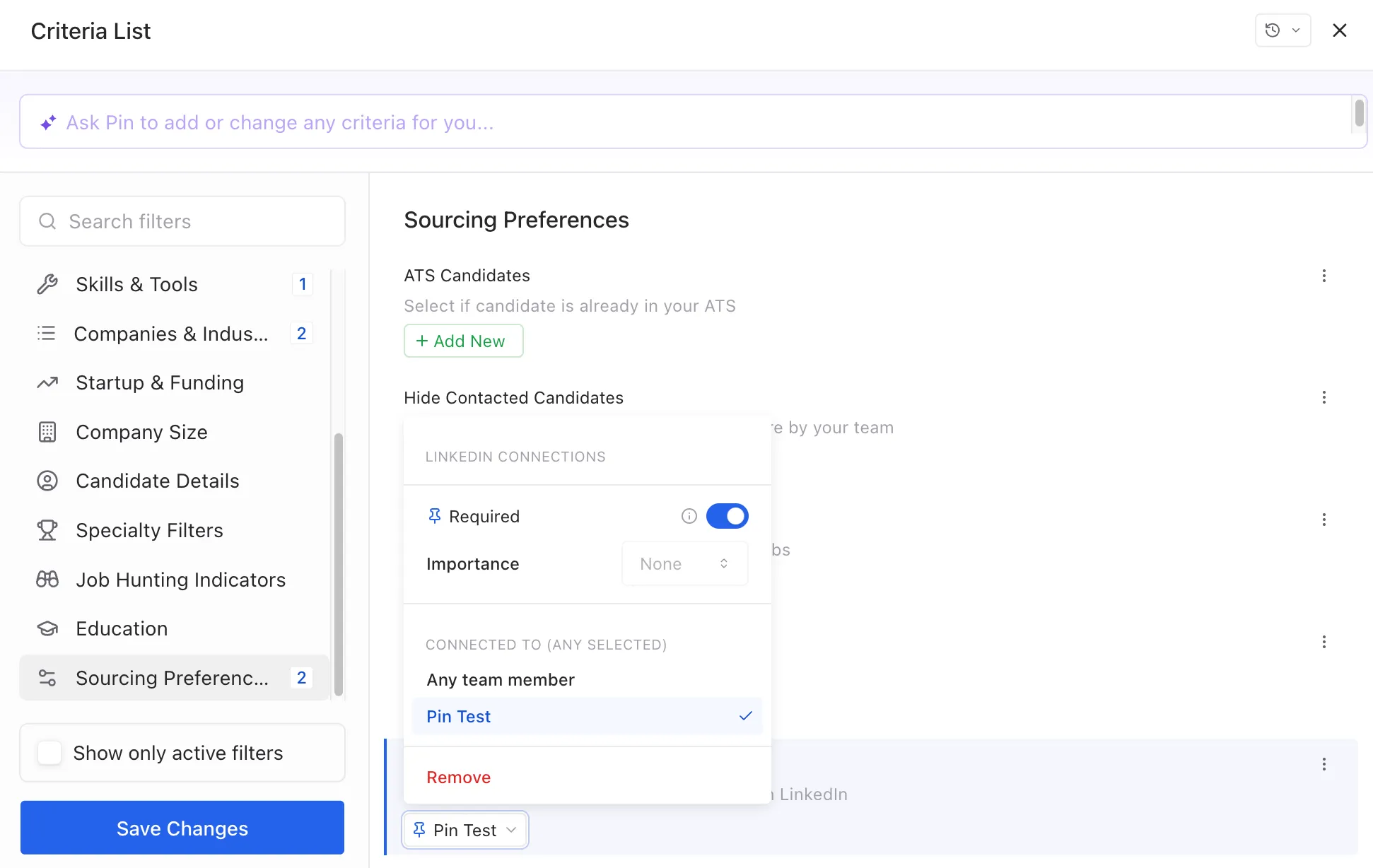
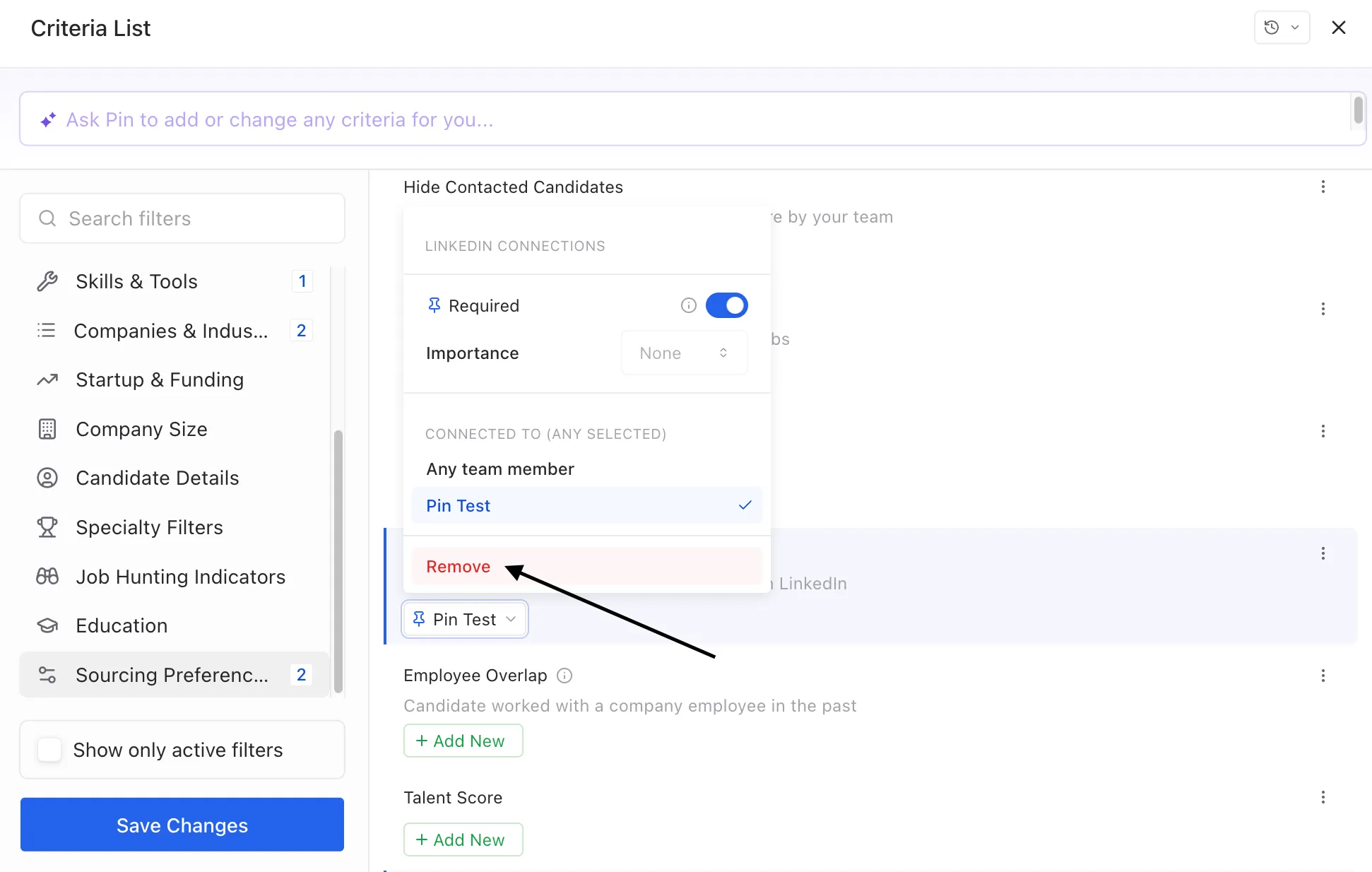
Inside the filter panel, you can configure:
Setting | What it does |
|---|---|
Required (toggle) | When enabled, only candidates connected on LinkedIn (per the criteria below) will be surfaced. When off, this becomes a soft preference rather than a hard requirement — see Importance. |
Importance | Controls how much weight this filter carries in ranking when it isn't marked as Required (e.g., None, Low, Medium, High). |
Connected To | Choose whose LinkedIn connections to check against: Any team member, or a specific member (e.g., a named teammate). Selecting a specific person scopes the filter to only their imported connections list. |
- Select the scope you want under Connected To — for example, choose a specific team member if you only want to match against their network, or leave it on Any team member to match against everyone's imported connections.
- Click away from the popup (or Save Changes at the bottom of the Criteria List panel) to apply it.
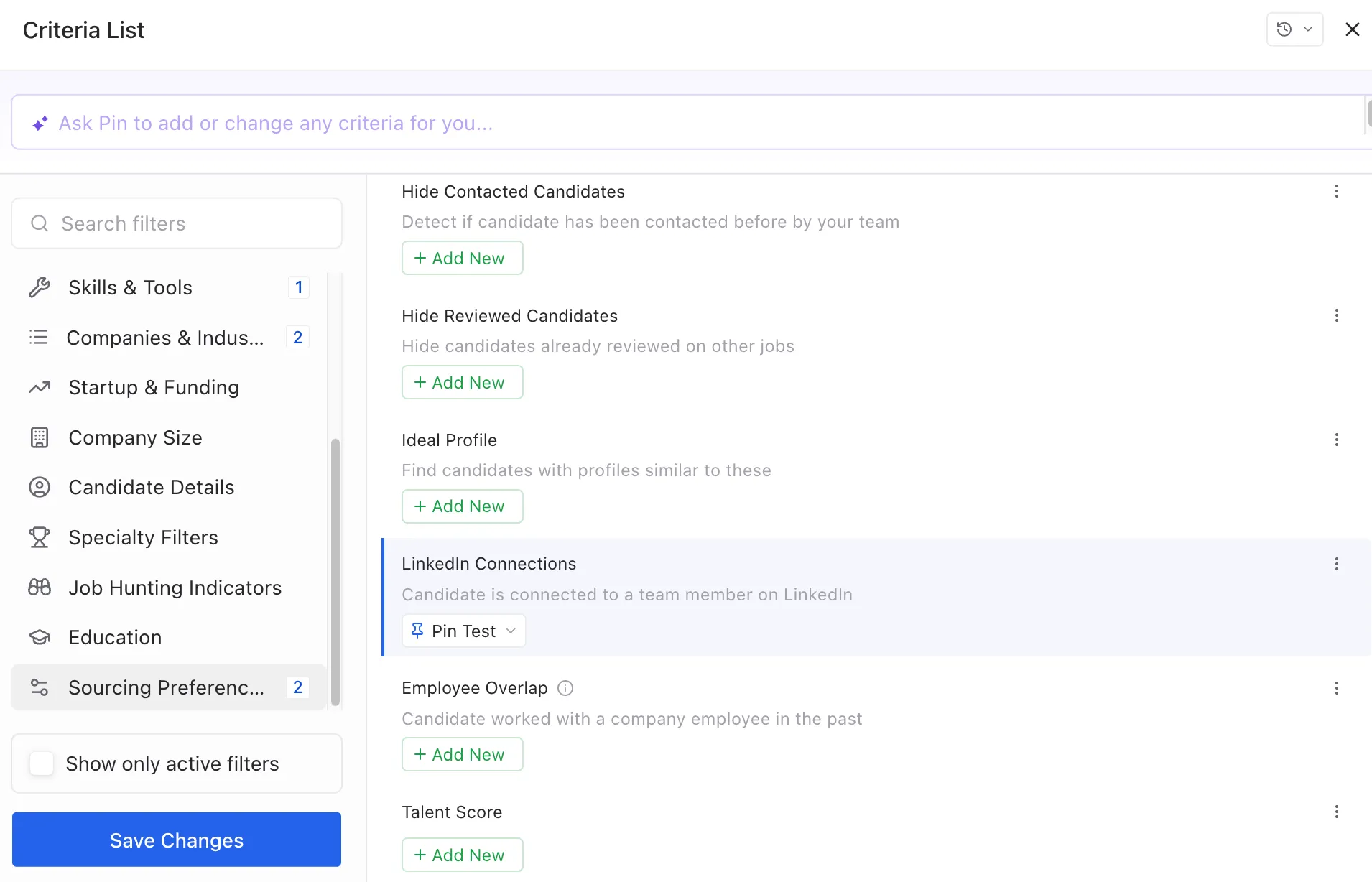
Once set, the filter appears as a chip (e.g., 📌 Pin Test) so you can see at a glance who the filter is scoped to, and reopen it to adjust.
To remove the filter: open the LinkedIn Connections panel again and click Remove.