Create and customize Outreach sequence
This guide covers:
Generating your sequence with AI
Add custom instructions for the AI to create your outreach sequence such as guidance for tone, length, follow-ups, CTA, etc.
Here’s how to quickly create an outreach sequence with AI:
Creating your sequence manually
The "Write sequence manually" feature lets you create your outreach message from scratch. You can personalize it by adding variables like the candidate's first name, current company, date, and more.
Creating your sequence using a previous job
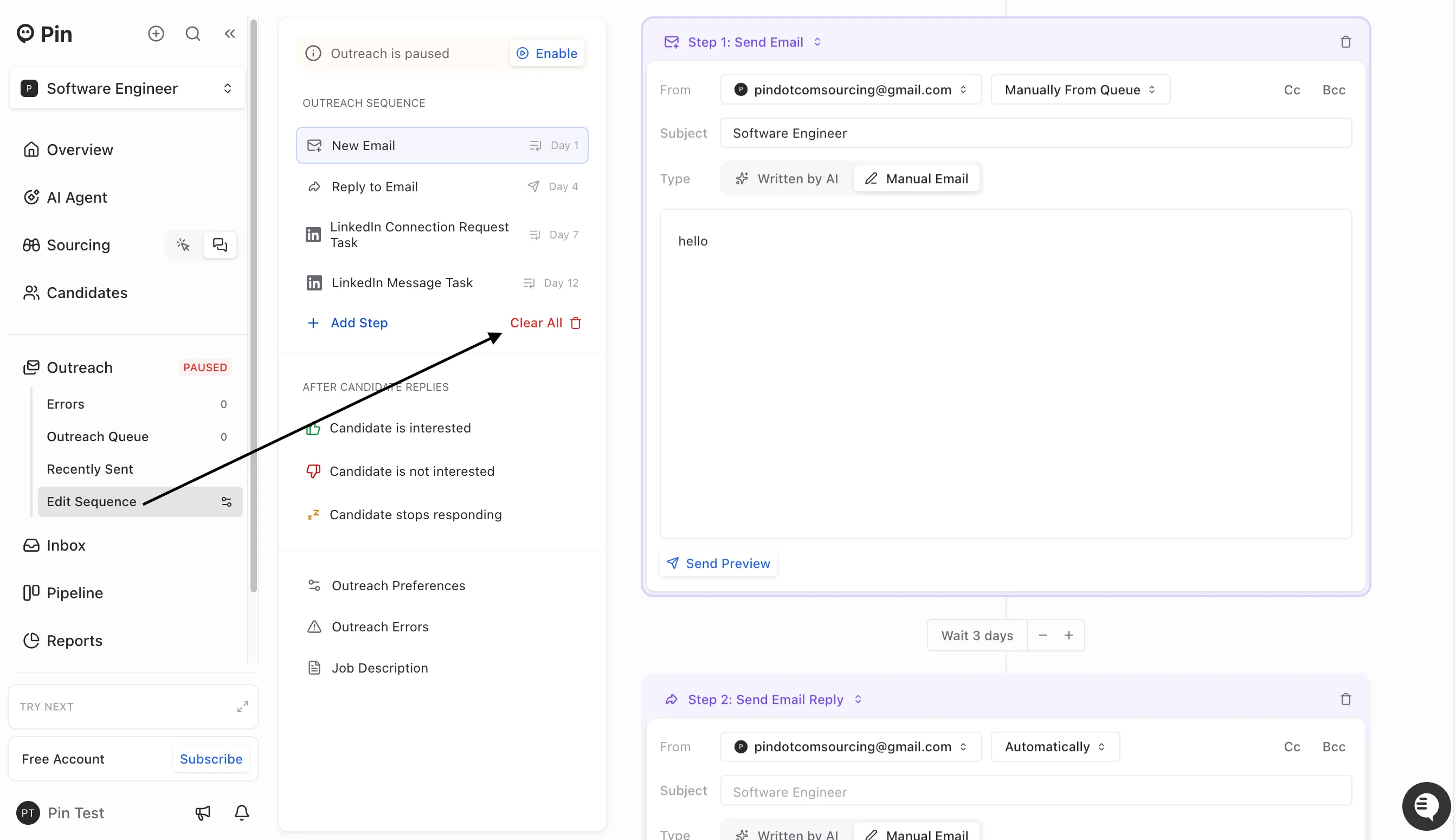
If you have an existing job, you can copy the outreach sequence instead of starting from scratch. Before you can copy an outreach sequence, you have to
Here’s a quick walkthrough on how to copy an existing sequence to a new job:
First, ensure that you clear your outreach steps:
Outreach step options
When adding outreach steps, you can choose from the following options:
- Send email automatically – Emails will be automatically sent when the Outreach sequence is active
- Send email manually from queue – Every email will require you to manually review and approve
- Manual task – Manual tasks can be text messages, phone calls, or reminders of tasks that you want to include in your workflow
- Call/Voicemail Drop – This step lets you automatically search for a candidate’s phone number if you’d like to place a call or leave a voicemail.
- Text Message – This step allows you to automatically search for a candidate’s phone number if you plan to send a text message.
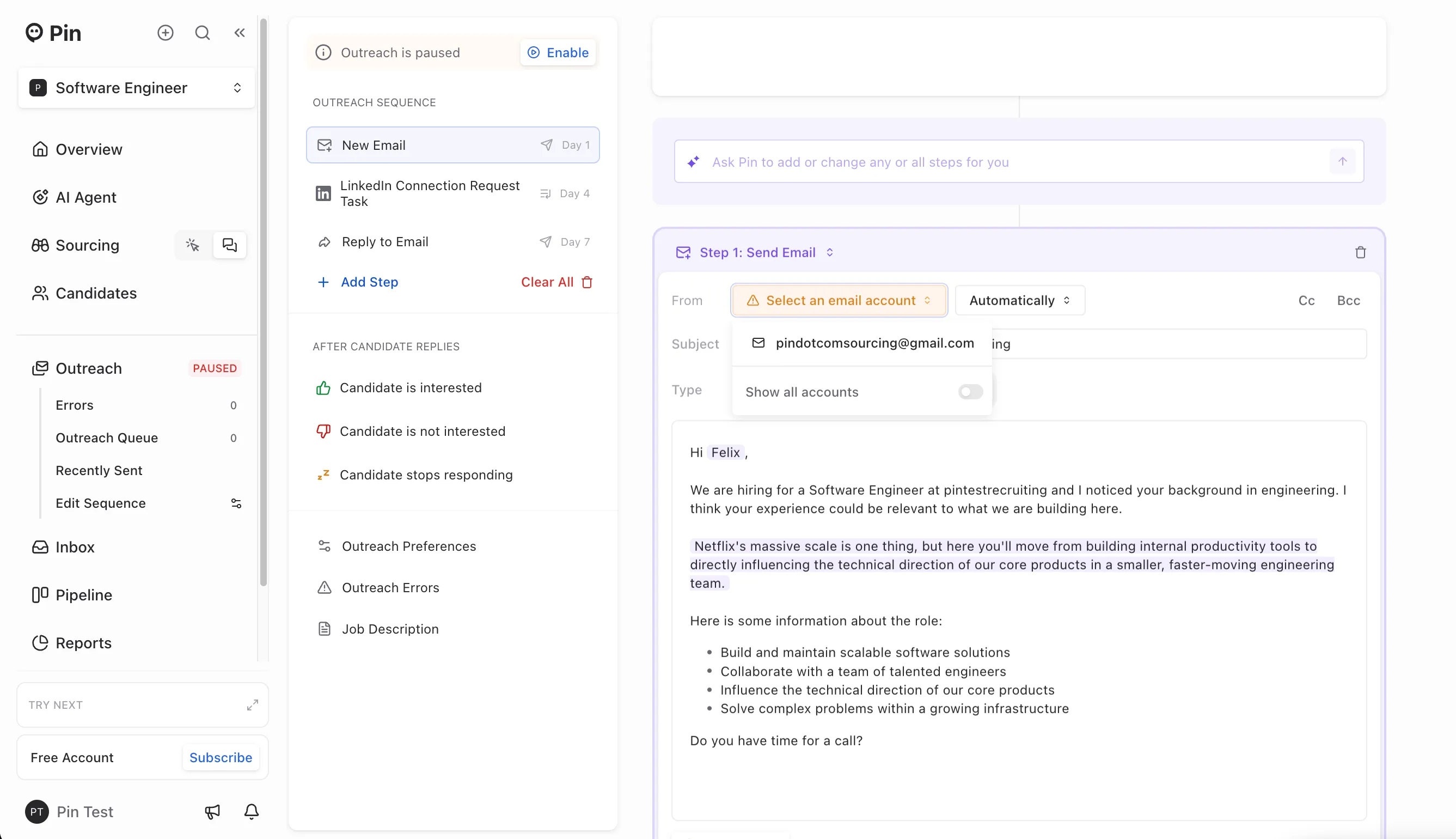
Choosing a sender for Outreach steps
For each Outreach step, you can select who the sender is in the "From" drop-down menu. If you'd like to use a different email to send Outreach steps from, you can add it in your Connected Accounts.
Automating candidate replies
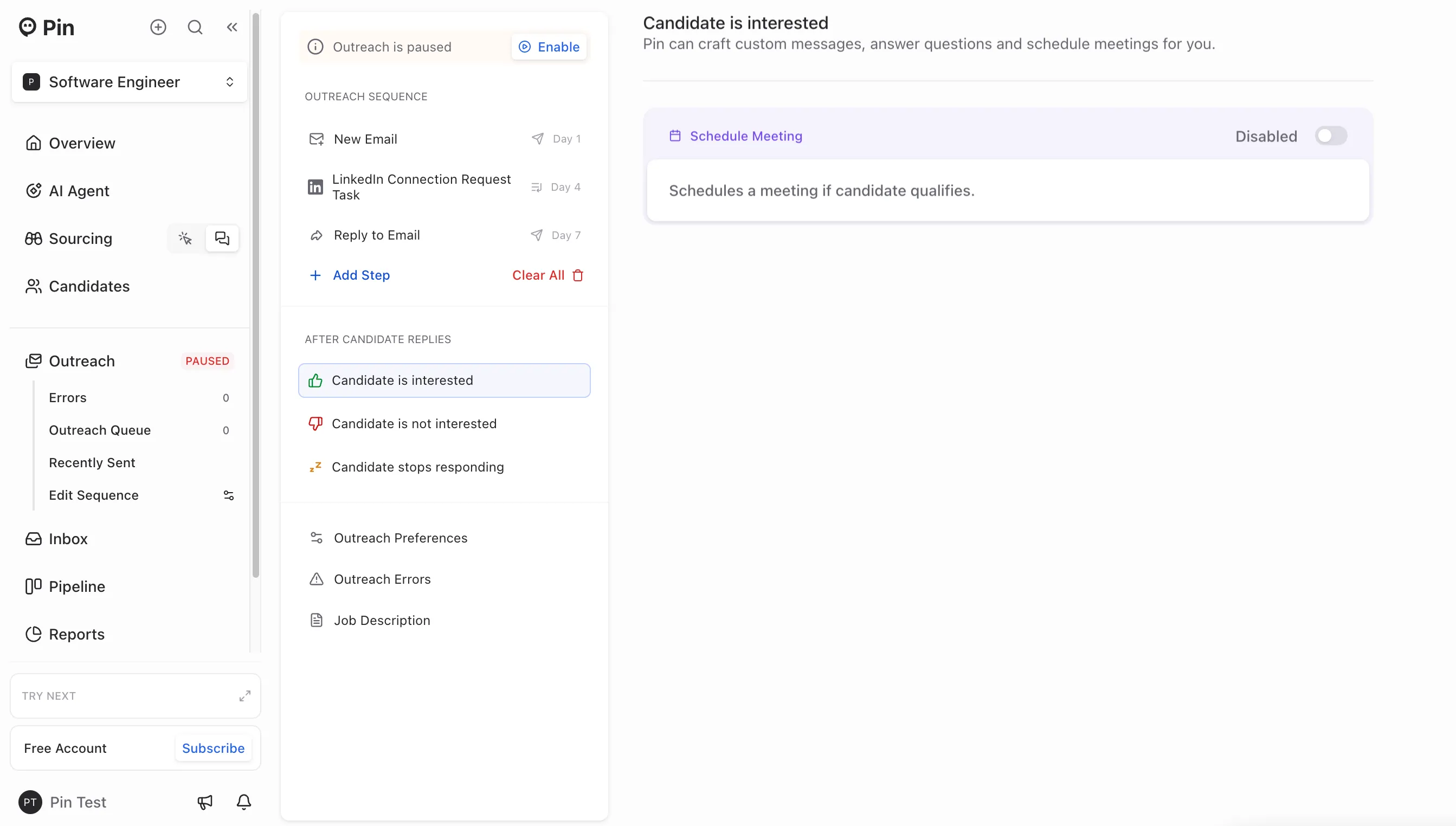
When a candidate is interested
Enable Schedule Meeting to automatically book a meeting based on your availability when a candidate replies and shows interest.
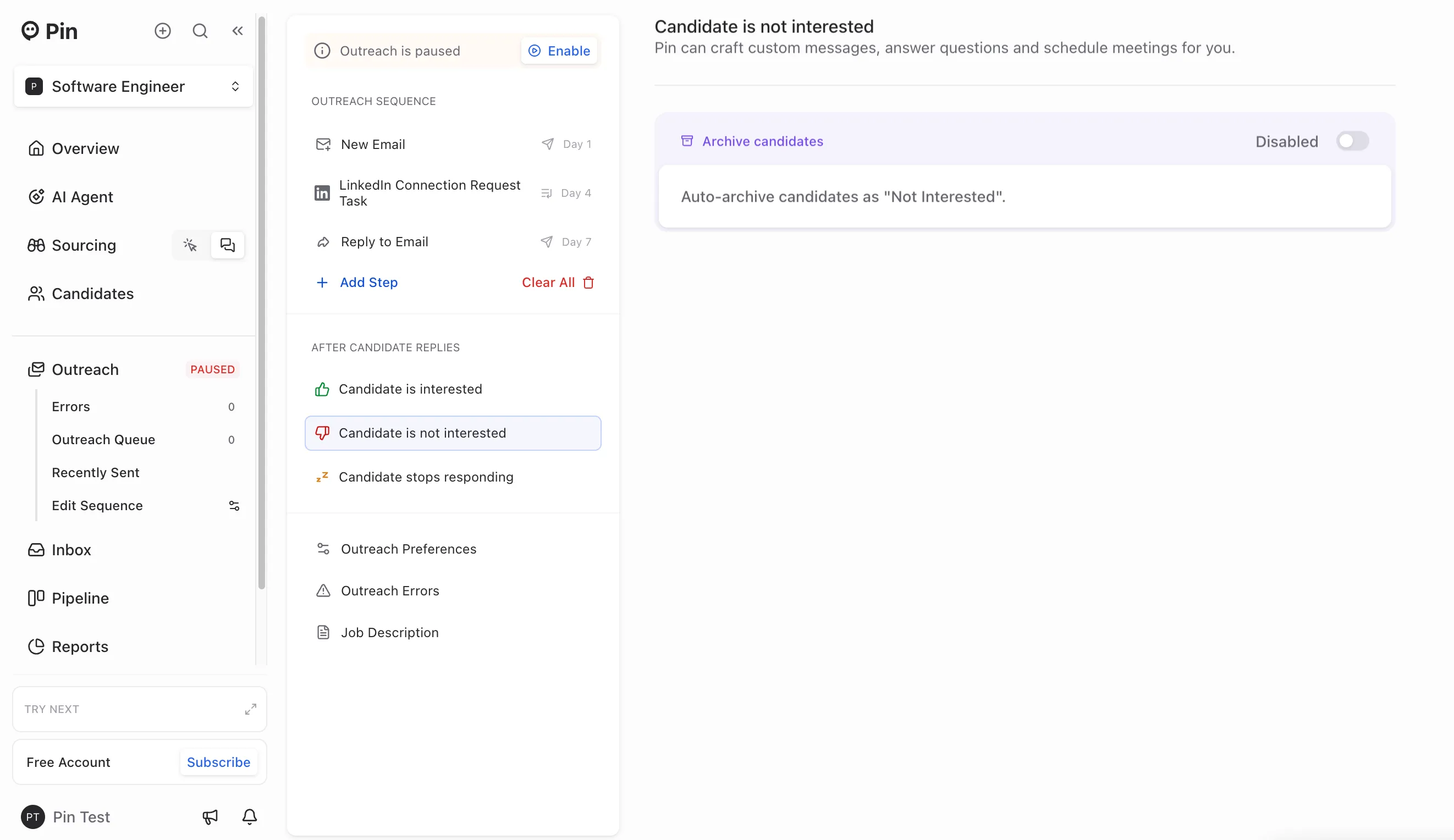
When a candidate is not interested
Enable Archive Candidates to automatically move candidates who say they're not interested into the "Not Interested" status.
When a candidate stops responding
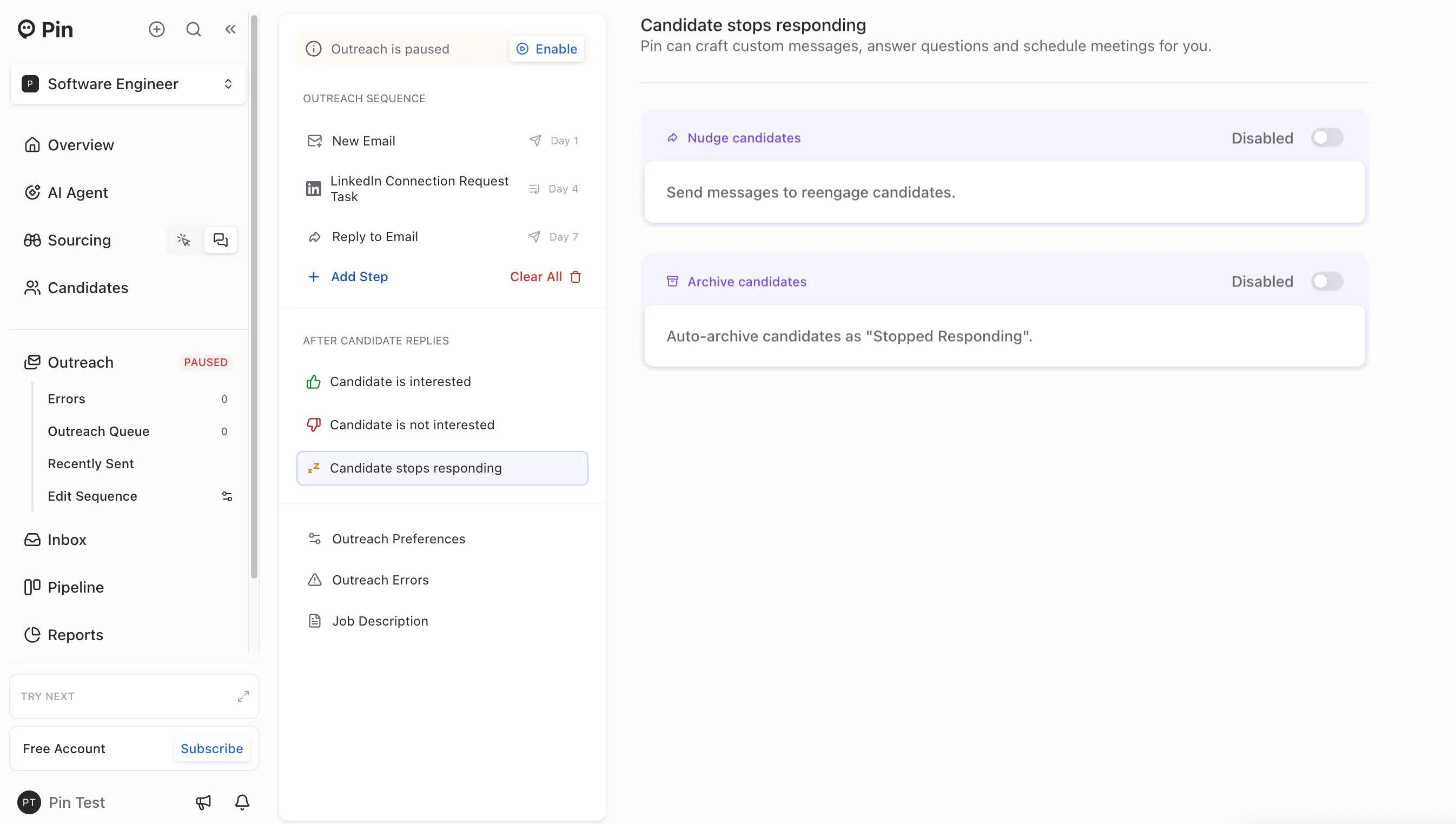
Enable Nudge Candidates to automatically send follow-up messages when a candidate stops responding.
Enable Archive Candidates to automatically archive candidates who stop responding into the "Stopped Responding" status.
Customizing Outreach preferences
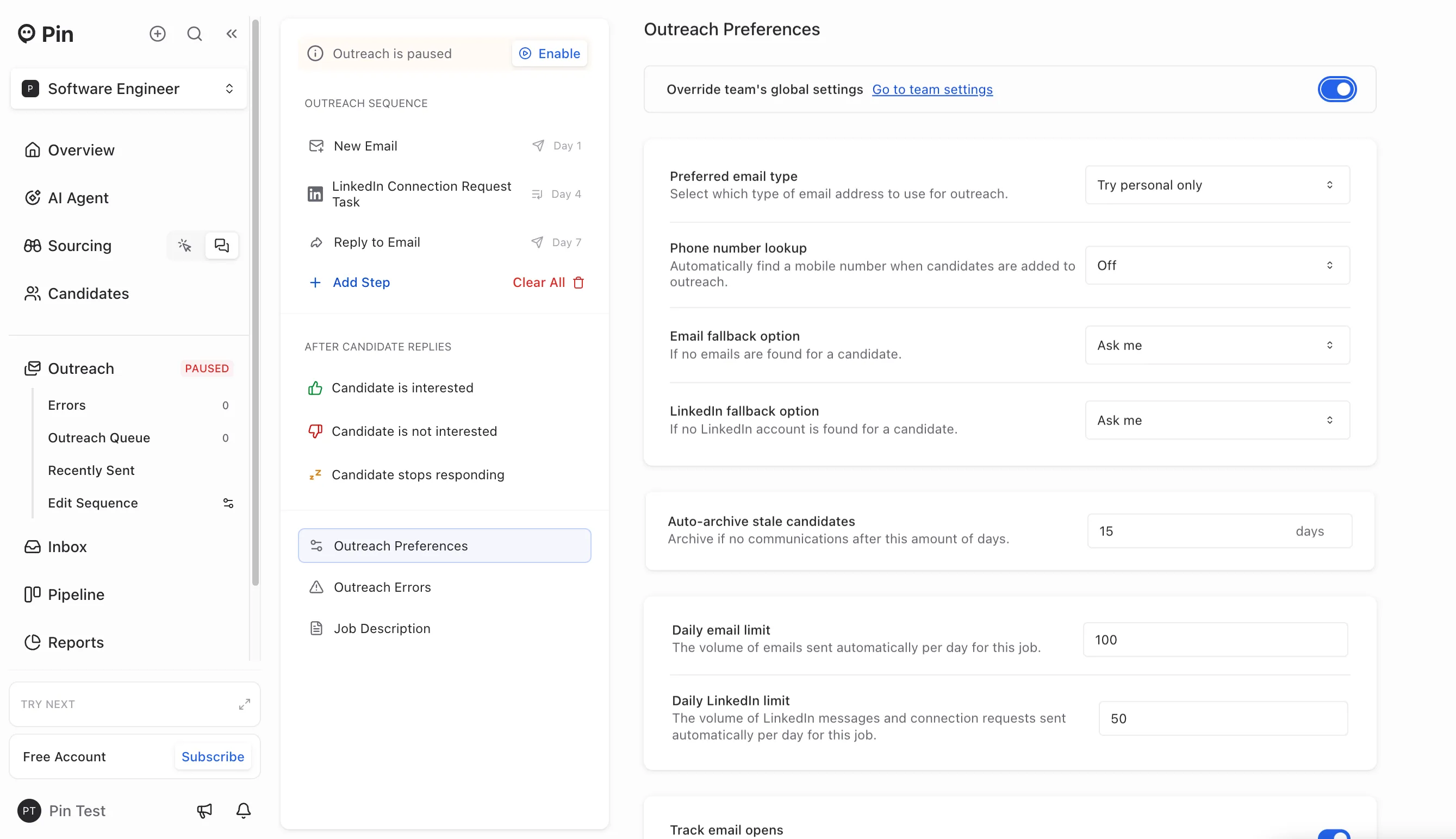
You can customize your Outreach preferences by clicking "Outreach Preferences". From there, you can adjust the following settings:
- Preferred email type – Choose the type of email address you want Pin to prioritize when running lookups:
- Try personal only – Pin will only search for personal emails
- Try personal first, then work – Pin will try to find a personal email first, and fall back to a work email if none is found.
- Try work only – Pin will only search for work emails
- Try work first, then personal – Pin will try to find a work email first, and fall back to a personal email if none is found.
Important: It's important to set up each sequence’s email lookup preference before adding candidates to Outreach so Pin finds the right type of email.
- Email fallback option – Choose the action that Pin will perform when an email is not found:
- Skip to next step – If Pin can’t find an email for the candidate, they’ll automatically move to the next step in the sequence.
- Ask me – If Pin can’t find an email for a candidate, they’ll be marked with a “Missing email" status. You’ll then have the option to manually add an email, skip to the next step, archive the candidate, or export to your ATS (if connected).
- Auto-archive stale candidates – Automatically archive candidates after a set number of days with no activity or response
- Daily outreach limit – Set the maximum number of outreach emails Pin can send per day per job
- Track email opens – Enable open tracking to see when candidates open emails sent through Pin.
- Track email link clicks – Enable click tracking to see when candidates interact with links in your emails. Pin will automatically rewrite links to track click activity. Note: Enabling click tracking may increase the risk of emails being marked as spam by Google and other providers.
- When to send automatic emails – Set the days and time blocks for email sending. You can split time blocks to exclude specific hours.
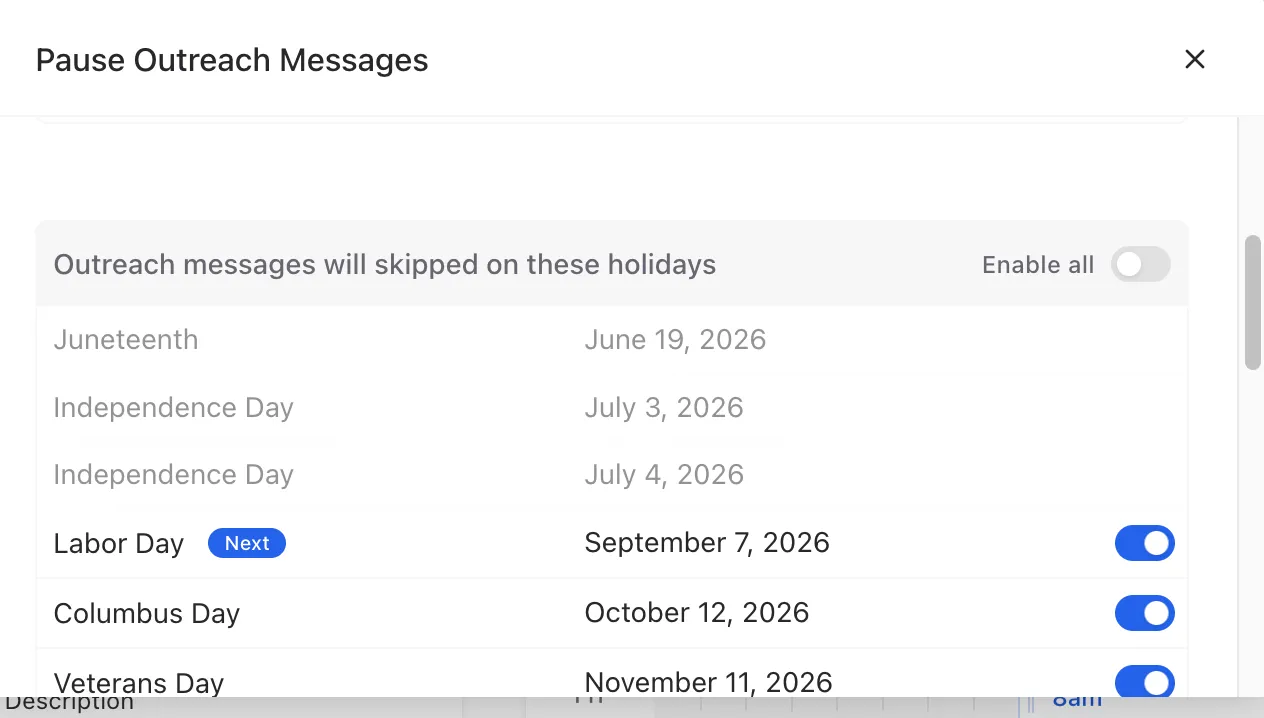
- Pause outreach messages on holidays & custom dates – Automatically pause email sending on U.S. federal holidays and add specific dates to pause email sending
Frequently Asked Questions
Q: Can I add an attachment? A: No, Pin does not support attachments in Outreach sequences. As a workaround, you can upload the file online and add the URL link in your outreach.
Q: How do I change the settings to outreach for holidays?
A: Click on your job->Outreach->Edit Sequence->Outreach Preferences->scroll down and click Manage Dates.
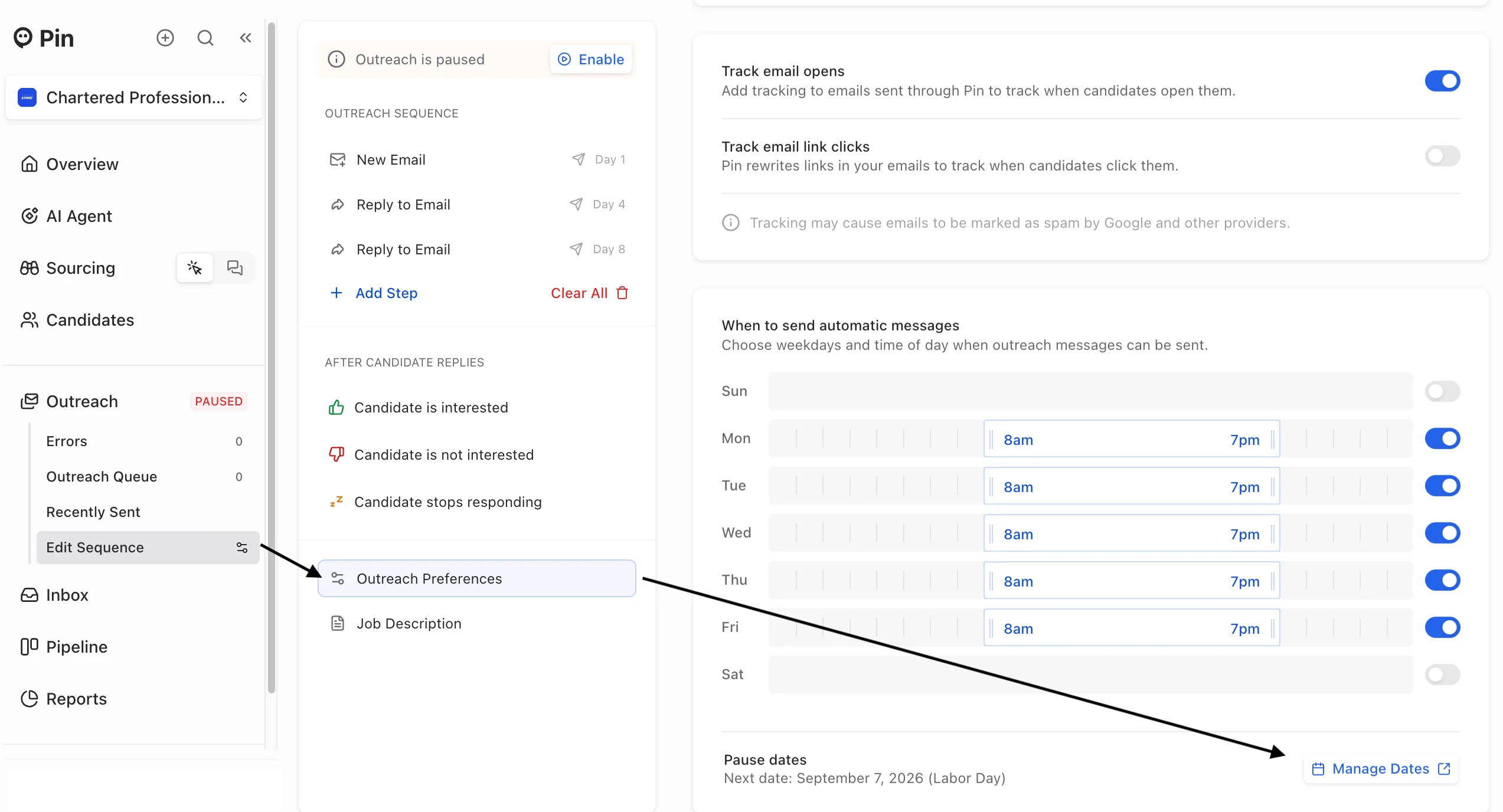
Ensure you scroll down on the pop up to enable and disable holidays