
How to run candidate searches
This guide covers:
Tips for getting better search results
Here are some tips we recommend to generate better search results.
- Clearly define the role and requirements by including details like:
- Job titles
- Required technical and soft skills
- Relevant industry or domain experience
- Necessary certifications, licenses, or formal training
- Specify experience and tools by outlining:
- Minimum years of experience
- Key tools, platforms, or methodologies candidates should be familiar with
- Use “Required” fields thoughtfully Only mark criteria as “Required” when it's necessary, since overusing them can limit your candidate pool. Being flexible allows Pin to surface more relevant matches.
- Actively accept or decline candidates After ~10 decisions, Pin can suggest smart refinements to your search.
Sourcing engine filters
Sourcing Preferences:
- AI Evaluation – Ask questions to help evaluate candidates
- ATS Candidates – Filter candidates already in your ATS. If your ATS integration doesn’t support this, you’ll see a note when adding the filter.
- Ideal Profile – Add LinkedIn profile URLs of candidates that are an ideal match/fit for the job and that you want to find similar profiles to
- LinkedIn Connections – Source candidates from your LinkedIn network who are connected to you or your team members.
- Employee Overlap – Filter for candidates who have previously worked with your current team. You can also adjust how far back you want to search for past connections.
Candidate Experience:
- Job Titles – Filter by current or past job titles
- Seniority – Filter by seniority level (Entry, Regular, Senior, Manager, Director, VP, Owner, or CXO)
- Years of Experience – Set the minimum and/or maximum years of experience you’d like candidates to have
- Location – Add current and/or past locations, and set a search radius of up to 50 miles around each location Note: Candidate searches are currently supported only for candidates based in the
- North America (Canada, United States, Mexico, and select countries in the Caribbean, etc.),
- Central America (Costa Rica, Belize, El Salvador, etc.)
- South America (Brazil, Argentina, Colombia, etc.),
- Europe (United Kingdom, France, Germany, etc.),
- Australia and New Zealand,
- United Arab Emirates (Abu Dhabi, Dubai, Sharjah, etc.),
- Israel, and
- India.
- Skills & Tools – Specify the technical skills, soft skills, and relevant industry experience you’re looking for
- Tenure – Filter by the time candidates have spent in their current role or by their average tenure across all roles
Work Positions:
- Departments – Highlight the departments that are relevant to the roles you’re hiring for
- Company Name – List the companies you want to target candidates from, or choose from preset lists like AM Law 100, Big 4 Accounting Firms, or Y Combinator companies
- Industry – Narrow your search by adding industries such as tech, healthcare, or finance, to find candidates with the right domain experience
- Startup Experience – Choose from presets to find founders, advisors, YC alumni, and others with reputable startup experience
- Funding Round – Select presets such as current funding round, funding round during the candidate’s tenure, or at joined/left, and pick the stages (from pre-seed to acquired) that you’d like to target
- Headcount – Filter by presets such as current headcount, headcount during tenure, or headcount joined/left, along with the number of employees for each
- Investors – Target candidates with past, current, or any employers with notable investors
Candidate Details:
- Timezone – Select candidates by their timezone
- Languages – Specify the spoken languages you’re looking for in candidates
- Demographics – Filter by gender, ethnicity, or veteran status to surface underrepresented talent
- Visa Requirements – Search for candidates based on whether they require visa sponsorship
- Employment Status – Target candidates based on their current employment status
- Social Accounts – Find candidates with social profiles on LinkedIn, GitHub, X, Facebook, Dribble, and Behance
Specialty Filters:
- Job Hunting Indicators – Identify candidates likely open to new roles based on career and company signals
- Excellence Indicators – Surface candidates with standout achievements
- Security Clearance – Find candidates who meet clearance requirements for sensitive roles
Education:
- School Attended – Search for candidates who attended specific schools
- Graduation Year – Pinpoint candidates who graduated within a specified timeframe
- Years of Education – Identify candidates with a set number of years in school
- Level of Education – Filter candidates by degree level
- Major – Target candidates who studied a particular major
- Minimum GPA – Screen for candidates who meet your GPA threshold
- Certificates – Discover candidates with relevant certifications
You can also set whether the criteria should be required:
- Required – If you mark a criteria as “Required,” candidates who don’t match it will not show up in your results. Use this setting carefully so you don’t miss out on potential candidates.
How Pin’s search filter logic works
When you build a search in Pin, it’s important to know how multiple filters and values combine to find candidates. Here’s a quick guide to help you understand which filters use AND logic vs OR logic.
Filters that use AND logic
These filters require candidates to match all values you specify in that filter to surface precise matches.
- Skills: Candidates must have all the skills you add (e.g., React AND Node.js).
- Majors + Degrees: Each pair combines using AND (e.g., Computer Science AND Bachelor’s). Multiple pairs are grouped with OR: (CS + Bachelor’s) OR (Economics + Master’s).
- Headcount Joined/Left: Finds candidates who joined a company at one headcount size and left at another, using AND logic.
- Funding Round Joined/Left: Finds candidates based on the company’s funding stage at the time they joined and when they exited, using AND logic.
Note: At the top level, different filter categories (like combining skills + location) are also linked by AND, so candidates must satisfy each filter category you add.
Filters that use OR logic
For these filters, candidates only need to match any one of the values you specify in that filter, which helps broaden your search.
- Job Titles
- Years of Experience
- Location
- Tenure
- Departments
- Company Name
- Industry
- Startup Experience
- Funding Round
- Headcount
- Investors
- Timezone
- Languages
- Demographics
- Employment Status
- Social Accounts
- Job Hunting Indicators
- Excellence Indicators
- Security Clearance
- School Attended
- Graduation Year
- Years of Education
- Level of Education
- Minimum GPA
- Certificates
Excluding job titles
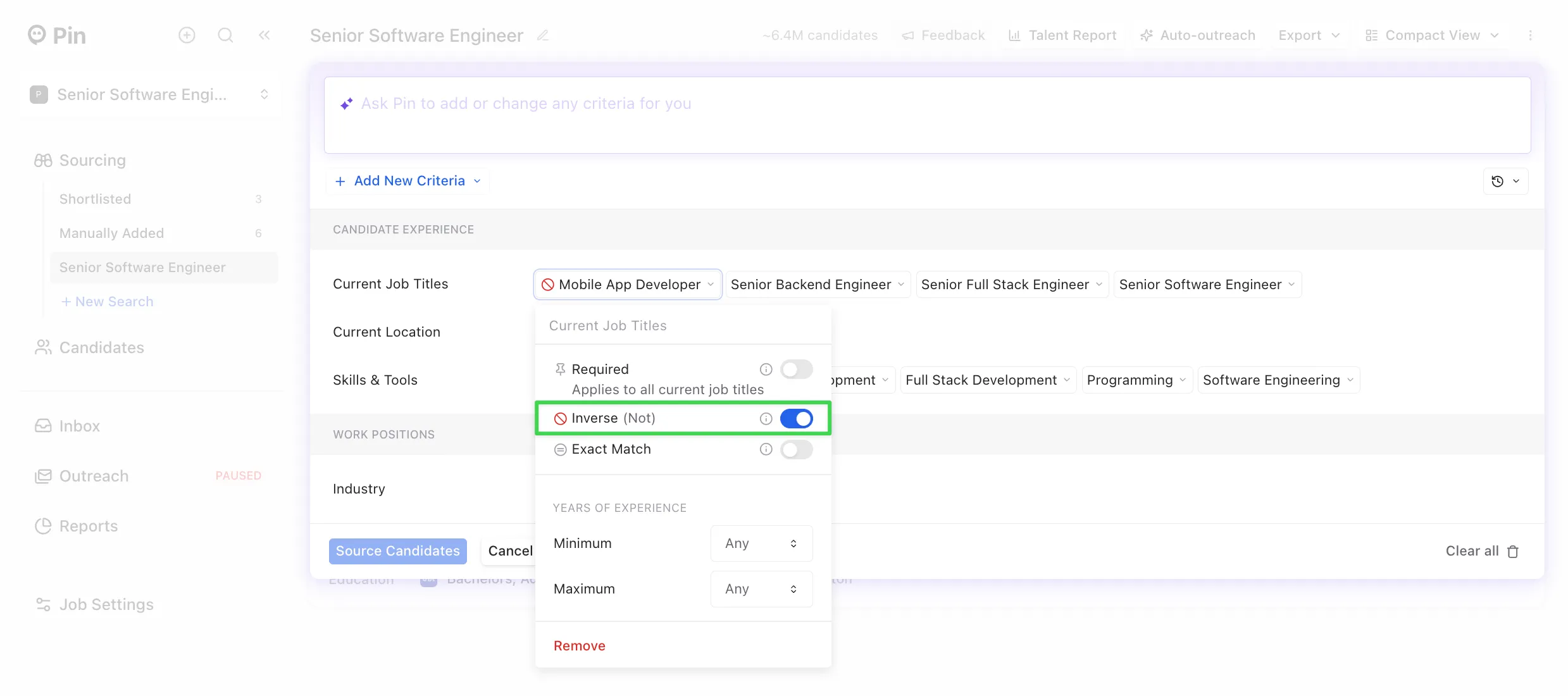
If there's a job title you'd like to exclude from your search, add the title and select the "Inverse (Not)" option. Be sure to enter precise job titles (e.g., “Account Manager”) rather than general ones (e.g., “Manager”), as vague titles may return unrelated results.
Creating preset lists
You can create preset lists for companies, investors, and schools. Check out our quick tutorial below on how to do this:
Cloning candidate searches
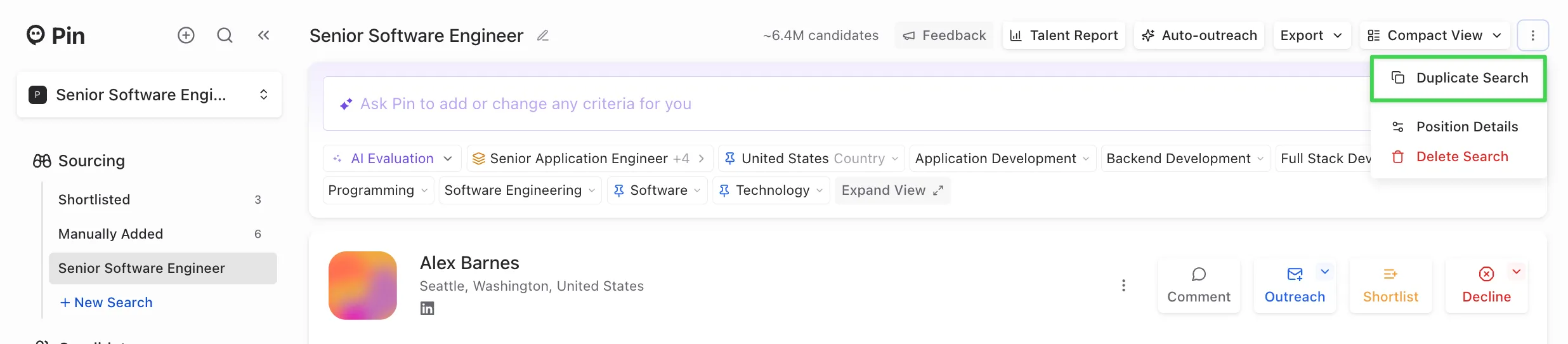
To clone your search, click on the drop-down menu and select "Duplicate Search".
You can clone your candidate search to create a new one with the same criteria pre-filled. From there, you can add or remove specific criteria to refine your results.
Copy and pasting a candidate's resume into search
If there's a candidate whose resume aligns closely with the requirements and experience you're looking for, you can copy and paste their resume into the search so the sourcing engine populates better skills/tools and expands the data.