
Autopilot: Pipeline and Outreach Automations
Managing replies with Pipeline and Outreach Automations
When a candidate replies to your outreach, Autopilot adds them to your job's Pipeline, where you can track every conversation from first reply to hire. With Outreach Automations turned on, Autopilot can also handle the back-and-forth for you: answering candidate questions, coordinating interview times, nudging candidates who go quiet, and archiving those who aren't interested.
This guide covers how the Pipeline board works, how to configure Outreach Automations for your whole team or a single job, and how Autopilot keeps you in the loop through Slack.
How it works
- A candidate replies to your outreach sequence and lands in the job's Pipeline.
- Autopilot reads the reply and moves the candidate through stages as the conversation progresses (for example, from Replied to Qualifying).
- Depending on your Outreach Automations settings, Autopilot replies on your behalf, sends a scheduling link, or books a meeting directly on your calendar.
- If a candidate asks something Autopilot can't answer from what it has on file, Autopilot asks you (for example, via Slack) instead of guessing.
The Pipeline board
Open a job and select Pipeline from the left sidebar.
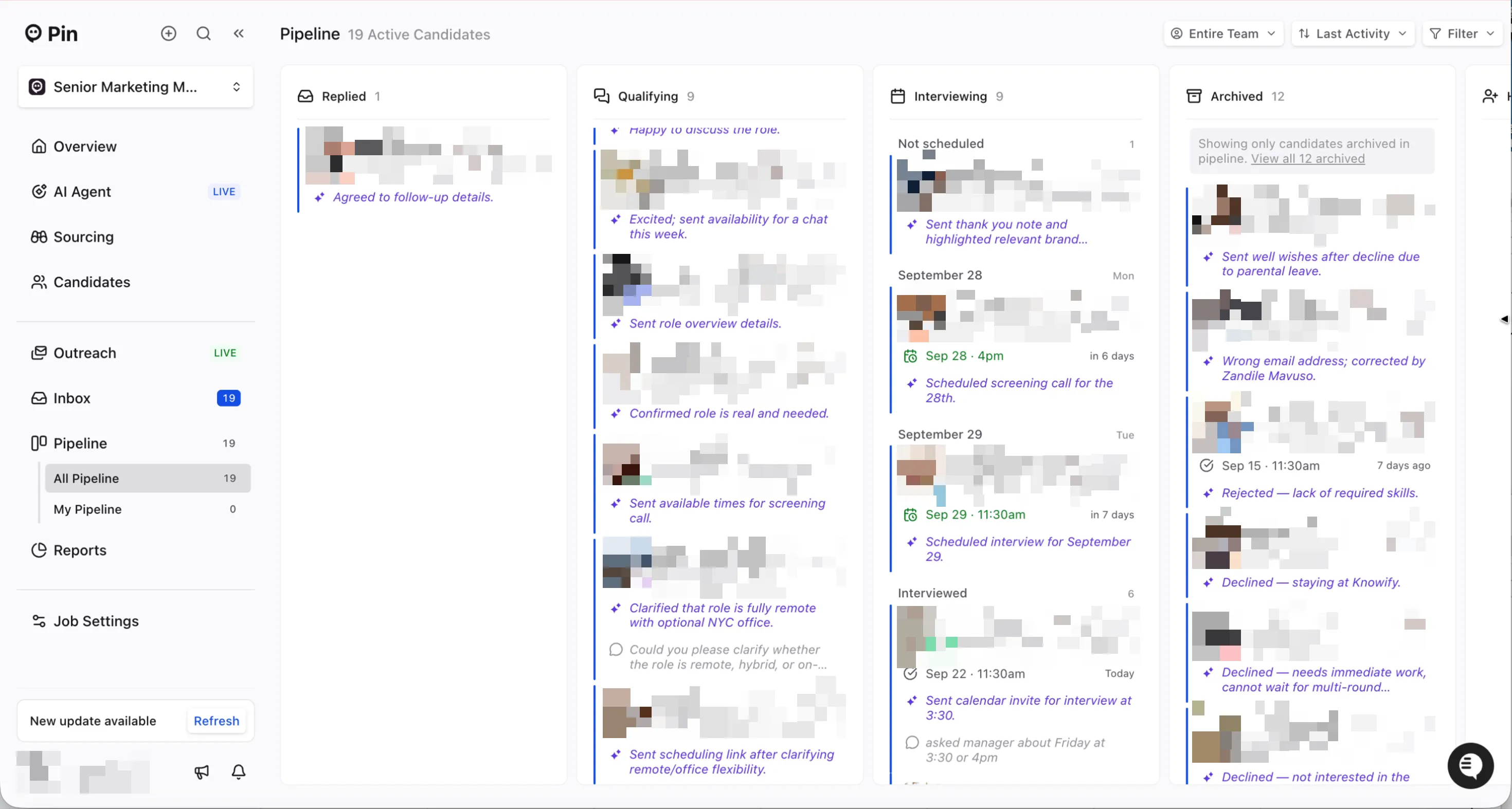
Candidates are organized into columns by stage:
Stage | What it means |
|---|---|
Replied | The candidate has responded to your outreach. |
Qualifying | Autopilot (or your team) is confirming interest, fit, and availability. |
Interviewing | A meeting is being arranged or has taken place. Cards are grouped into Not scheduled, upcoming meeting dates, and Interviewed. |
Archived | The candidate is no longer active, e.g., not interested, declined, or rejected. This column only shows candidates archived from the Pipeline; click View all archived to see every archived candidate on the job. |
Hired | The candidate has been hired. |
Reading a candidate card
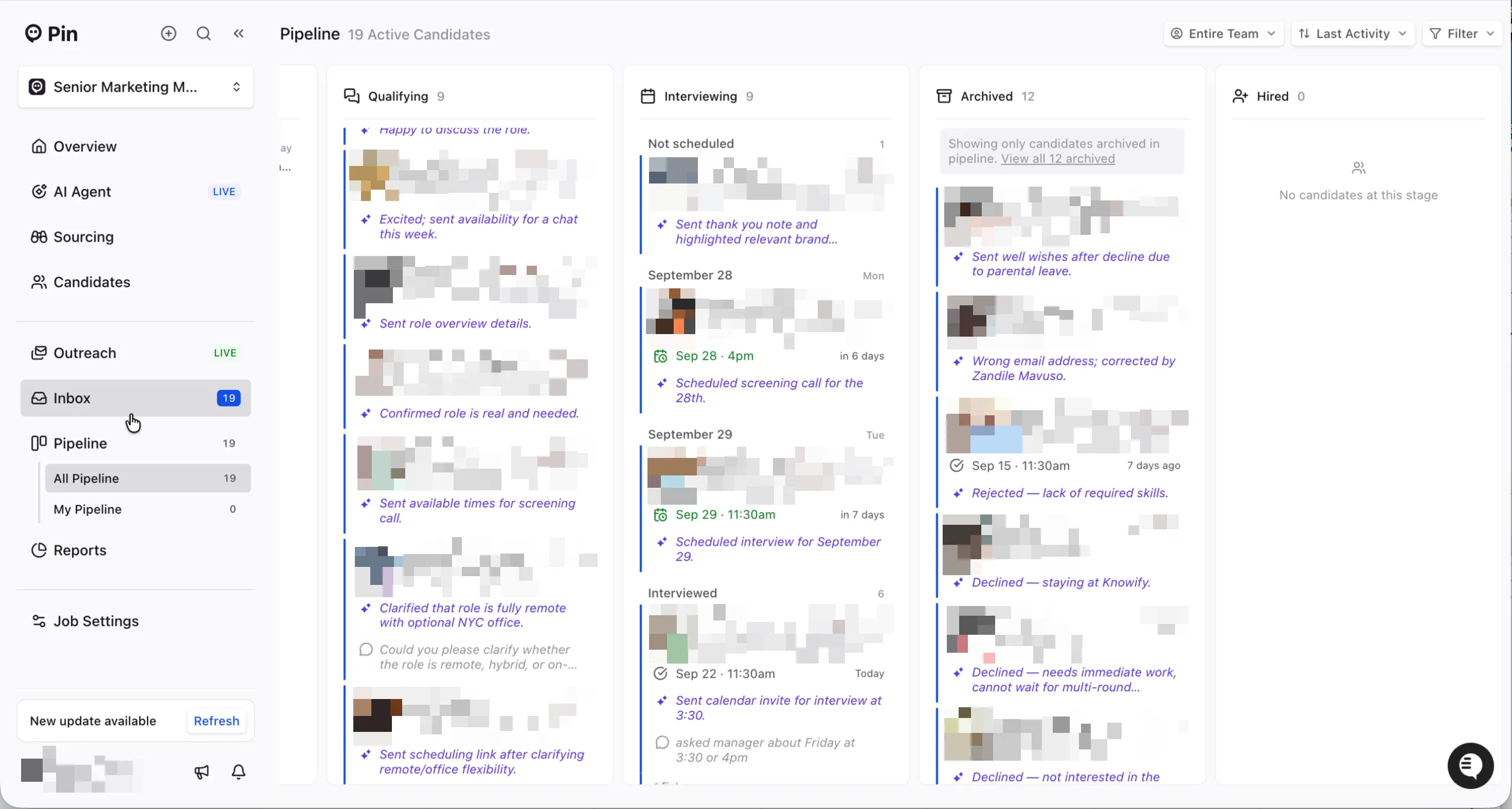
Each card gives you the state of the conversation at a glance:
- ✦ Latest activity summary (purple text): a one-line summary of the most recent step, such as "Sent available times for screening call" or "Declined — staying at current company."
- 💬 Open item (grey text): something still pending, such as "offered three times next week" or "asked manager about Friday."
- Meeting time: for scheduled candidates, the date and time of the meeting plus a countdown (for example, Sep 28 · 4pm — in 6 days).
- Status reason: for archived candidates, why they were archived (e.g., Not Interested, Preferred Another Candidate).
Moving candidates manually
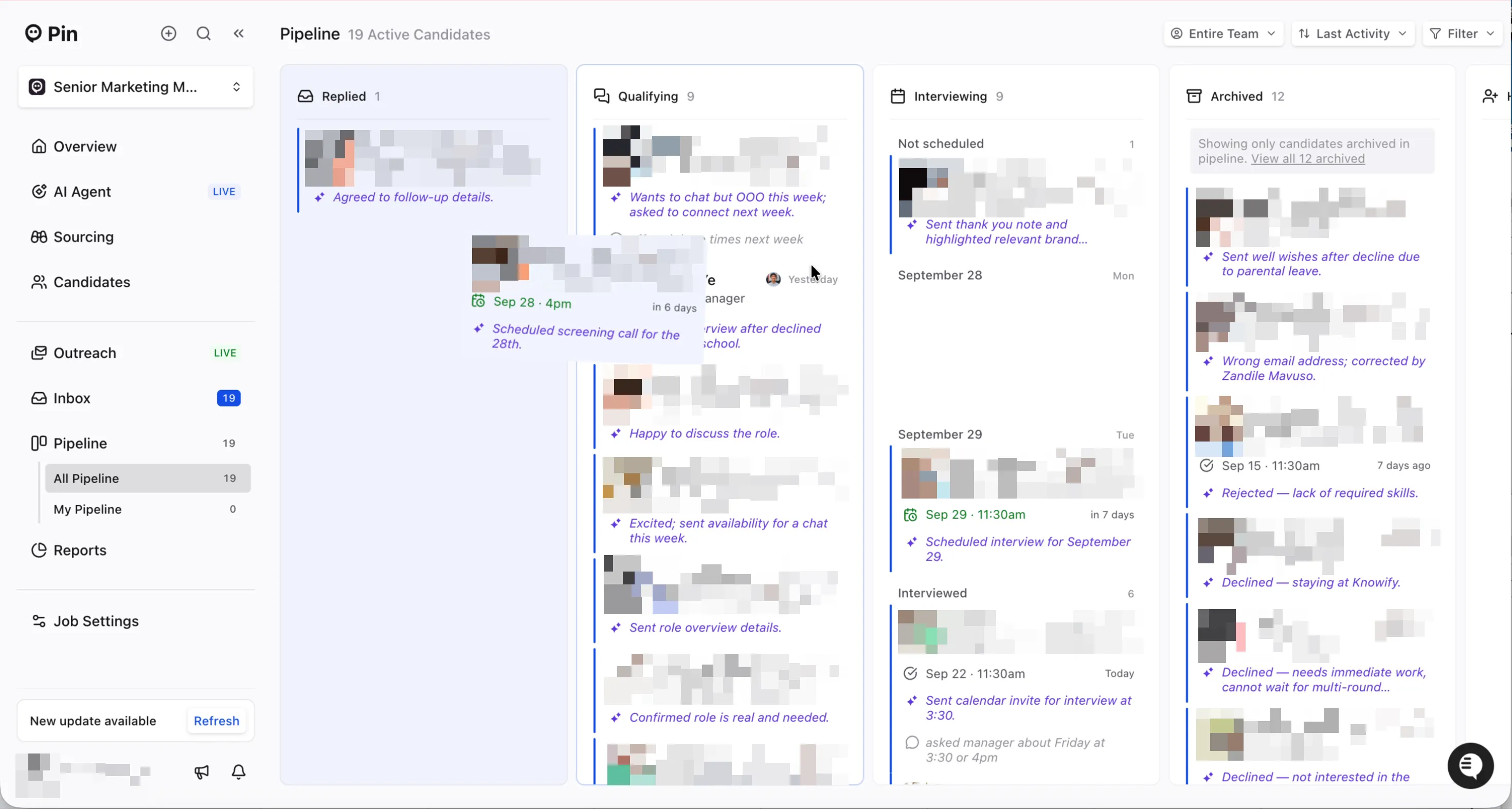
Drag a card to any column to change its stage. Use this when you want to override where Autopilot has placed a candidate.
Filtering the board
- All Pipeline / My Pipeline: view every candidate on the job, or only the candidates assigned to you.
- Entire Team: filter by team member.
- Last Activity: change the sort order.
- Filter: narrow the board further.
If My Pipeline is empty, no replied candidates are assigned to you yet. Switch to All Pipeline to see the whole team's candidates.
Seeing what Autopilot did in the Inbox
Click any candidate to open their conversation in the Inbox. Alongside the email thread, Autopilot logs key events so you can see exactly what happened and when:
- Candidate responded to outreach sequence
- [Candidate] moved to [Stage]
- Replies Autopilot wrote and sent for you are marked Sent by agent
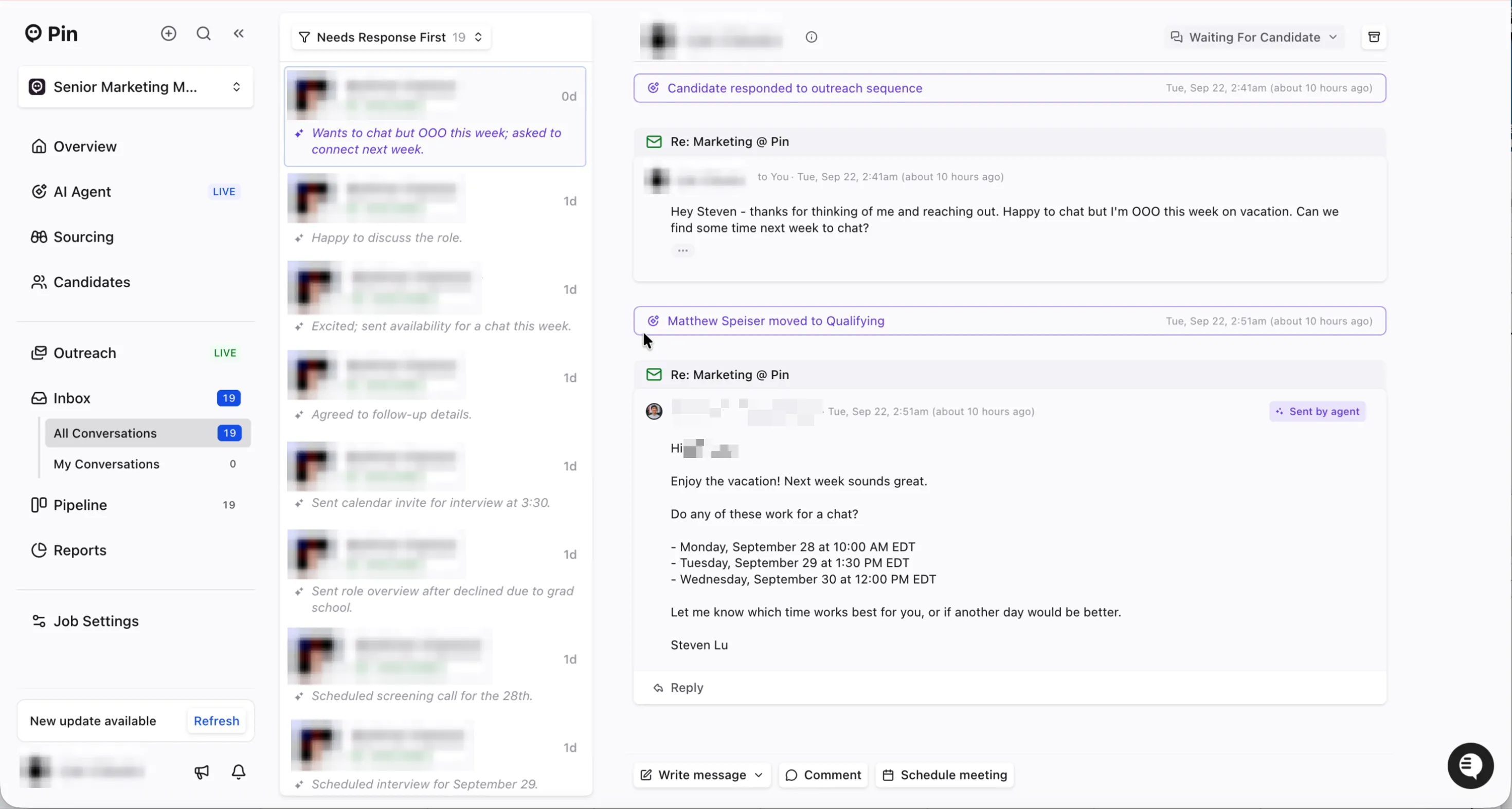
You can step in at any time using Write message, Comment, or Schedule meeting at the bottom of the thread.
Setting up Outreach Automations
Outreach Automations can be set at two levels:
- Team-wide defaults: apply to every job in your organization.
- Per-job overrides: replace the team defaults for a single job.
Set team-wide defaults
- Click your name in the bottom-left corner and select Settings.
- Under Global Preferences, select Outreach Automations.
- Configure the options described below. Changes apply to all jobs that don't have their own override.
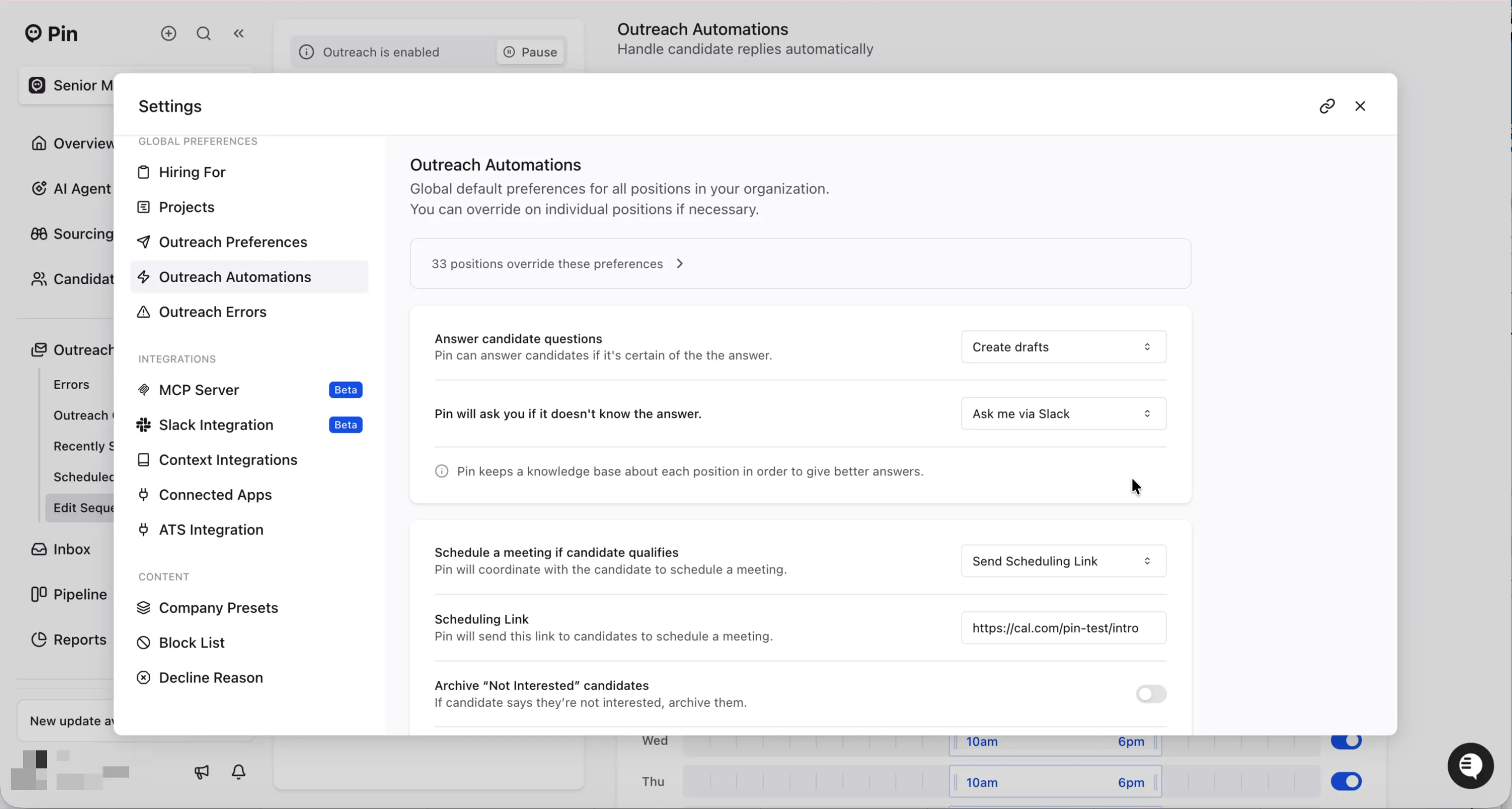
The top of this page shows how many positions currently override the team defaults. Click it to see which jobs.
Override settings for a single job
- Open the job and go to Outreach → Edit Sequence.
- Select Outreach Automations.
- Turn on Override team's global settings.
- Configure the options below. These apply to this job only.
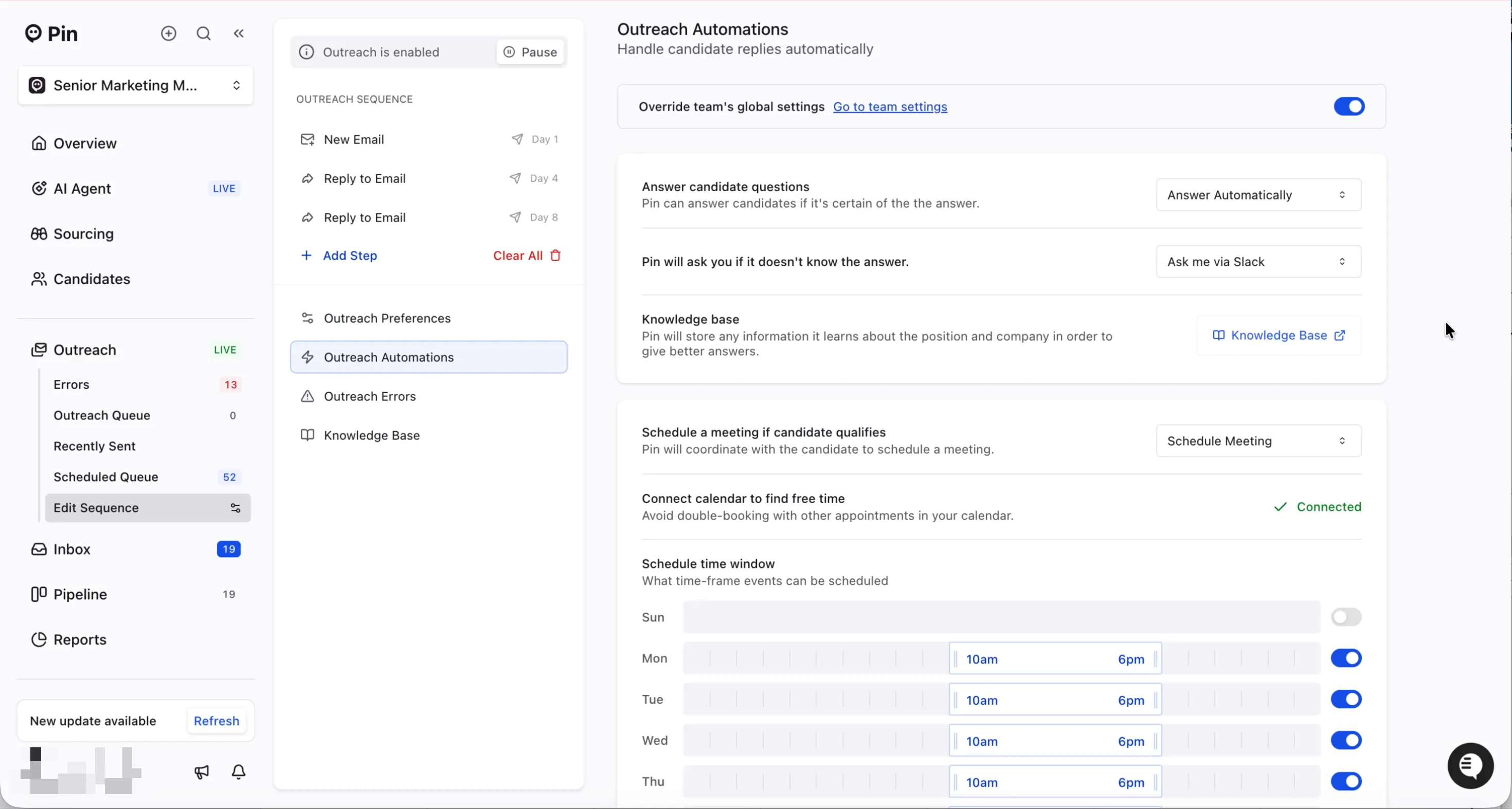
Use Go to team settings at the top of the page to jump to the team-wide defaults.
Outreach Automations options
Answering candidate questions
Answer candidate questions: controls what Autopilot does when a candidate asks a question it's confident it can answer. For example:
- Answer Automatically: Autopilot replies to the candidate on your behalf.
- Create drafts: Autopilot writes a reply for you to review before it's sent.
Note: Drafts are the default. Answering candidate questions starts on Create drafts, and there's no off option.
Autopilot will ask you if it doesn't know the answer: choose how Autopilot reaches you when it can't answer a question from what it has on file (for example, Ask me via Slack).
Knowledge base: Autopilot stores what it learns about the position and company so it can give better answers over time. Click Knowledge Base to review it or see Knowledge Base below for what to add.
Scheduling meetings
Schedule a meeting if candidate qualifies: choose how Autopilot handles scheduling once a candidate is qualified:
Option | What Autopilot does |
|---|---|
Do not schedule | Autopilot does not coordinate meetings. You schedule manually. |
Send Scheduling Link | Autopilot sends the candidate the link you enter in the Scheduling Link field (e.g., a Cal.com, Calendly link, etc.). |
Schedule Meeting | Autopilot coordinates times with the candidate directly and books the meeting on your connected calendar. |
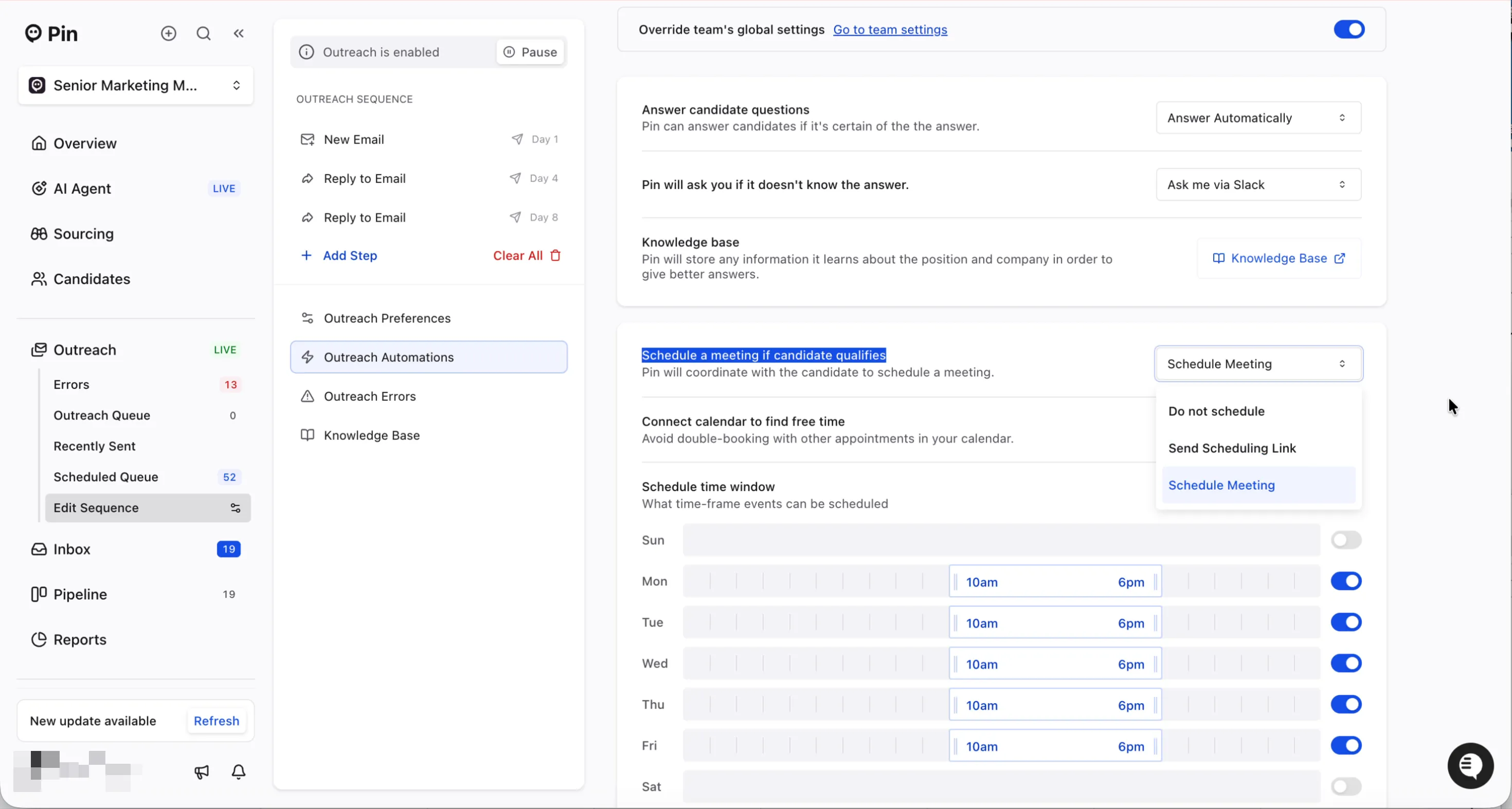
When Schedule Meeting is selected, you'll also see:
- Connect calendar to find free time: Autopilot checks your calendar to avoid double-booking. This must show Connected.
- Schedule time window: the days and hours Autopilot can offer. Toggle each day on or off and drag to set the time range.
- Event duration: the default meeting length, in minutes.
- Event attendees: additional email addresses to include on the meeting invite (for example, a hiring manager).
- Dates to skip scheduling: days Autopilot won't offer, such as holidays. Click Manage Pause Dates to edit them. See How to set up custom and U.S. holidays.
Follow-ups and archiving
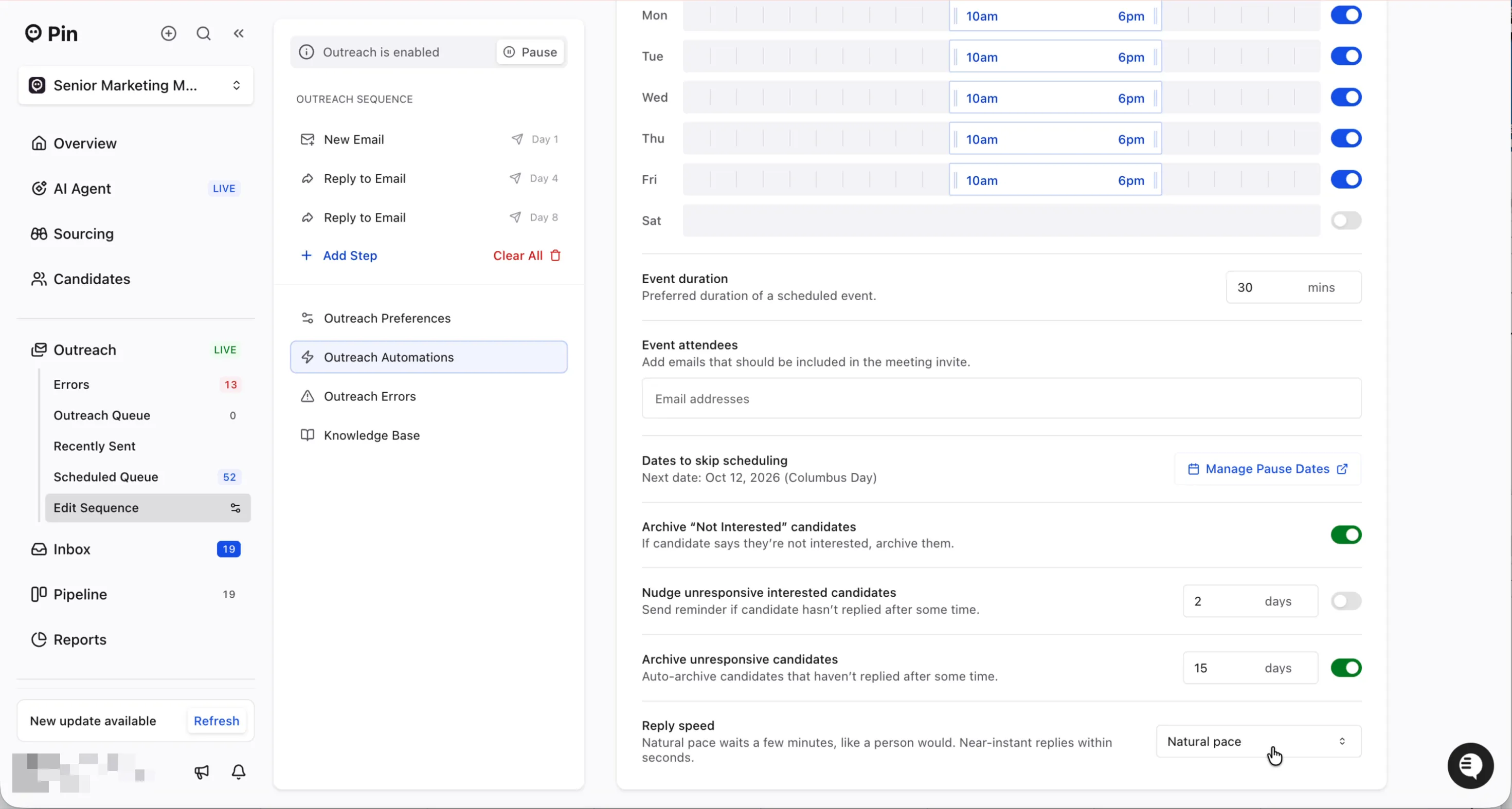
- Archive "Not Interested" candidates: if a candidate says they're not interested, Autopilot archives them automatically.
- Nudge unresponsive interested candidates: if an interested candidate stops replying, Autopilot sends a reminder after the number of days you set.
- Archive unresponsive candidates: Autopilot auto-archives candidates who haven't replied after the number of days you set.
Reply speed
Reply speed: controls how quickly Autopilot responds.
- Natural pace: Autopilot waits a few minutes before replying, like a person would.
- Near-instant replies go out within seconds.
Staying in the loop with Slack
If you've set Autopilot to ask you via Slack, Autopilot uses its Slack app to keep you informed. (The Slack integration must first be installed by a Pin admin under Settings → Slack Integration.)
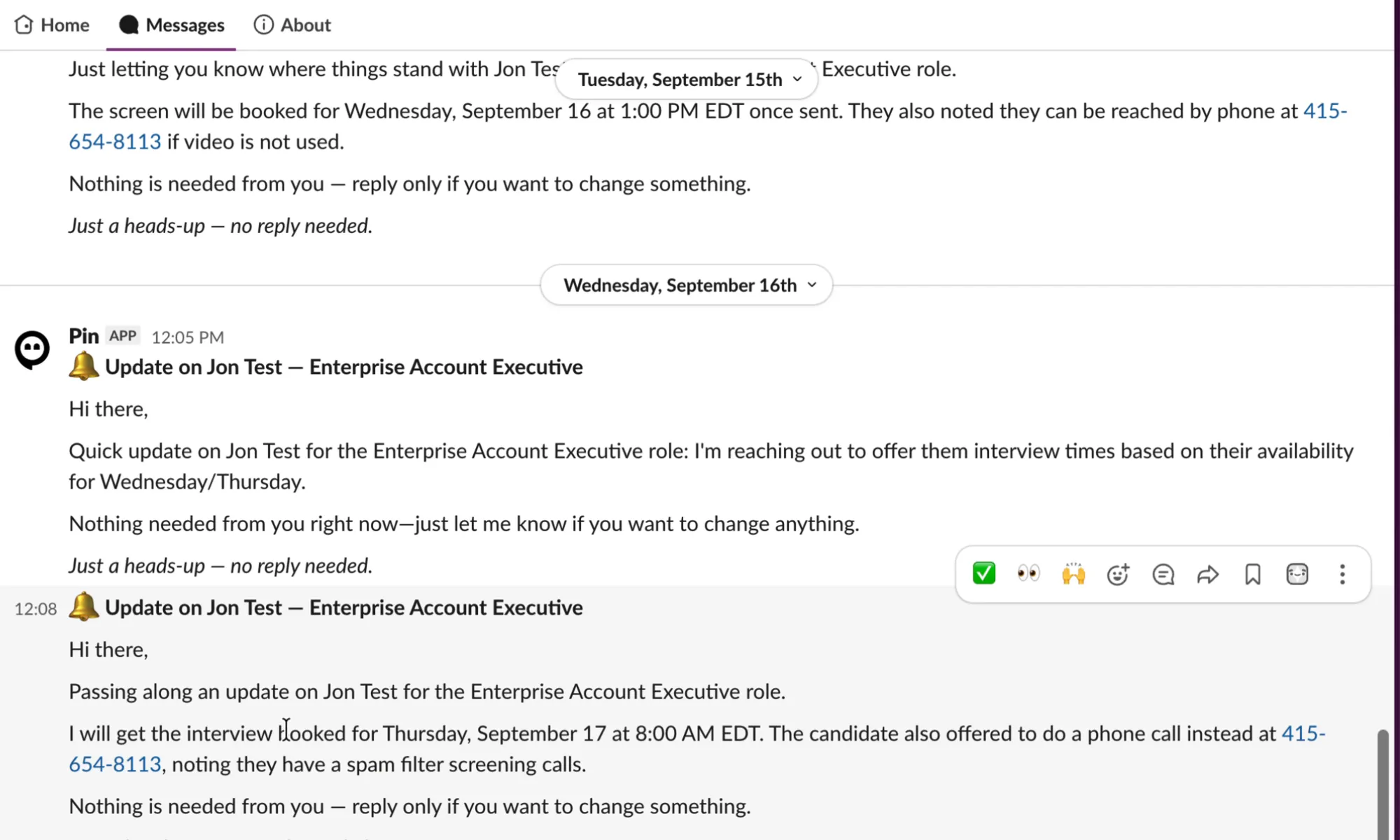
Status updates: Autopilot sends a direct message when it takes a scheduling step, such as offering times or booking an interview. Most of these are heads-ups only; reply only if you want to change something.
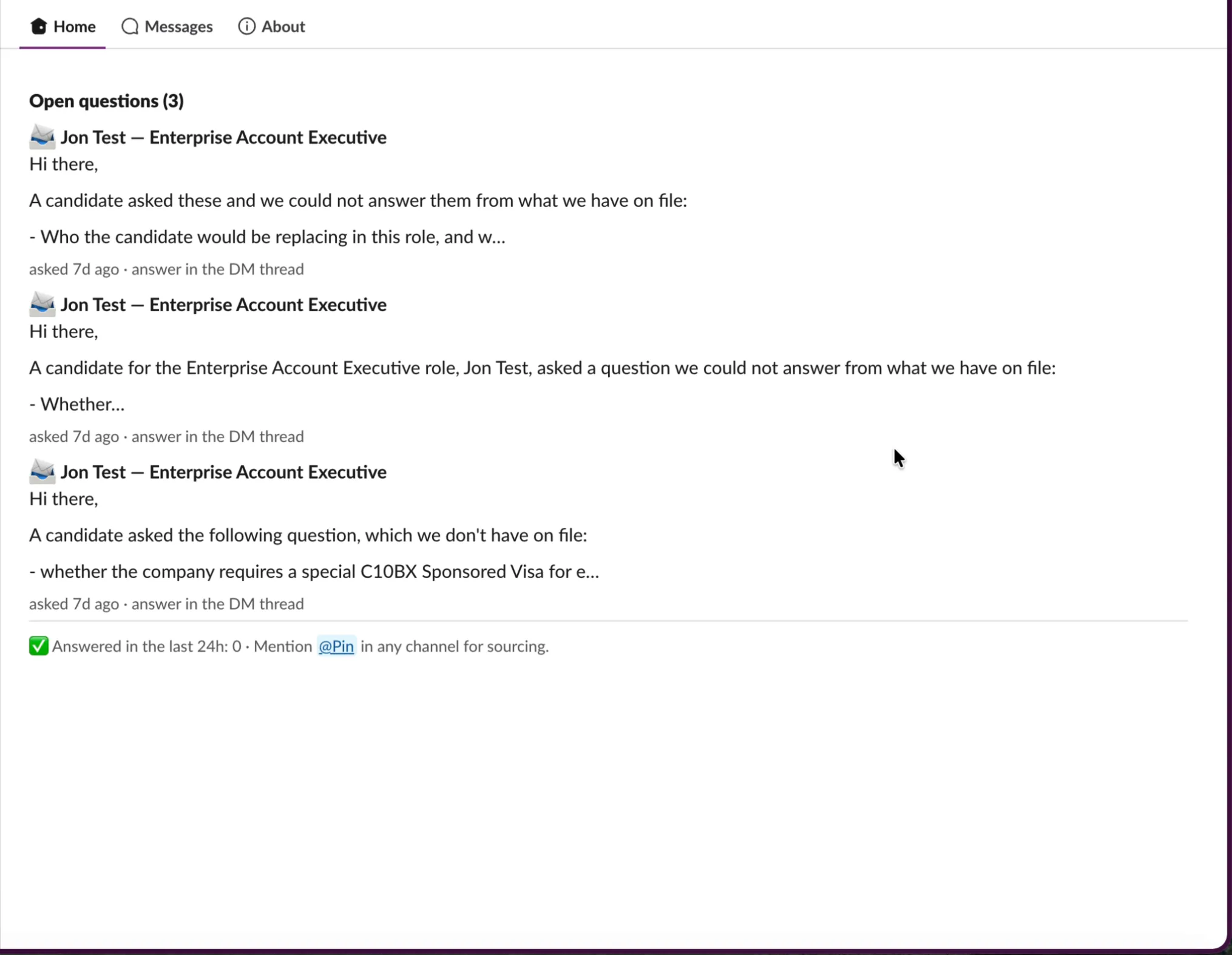
Open questions: when a candidate asks something Autopilot can't answer from what it has on file, the question appears under Open questions on the Autopilot app's Home tab in Slack. Answer it in the DM thread, and Autopilot will follow up with the candidate.
Knowledge Base
The Knowledge Base is everything Autopilot knows about a position. The more useful details you add, the more candidate questions Autopilot can answer without checking with you.
To open it, go to the job, then Outreach → Edit Sequence → Knowledge Base.
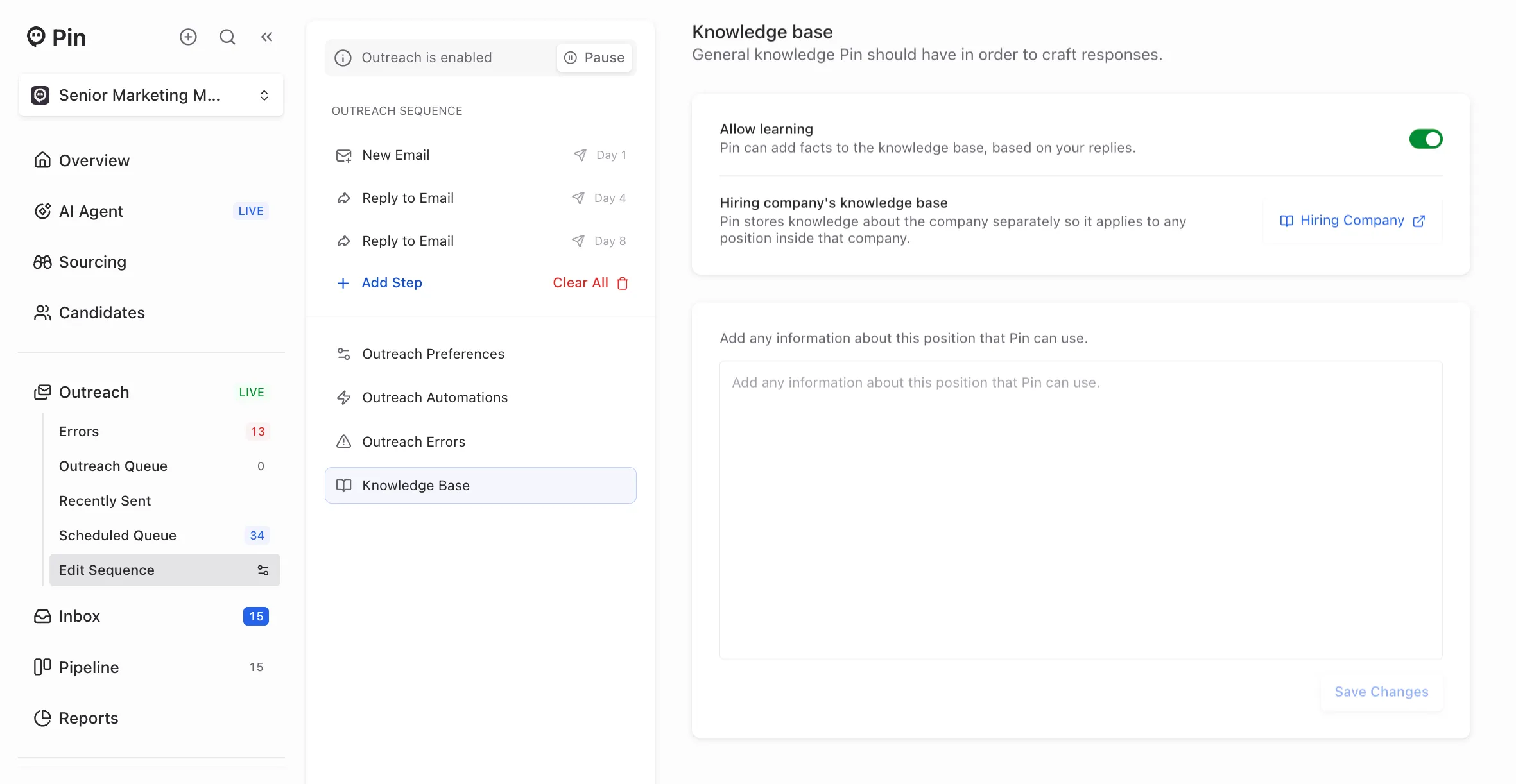
Add details about the position
Use the text box to add anything candidates commonly ask about that isn't obvious from the job description. For example:
- Compensation and benefits: Salary range, bonus or commission structure, equity, and perks.
- Team and reporting: Team size, who the role reports to, and who they'll work with.
- Interview process: Number of rounds, who's involved, and typical timeline.
- Work setup: Location, in-office days, travel, and time zone expectations.
- Deal-breakers: Things you can't offer, like visa sponsorship or fully remote work.
Click Save Changes when you're done.
Tip: Only add information you're comfortable sharing with candidates. Autopilot can use anything in the knowledge base in its replies.
Allow learning
With Allow learning on, Autopilot adds new facts to the knowledge base based on your replies. For example, if you answer a candidate's question about parental leave, Autopilot can use that answer the next time someone asks.
Turn it off if you'd rather control every detail in the knowledge base yourself.
Hiring company's Knowledge Base
Details that apply to every role at a company, like office locations, hybrid policy, or company background, belong in the hiring company's knowledge base instead. Add them once and Autopilot uses them for every position at that company.
Click Hiring Company to open it, or go to Settings → Hiring For and select the company.
Note: Recruiting on behalf of a client who wants to stay confidential? In Settings → Hiring For, turn on Hide details to keep the company name out of your emails and outreach.
FAQ
Why is my Pipeline empty? Candidates only appear in the Pipeline after they reply to outreach. If you're viewing My Pipeline, switch to All Pipeline to see candidates assigned to other team members.
Autopilot placed a candidate in the wrong stage. Can I fix it? Yes. Drag the card to the correct column.
I want to review Autopilot's replies before they're sent. Set Answer candidate questions to Create drafts.
Can one job use different settings from the rest of my team? Yes. Open the job, go to Outreach → Edit Sequence → Outreach Automations, and turn on Override team's global settings.
Autopilot isn't booking meetings. Check that Schedule a meeting if candidate qualifies is set to Schedule Meeting, your calendar shows Connected, and your Schedule time window has at least one day turned on. Also check Dates to skip scheduling for paused dates.
Autopilot keeps asking me questions it should know. Add the missing details to your company information under Settings → Hiring For, and review the job's Knowledge Base.
Can I customize the Pipeline? Not at this time.
Will Autopilot move a candidate to Hired?
Yes, it recognizes signals like a candidate accepting an offer. It's also worth noting that if you drag a card manually, Autopilot keeps updating the stage as the conversation continues.