
Connect additional email accounts
This guide covers:
Add additional email accounts
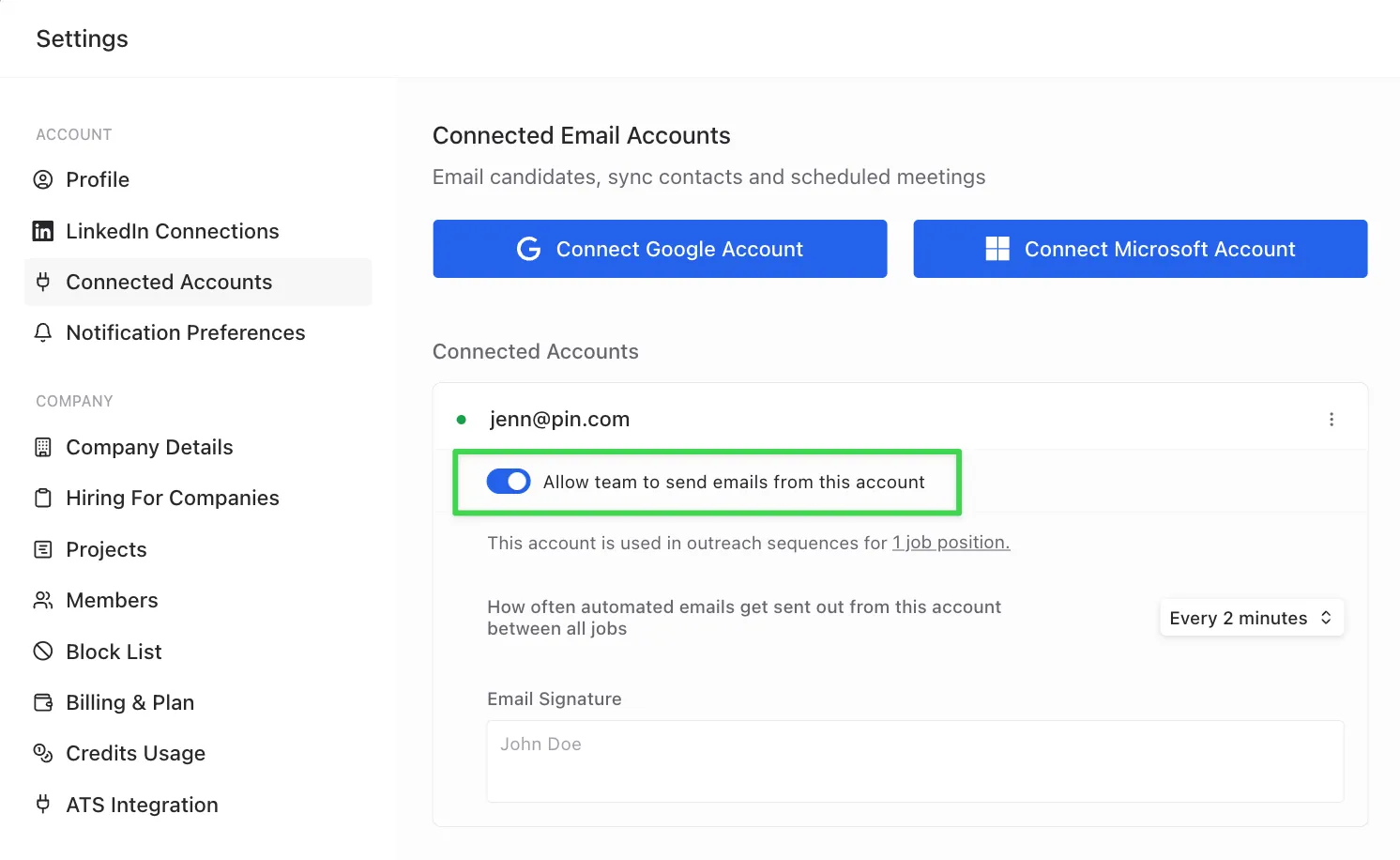
To connect free, additional email accounts for sending outreach sequences, head to Settings -> Connected Accounts.
We recommend connecting your email account to Pin since this allows us to do a few things:
- It allows us to send emails to candidates and know when candidates respond.
- It helps you with scheduling by showing your calendar right inside Pin.
Connected email accounts vs. full user and viewer seats
Connected email accounts (free)
- What they are: Additional email addresses you can attach to your Pin account to use as the email sender in Outreach sequences.
- Access: No Pin login and workspace access. Think of these like email aliases.
- Billing: Free. They will not count as paid seats.
- When to use:
- You (or your team) want to send sequences from multiple addresses (e.g., [email protected], [email protected]).
- You need different “from” addresses for different Outreach sequences.
Note: Connected email accounts don’t have their own Pin profiles, can’t log in, and can’t manage settings or view candidates.
Full user seats (paid)
- What they are: Individual Admin or Member users with their own Pin accounts.
- Access: Full product access. Each person logs in with their Gmail or Outlook account.
- Billing: Paid seat per user.
- When to use:
- A teammate needs to sign into Pin to create/manage searches, sequences, inbox, settings, and reports.
- You want permissions, activity tracking, and ownership tied to a specific person.
Viewer seats (free)
- What they are: Individual Viewer users with their own Pin accounts.
- Access: Read-only access. Can view (but not edit) candidate searches, Outreach sequences, inbox threads, and reports. Cannot send emails, run sequences, change settings, or manage users.
- Billing: Free. Viewers do not count as paid seats.
- When to use:
- A teammate needs to log into Pin to view searches, sequences, inbox, settings, and reports, but doesn’t need to take action inside Pin.
- You want outreach steps to come from a specific teammate, using their connected accounts, without giving them a full seat. To enable this, the teammate needs to connect their email account and turn on "Allow team to send emails from this account" so other teammates can send outreach steps on their behalf.
Quick examples
- “I want to send from [email protected] and [email protected] but only Jane needs to use Pin.” → 1 paid seat (Jane) + 1 free connected email.
- “Three recruiters will run their own searches and outreach.” → 3 paid seats (each can also add connected emails if needed).
- “Our hiring manager wants to review candidate pipelines and email drafts, but won’t run outreach.” → Add them as a free Viewer seat (no paid seat needed).
Note: If you’re unsure, start with a connected email for extra sender addresses. Add a full user seat when someone needs to have their own login account and work inside Pin.
Add your email signature
You can add your email signature in the Connected Accounts section. We recommend setting it up even if you've already added one in Gmail or Outlook.
Note: Only text-based signatures are currently supported. Images cannot be added to email signatures.

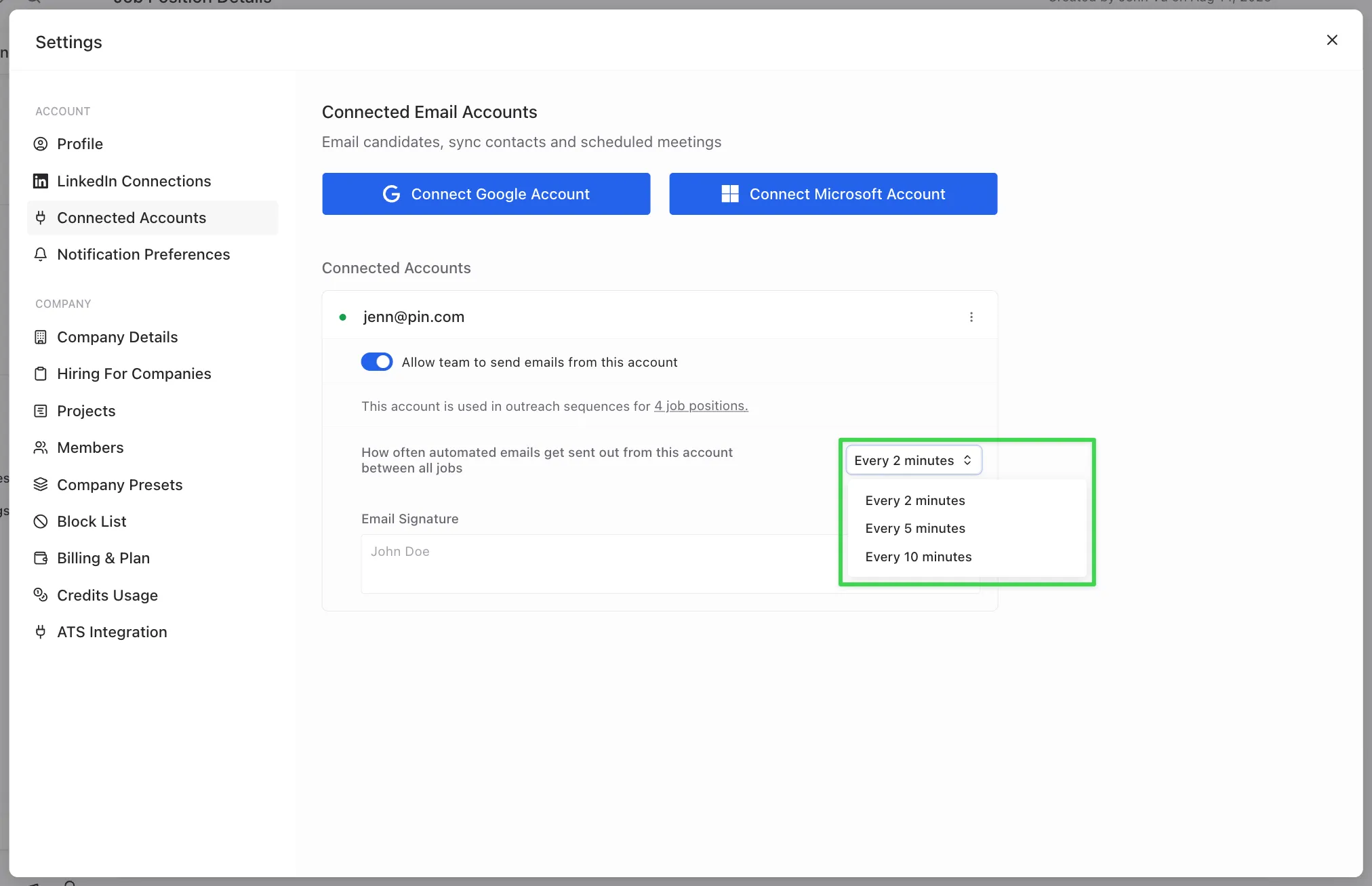
Changing the frequency between each sent email
By default, Pin sends emails every 2 minutes per email account you connect. You have the option to update this to 5 minutes or 10 minutes.
Troubleshooting
Q: My Google connected account keeps disconnecting A: Have your workspace admin check Admin Console > Security > API Controls > App Access Control, and confirm Pin's app is explicitly trusted/allowlisted rather than restricted