
Integrating with TE Recruit (Formerly Big Biller)
Integrate TE Recruit with Pin
Connect Pin to TE Recruit (Formerly Big Biller) so candidates from your Pin positions sync into your ATS. Setup takes about five minutes: you create an API integration in TE Recruit, paste its credentials into Pin, and approve access.
Before you begin
- A Pin account with access to Settings.
- A TE Recruit account that can open Settings → TE Recruit Open API → API Integrations.
- Pin and TE Recruit open in two browser tabs. You'll copy values between them.
Important: TE Recruit shows the Client Secret only once. Have Pin's setup screen ready before you create the integration so you can paste the secret straight in.
Step 1: Copy Pin's Redirect URI
- In Pin, open Settings and select ATS Integration under Integrations.
- Choose TE Recruit. The Configure ATS connection form opens.
- Copy the full Redirect URI:
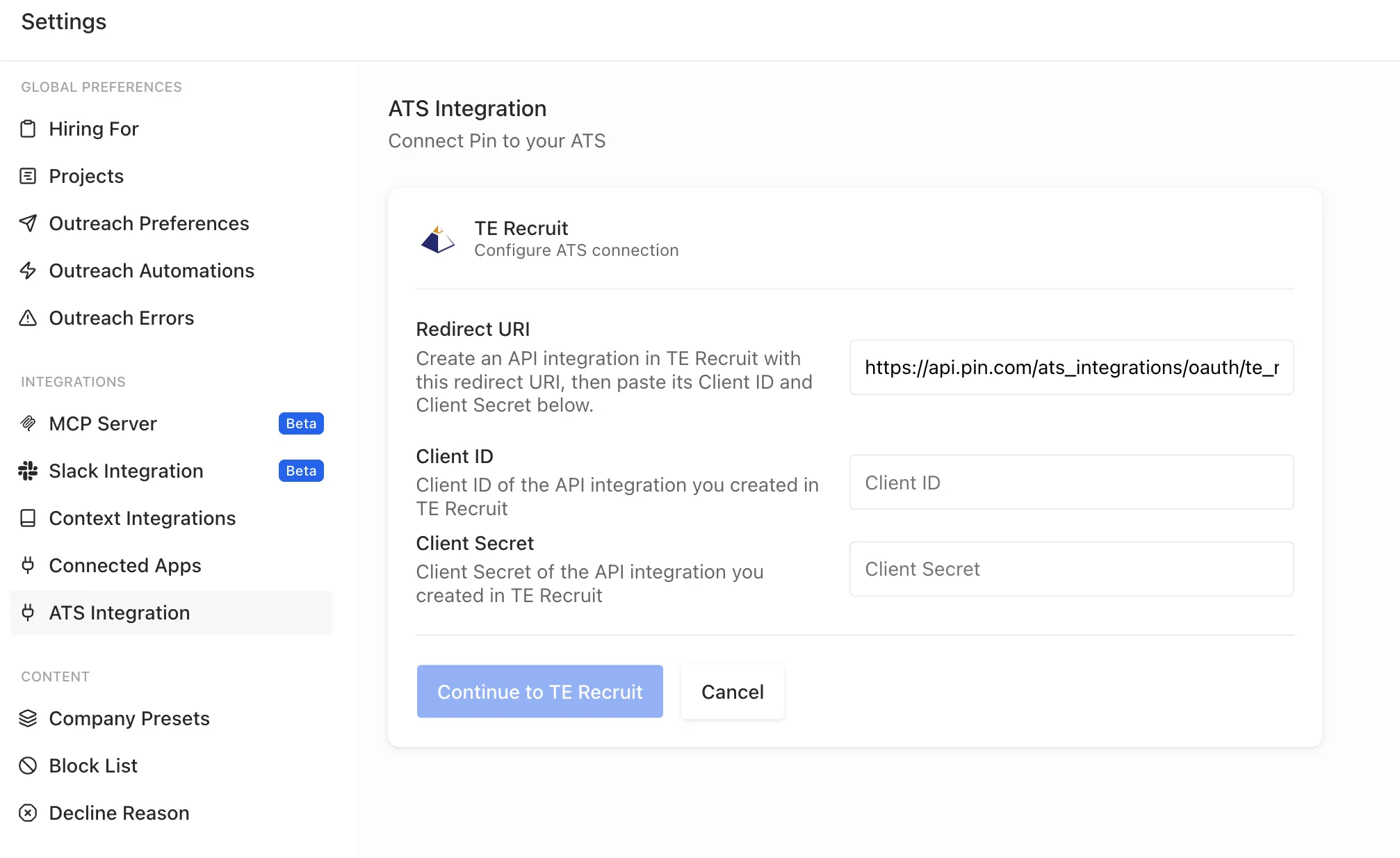
Leave this tab open. You'll come back to paste the Client ID and Client Secret.
Step 2: Create an API integration in TE Recruit
- In TE Recruit, click the gear icon in the top navigation to open Settings.
- Under TE Recruit Open API, click API Integrations.
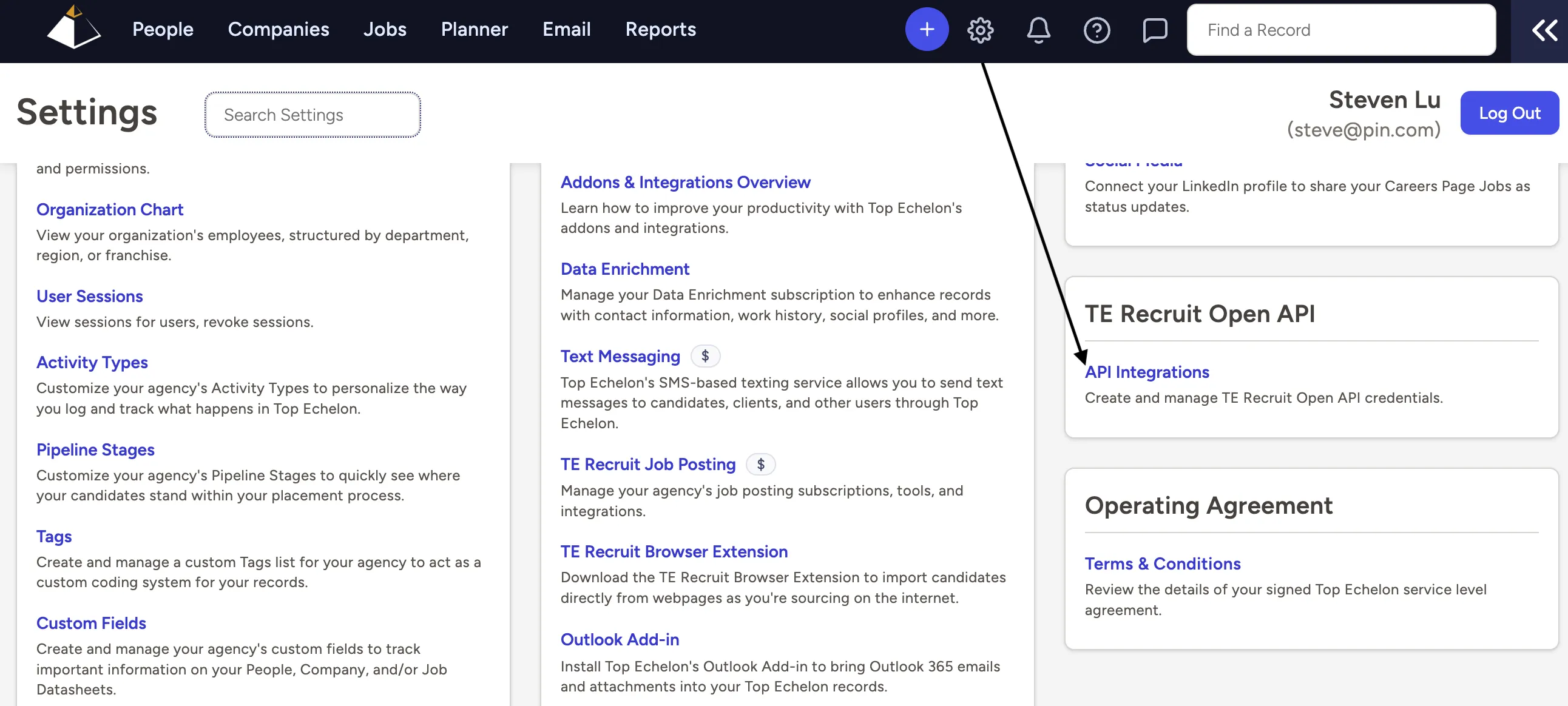
- Click Create New Integration.
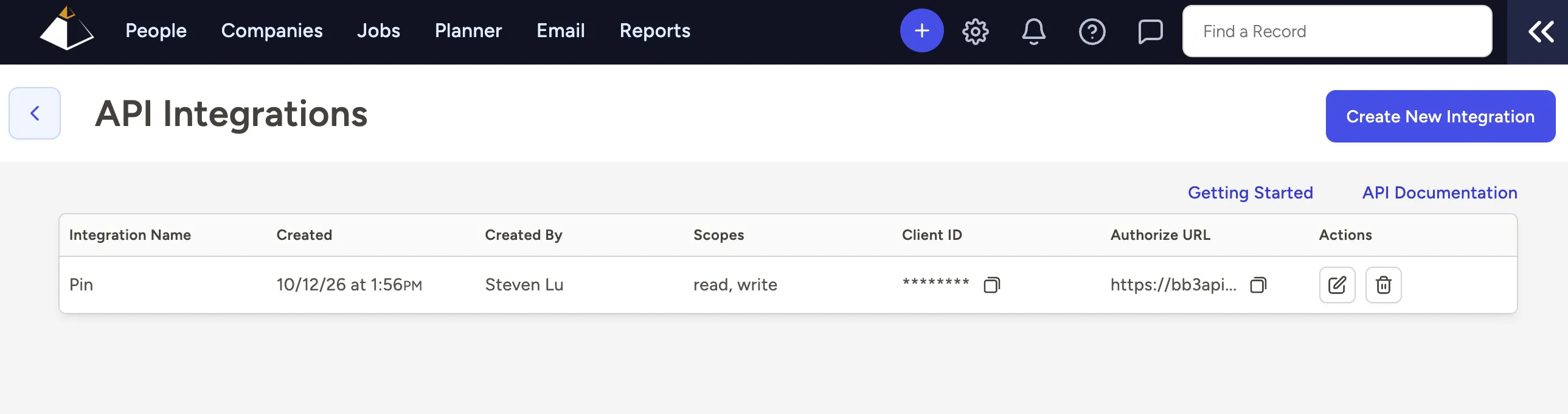
- Fill in the form:
- Name: anything you'll recognize, such as Pin.
- Scopes: select read and write.
- Redirect URIs: paste the Redirect URI you copied from Pin.
- Save the integration. The New API Integration window shows your Client ID and Client Secret.
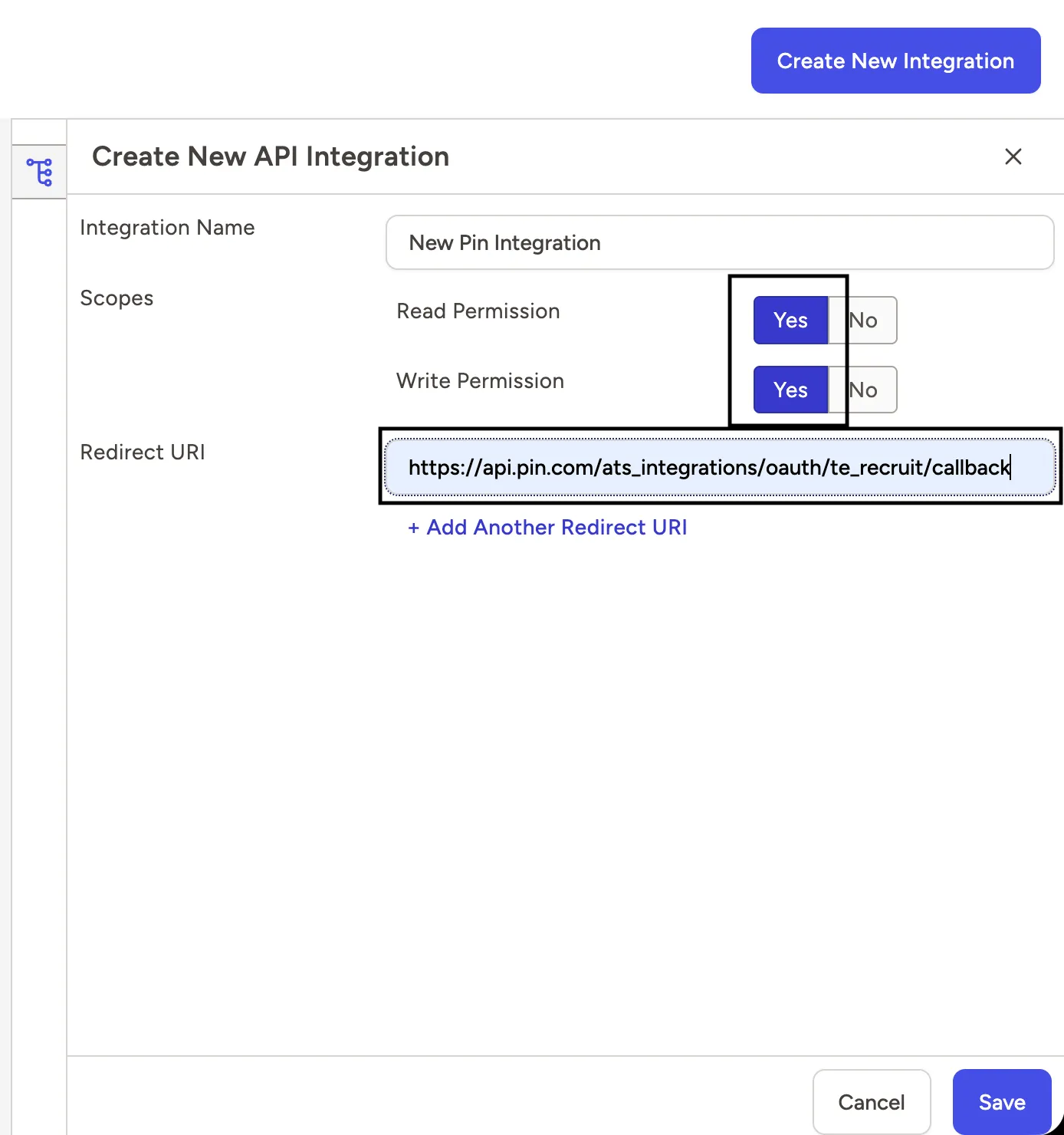
- Copy the Client ID and Client Secret using the copy buttons beside each field.
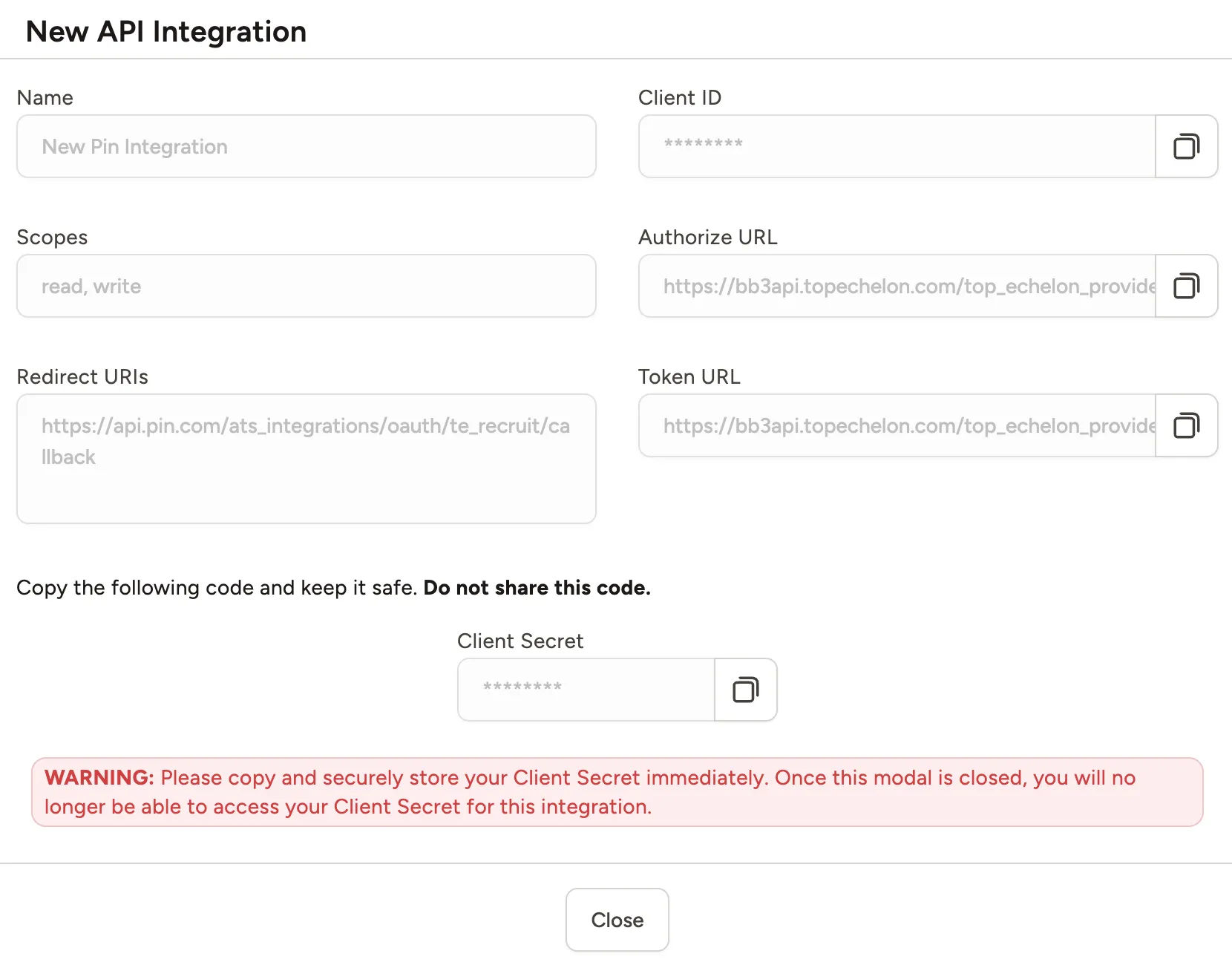
Warning: Don't close this window until both values are pasted into Pin. Once it closes, TE Recruit won't show the Client Secret again, and you'll need to create a new integration.
You don't need the Authorize URL or Token URL. Pin uses them automatically.
Step 3: Paste the credentials into Pin
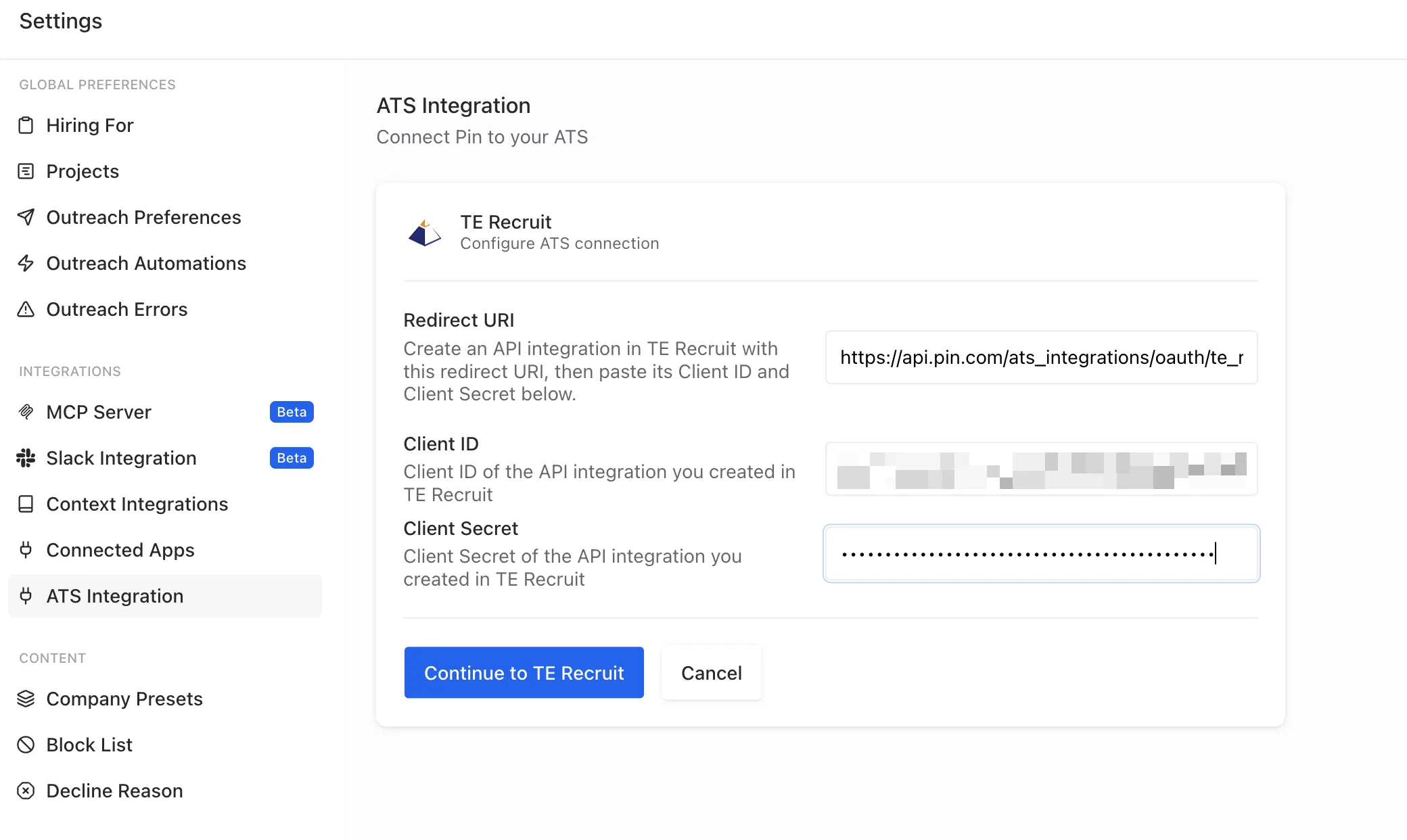
- Return to the ATS Integration tab in Pin.
- Paste the Client ID into the Client ID field.
- Paste the Client Secret into the Client Secret field.
- Click Continue to TE Recruit. The button stays disabled until both fields are filled.
Step 4: Authorize Pin in TE Recruit
- TE Recruit opens an authorization prompt asking to let your integration access your TE Recruit account. Check that the email shown is the TE Recruit account you want to connect.
- Confirm it lists Read and Write access.
- Click Authorize.
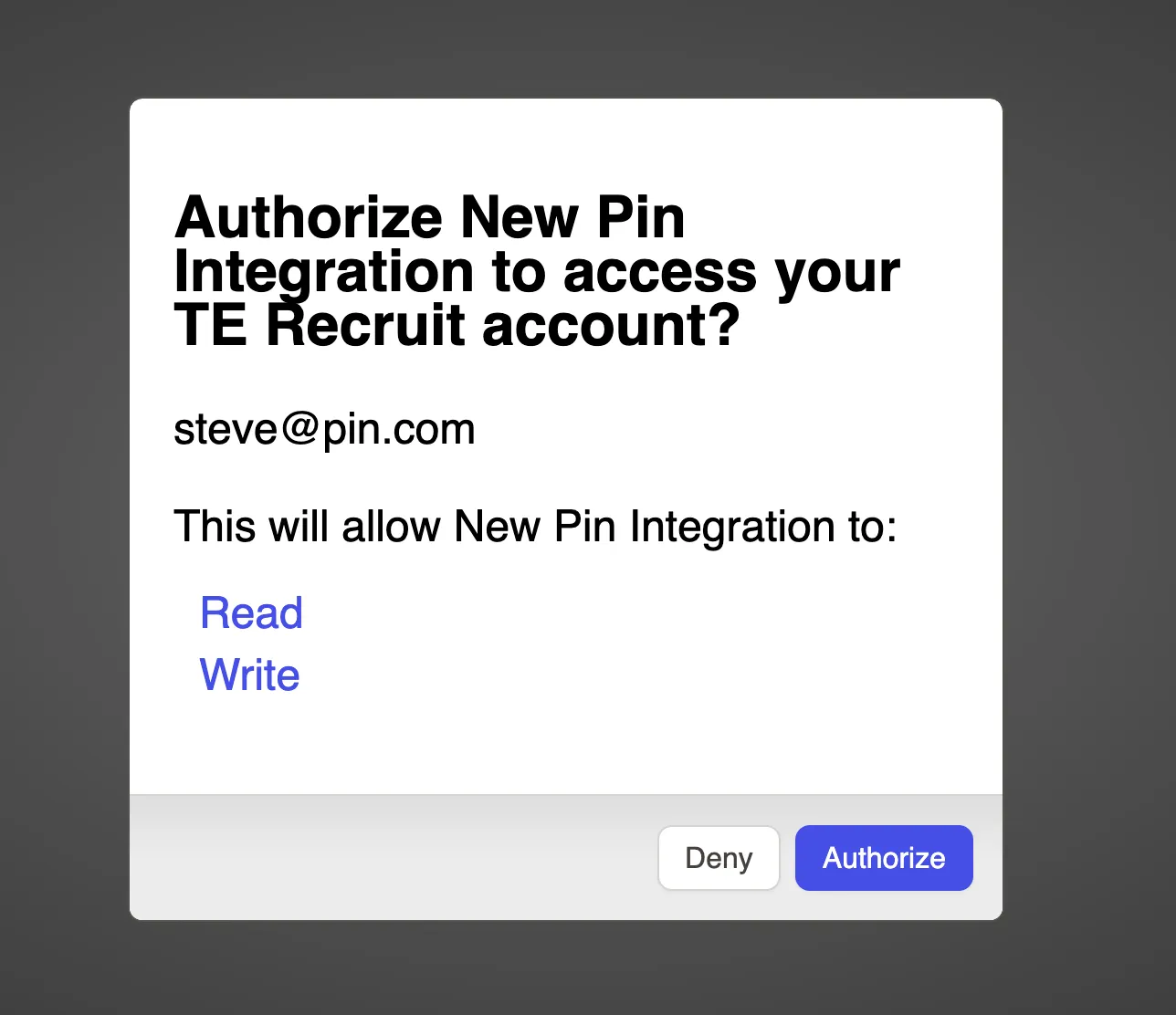
TE Recruit sends you back to Pin. If you click Deny, no connection is made and you can start again from Step 3.
Step 5: Confirm the connection and map your positions
Back in Pin, the ATS Integration page shows TE Recruit — Connected. Below it, each Pin position is listed with two settings:
Setting | What it controls |
|---|---|
Sync to ATS | When a candidate is sent to TE Recruit, for example when they're added to an outreach sequence. |
ATS Position | The TE Recruit job the candidate is attached to. Defaults to No Job Selected. |
For each position you want to sync:
- Choose when candidates should sync under Sync to ATS.
- Pick the matching TE Recruit job under ATS Position.
Use Filters to narrow a long list of positions. You can also manage syncing per position in Pin automations.
Troubleshooting
I closed the TE Recruit window before copying the Client Secret. The secret can't be retrieved. Delete that integration in API Integrations and create a new one (Step 2).
The authorization step fails or doesn't return to Pin. Check that the Redirect URIs field in TE Recruit exactly matches the Redirect URI in Pin, with no extra spaces or missing characters.
Continue to TE Recruit is greyed out. Both the Client ID and Client Secret fields must be filled.
I want to disconnect. On Pin's ATS Integration page, click Disconnect. To fully revoke access, also delete the integration in TE Recruit's API Integrations list.
I'm not able to create an API key in TE Recruit Only users with the Manage API Credentials permission can create API keys in TE Recruit. Typically, this permission is assigned to the Main Contact of the account by default. If other users require this capability, an admin with the necessary permissions can update their user profile settings to grant it. For further guidance, check out TE Recruit's Setting API Access Permissions guide.