
Archiving or changing a team member's role
This guide covers:
What happens when you archive a team member or change their role
When you archive a Member or Admin, or change their role to Viewer or Billing, Pin automatically checks whether they have any active work that would be affected, including:
- Jobs they own (including their private jobs)
- Email steps in an outreach sequence
- LinkedIn task steps in an outreach sequence
- Outreach where they're the sender, even if they don't own the job
If Pin finds any of these, you'll be asked what to do with them before the change is saved. This ensures jobs and outreach aren't left without an active owner or sender.
Note: Only users with the Admin or Billing role can archive team members or change their roles.
Transferring a team member's jobs and outreach
If someone is leaving your team or moving to a role that doesn't send outreach, you can hand their work off to a teammate.
- Navigate to Job Settings -> User & Team Settings -> Members.
- Find the team member and select the trash bin icon to disable them, or change their role to Viewer or Billing.
- If they have jobs or outreach steps, you can choose to transfer them to another team member, pause their jobs, or archive their jobs.
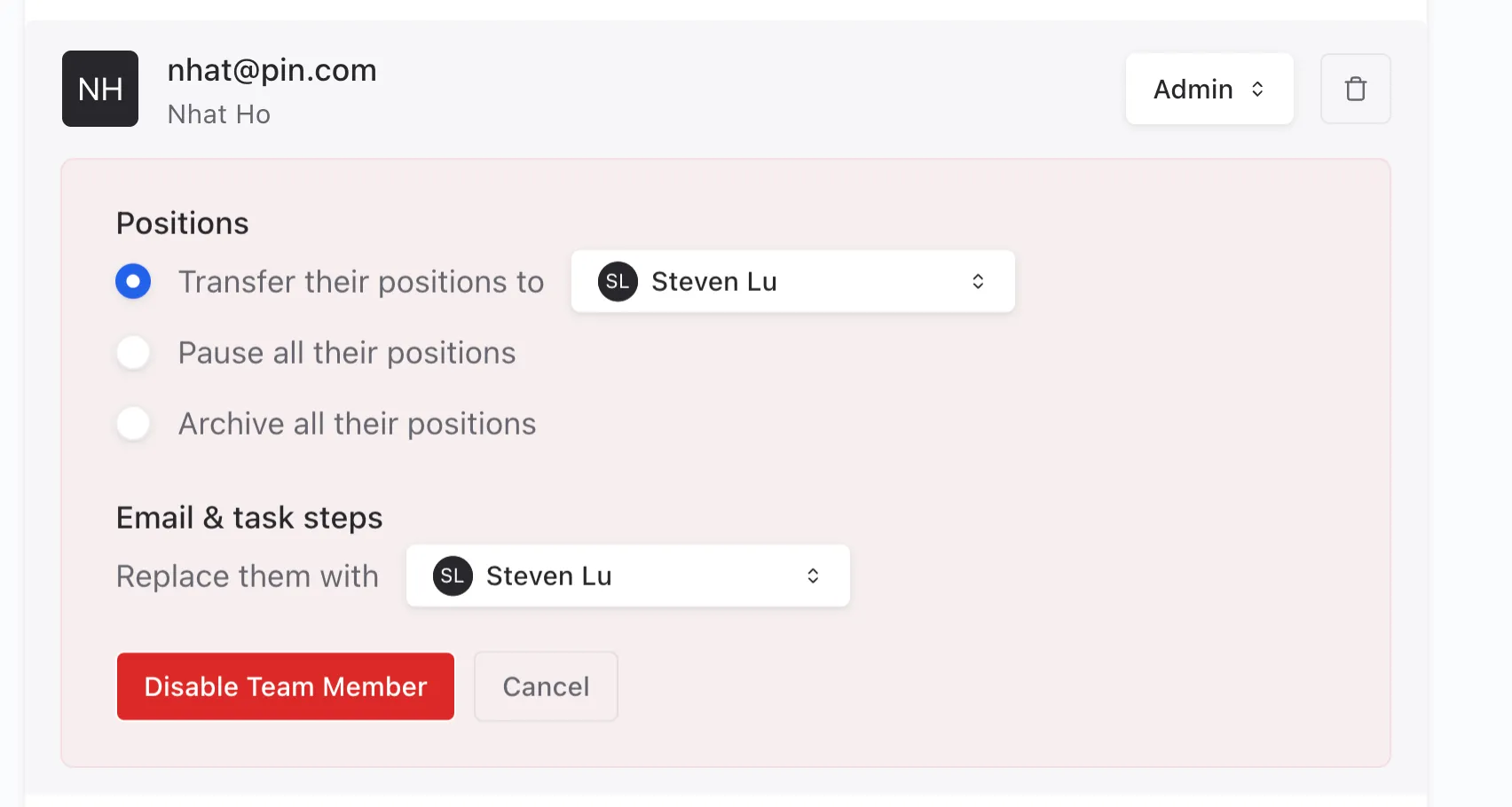
Their jobs, email steps and LinkedIn task steps will move to the teammate you select. Private jobs are transferred too, so nothing gets lost.
Important: The teammate you transfer to must have a connected account so outreach can keep sending on their behalf.
Archiving a team member's jobs instead
If you'd like to keep a team member's jobs under their name for reporting, select "Archive all their positions" instead of transferring them.
Their jobs will be archived and will still show under their name.
How archiving a team member affects billing
Archiving a Member or Admin, or changing them to a Viewer or Billing role, removes a paid seat at the start of your next billing cycle. Learn more in Managing your billing and subscription.