
AI Agent (Auto Source and Auto Outreach)
Putting your recruiting on autopilot with the AI Agent
The Pin AI Agent automates your top-of-funnel recruiting. It sources candidates against your criteria, puts them in front of you for review, and — if you choose — approves strong matches and contacts them for you.
The AI Agent works per job, and it keeps working in the background, so you don't need to keep Pin open.
Step 1: Set up the agent for a job
- Open the job and select Sourcing → Agent in the sidebar.
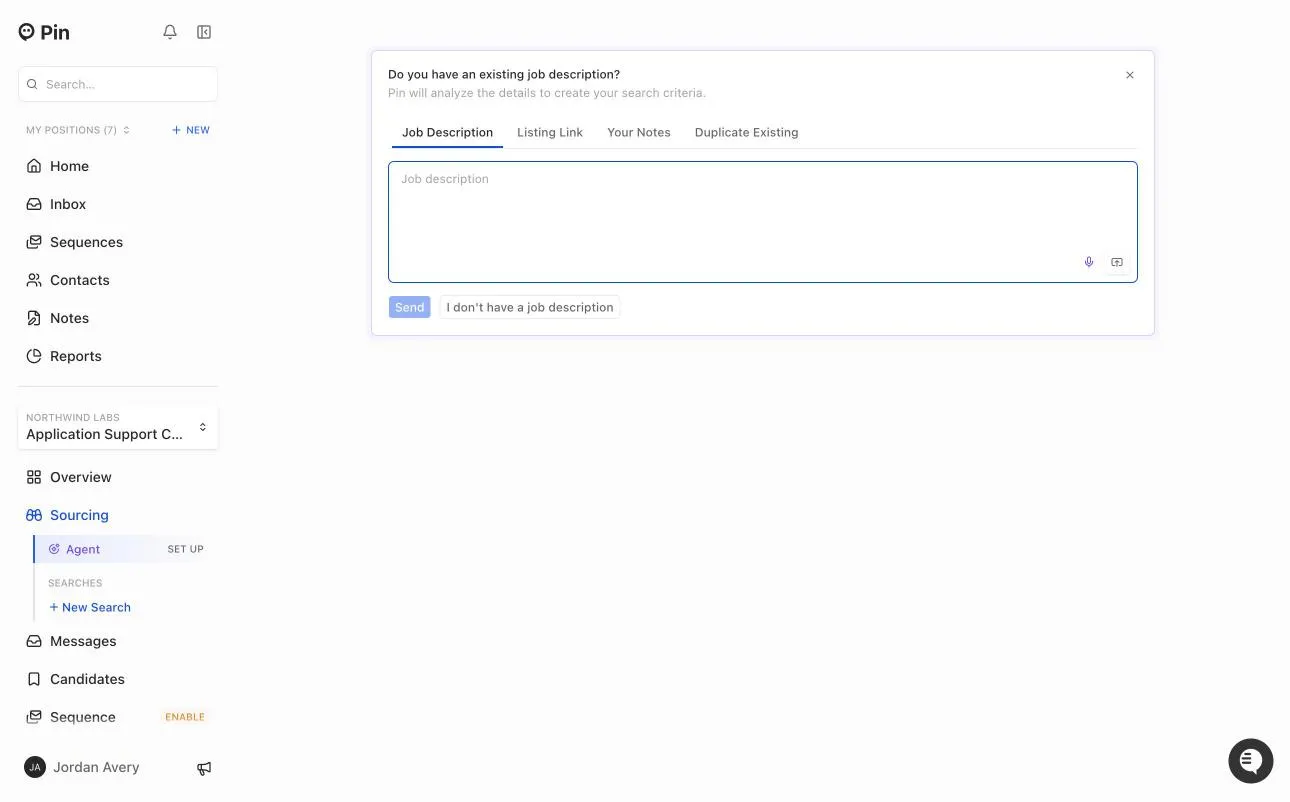
- If the job isn't set up yet, Pin asks Do you have an existing job description? Choose how you'd like to give Pin the details:
- Job Description – paste the description
- Listing Link – paste a link to the job posting
- Your Notes – type or dictate your own notes
- Duplicate Existing – reuse the setup from another job
- Click Send. If you don't have a description, click I don't have a job description and answer Pin's questions instead.
Pin analyzes the details, proposes Job Criteria (job titles, seniority, years of experience, locations, and AI Evaluation questions), and starts sourcing once you confirm them. You can keep chatting with Pin in the same view to refine the criteria.
Step 2: Review candidates
When Pin has found candidates, click Review candidates to approve or decline them. Reviewing a handful early on helps Pin learn your preferences. Telling Pin why you're declining someone improves accuracy more than the decline alone.
Candidates waiting for your decision are in Candidates → Review Queue.
Step 3: Choose how much the agent does on its own
The panel on the right of Sourcing → Agent shows what the agent is doing and lets you control it.
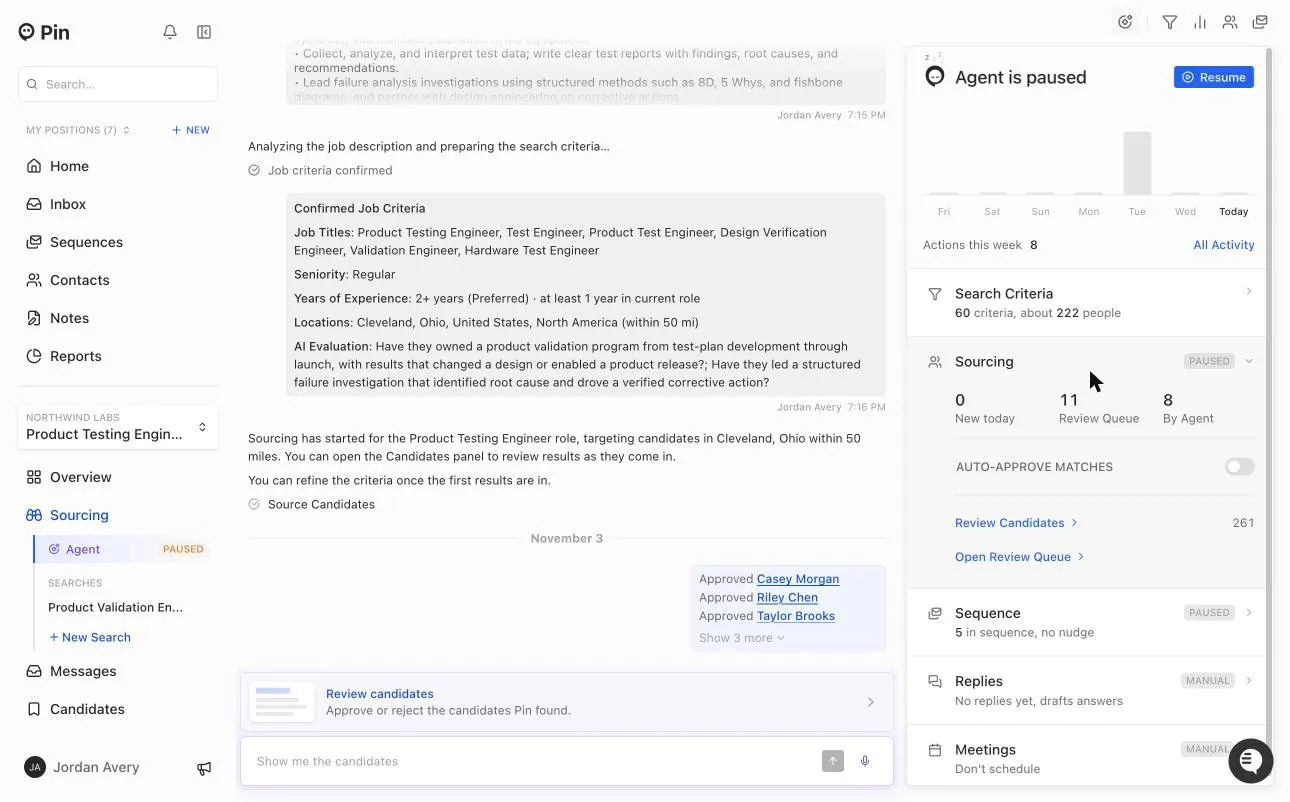
- Search Criteria – how many criteria the search uses and roughly how many people match.
- Sourcing – candidates found today, how many are in your Review Queue, and how many the agent added. Turn on Auto-approve matches to let the agent approve strong matches without waiting for you. Leave it off to review every candidate yourself.
- Sequence – how many candidates are in the sequence. Turn on Send the sequence to let the agent contact approved candidates. Use Preview Sequence to check the messages first, and Sending Settings to adjust how they're sent. Use team defaults applies your team's outreach settings.
- Replies – whether Pin drafts or sends answers to candidate replies.
- Meetings – whether Pin schedules meetings with interested candidates.
If the agent is paused, you'll see Agent is paused at the top of the panel. Click Resume to turn it back on.
Important: Sending the sequence sends real messages to candidates on your behalf. Always use Preview Sequence to review the messages first, and start with a low daily email limit until you're confident.
Managing a running agent
- Candidates → Review Queue – review candidates the agent found.
- Sequence – view and manage the outreach sequence. The sidebar shows PAUSED when outreach is stopped.
- Pipeline – candidates who replied to outreach.
- Messages / Inbox – candidate replies.
- Reports – how your outreach is performing over time.
Click All Activity in the agent panel to see everything the agent has done.
Edge cases and troubleshooting
Why isn't the AI Agent sourcing candidates? The agent works from your search criteria. It won't run if the search returns no candidates or only low-Fit candidates. This includes searches where the only results come from "Next Best Candidates".
How is the AI Agent qualifying candidates? The agent uses the Fit score, which estimates how well a candidate matches your questions and criteria. To change the threshold, open Search Criteria in the agent panel and adjust Minimum Fit Score.
Sequence shows "PAUSED" in the sidebar. Your outreach sequence is stopped, so no new messages are going out. Open Sequence to review and resume it. Agents may pause automatically if a sending issue is detected, or because you paused them.
The agent qualified fewer candidates than I expected. The daily figure is a cap, not a quota. Pin only routes candidates that genuinely match your criteria, so on days with fewer strong matches you'll see fewer candidates.
Candidates are being qualified that don't fit. Decline them with feedback, or refine your criteria and AI Evaluation questions in Search Criteria. The more specific your questions and feedback, the more accurate the matching.
I want to review before any outreach goes out. Leave Auto-approve matches and Send the sequence off. Candidates wait in Candidates → Review Queue for your review, and nothing is sent automatically.
My existing candidates weren't sorted. The agent works on candidates it sources going forward. It doesn't retroactively sort your full candidate list.
Best practices
- Give feedback when you decline, especially early on, to train Pin faster.
- Start with Auto-approve matches off to confirm match quality before letting the agent approve on its own.
- Always Preview Sequence before turning on Send the sequence.
- Keep the daily email limit modest at first, then raise it once you trust the results.
Frequently Asked Questions
Q: Why doesn't the agent's history update after I move a candidate to outreach or decline them? A: The agent's activity is a historical record of what it did. What you decide to do with a candidate afterwards doesn't change that record.