
Email and Phone number lookup preferences
5 min
You can choose which type of email address Pin looks for, and whether Pin automatically looks up phone numbers.
Email lookup preferences
Set the default for your whole team
- Click your name in the bottom-left corner and select Settings.
- Under Global Preferences, select Outreach Preferences.
- Choose an option under Preferred email type.
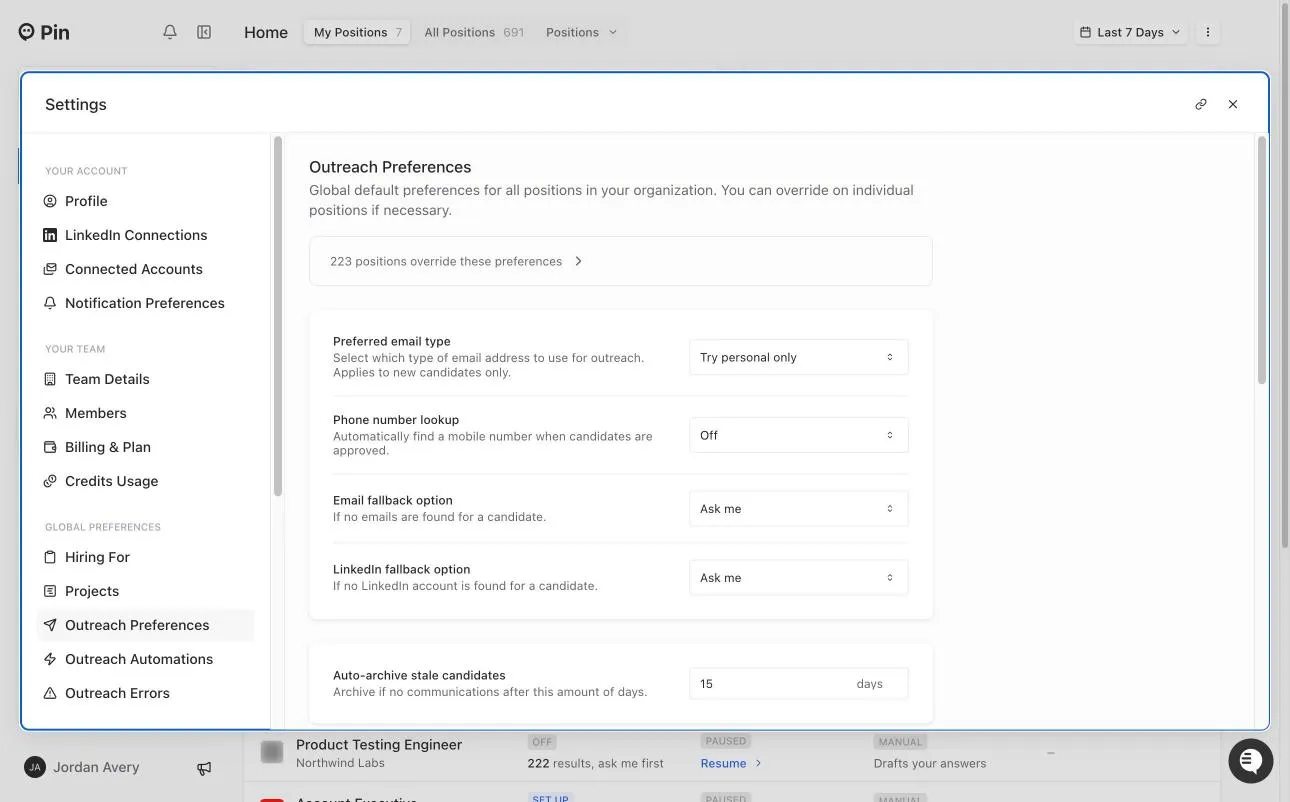
Change it for a single job
- Open the job and select Sequence.
- Click Edit Sequence.
- Select Outreach Preferences in the left panel, turn on Override team's global settings, and choose a Preferred email type.
Jobs with their own setting override the team default. The Outreach Preferences page in Settings shows how many positions override it.
Options
- Try personal only – Pin will only search for personal emails.
- Try personal first, then work – Pin will look for a candidate's personal email first. If none is found, it will then search for a work email.
- Try work only – Pin will only search for work emails.
- Try work first, then personal – Pin will look for a candidate's work email first. If none is found, it will then search for a personal email.
Phone number lookup preferences
You can have Pin automatically look up a candidate's mobile number when they're approved.
Set the default for your whole team
- Click your name in the bottom-left corner and select Settings.
- Under Global Preferences, select Outreach Preferences.
- Next to Phone number lookup, choose Find mobile number. Choose Off to stop automatic lookups.
Change it for a single job
Open the job, select Sequence → Edit Sequence → Outreach Preferences, turn on Override team's global settings, and set Phone number lookup.
Phone number lookups use lookup credits. See Understanding lookup credits.