
Getting Around Pin's New Navigation
Pin's navigation has a new layout designed to get you to your candidates and answers faster, with fewer menus and less clicking.
This guide walks through what changed, where everything lives now, and what's new along the way.
Don't feel like reading and just want a start to end of first job creation guide? See Onboarding.
What Changed
Previously, each job had its own long menu with the AI Agent, Sourcing, Candidates, Outreach, Inbox, Reports, and Job Settings. Finding an answer usually meant opening a job and digging through those menus.
Now, the sidebar is split into two parts:
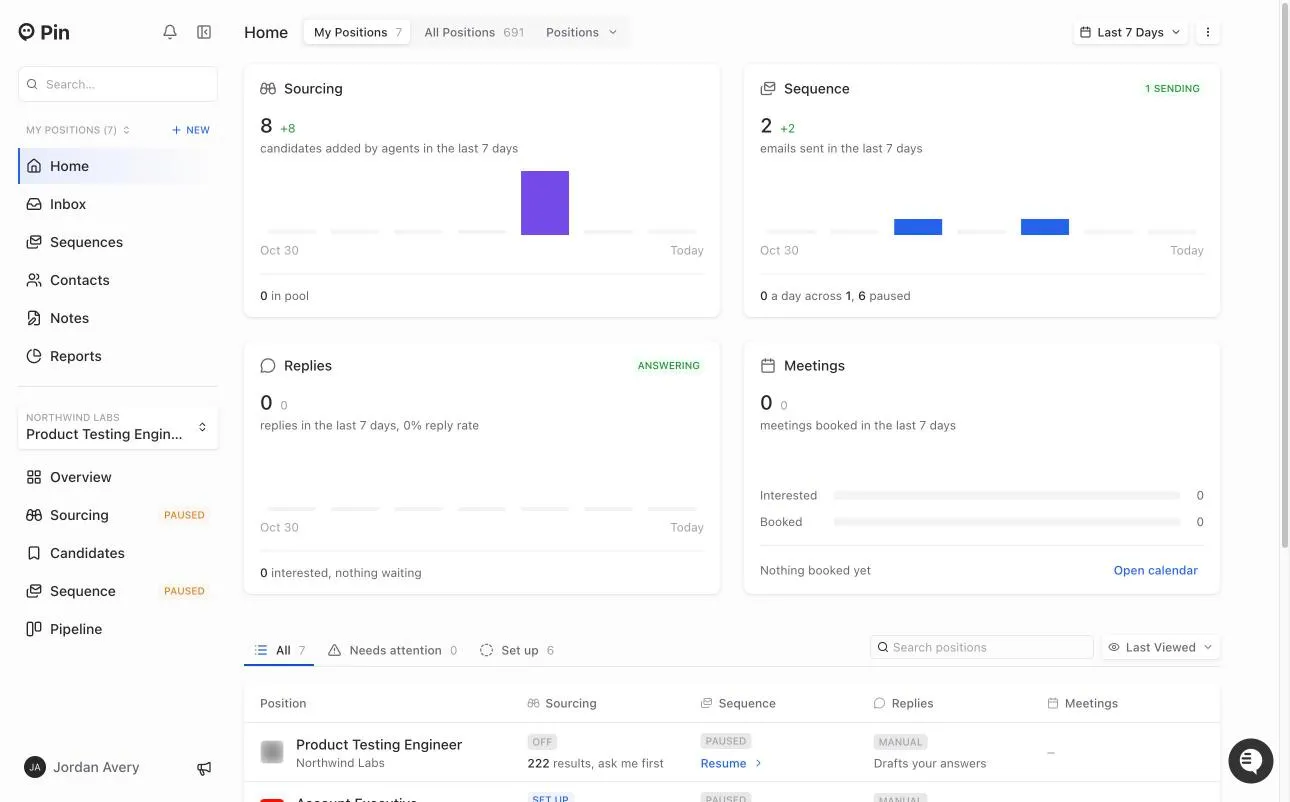
- Top section (all your positions): Home, Inbox, Sequences, Contacts, Notes, and Reports
- Bottom section (the job you're working on): Overview, Sourcing, Messages, Candidates, Sequence, and Pipeline
Use the job picker between the two sections to switch which job you're working on. It lets you browse All Positions, Mine, Bookmarked, and Archived, filter by Hiring For, search, or click + New Position. You can also click + New next to My Positions to create a job.
Across All Your Positions
Home
Home is new. It's your starting point to see how your agents are doing across Sourcing, Sequence, Replies, and Meetings, and where your attention is needed. Use My Positions / All Positions at the top and the date picker (for example, Last 7 Days) to change what you see.
The table at the bottom lists each position with its Sourcing, Sequence, Replies, and Meetings status. Use the All, Needs attention, and Set up tabs to narrow down to the positions that need something from you.
Inbox
Inbox brings every reply into one place.
- Switch between Mine and All at the top to see your replies or everyone's, or use Position to filter to a single job.
- Replies that need a response are shown first (Needs Response First).
Sequences
Sequences now has its own overview so you can see how outreach is performing across your positions, from candidates added all the way to interested.
Under Sequences in the sidebar you'll also find:
- Errors – candidates whose outreach stopped and needs review
- Outreach Queue – messages waiting to go out
- Recently Sent – messages that have just been sent
Contacts
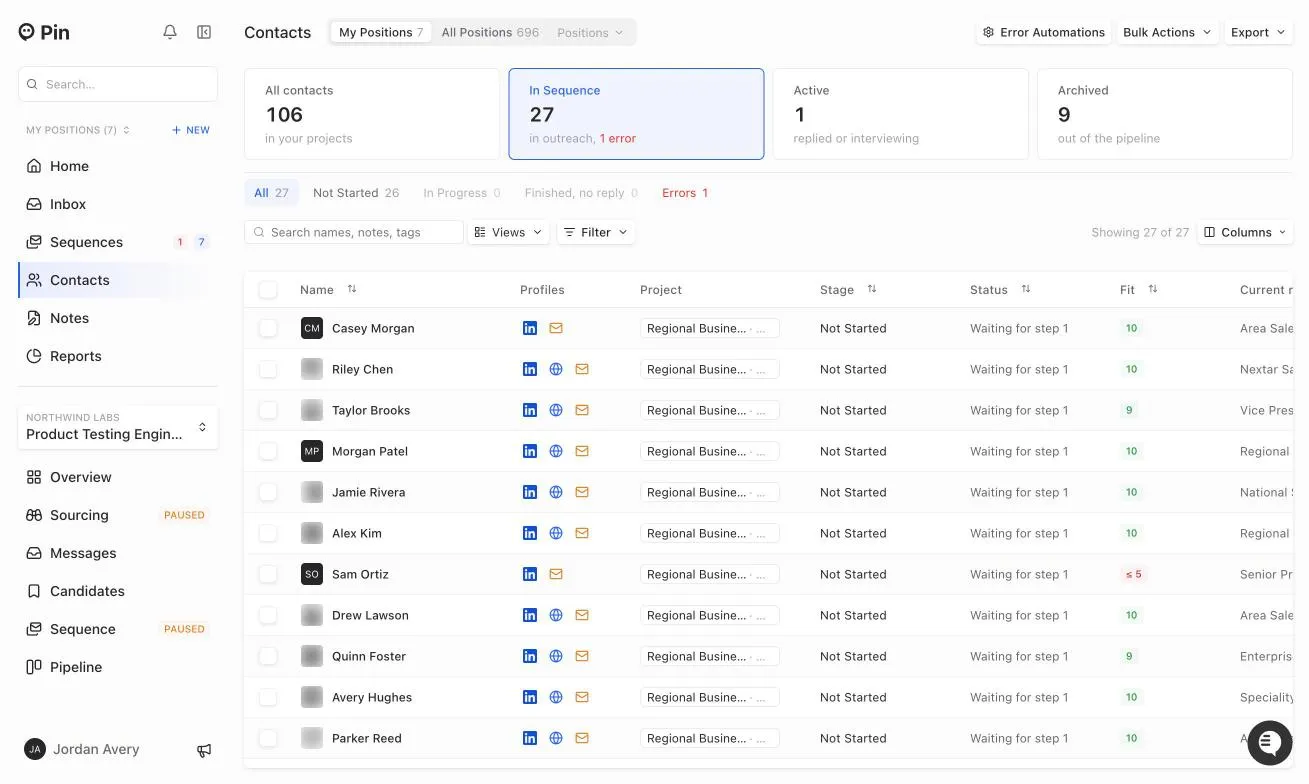
Candidates across all jobs are now called Contacts. Contacts shows everyone across your positions.
Cards at the top show All contacts, In Sequence, Active (replied or interviewing), and Archived. Click one to see those contacts, then use the status tabs, Views, Filter, and Columns to narrow the list. See View all contacts and conversations for details.
Notes
Notes is where you take and keep meeting notes. Switch between My notes and All notes, click New Note or Join call, and link a note to a candidate with Add candidate. Each note has Note, Summary, and Questions tabs, and you can Dictate or Join a meeting from a note.
Reports
Reports now has one picker at the top of the page. Use My Positions, All Positions, or Positions to drill down to a set of positions or see your whole team in total.
Reports includes three views: Communications Insights, Pipeline Insights, and Team Activity.
Search
Search now finds positions as well as contacts, so you can jump straight to either one from the search bar at the top of the sidebar.
Settings
Settings now opens in a single window. Click your name in the bottom-left corner and select Settings. It's organized into Your Account, Your Team, Global Preferences, Integrations, and Content.
Inside a Job
Overview
A job's Overview shows its key numbers (Candidates Added, Messaged, Open Rate, Replied), message activity, and history. The panel on the right is where you now change the job's Owner, Hiring Company, Visibility, and Project, connect an ATS, edit the job description, and manage Company Lists (Preferred and Do Not Source). This replaces the old Job Settings → Position Details tab. Archive Position is at the top right.
Sourcing and the AI Agent
Sourcing now opens the AI Agent, so the agent and your searches live in one place. Your saved searches are listed under the agent in the sidebar, along with + New Search.
The panel on the right shows current agent activity and anything waiting for you, along with the status of Search Criteria, Sourcing, Sequence, Replies, and Meetings. The buttons at the top right let you Edit Criteria, open the Talent Report, open Candidates, Review Sequence, or hide and show the agent panel.
Turning the Agent On
If an agent is paused or only partly on, you'll see it at the top of the right panel. Use Resume (or Turn on all) to turn it back on.
Messages
Messages shows the conversations with candidates for this job only. To see replies across all your jobs, use Inbox in the top section.
Candidates
The job's Candidates page holds everyone for the role. Its views are:
- Review Queue – candidates waiting for you to approve or decline (this is where your Maybes now live)
- Manually Added – candidates you added yourself
- In Outreach – candidates currently in the sequence
- In Communication – candidates you're actively talking to
- Declined – candidates you declined
- All Candidates – everyone for the role
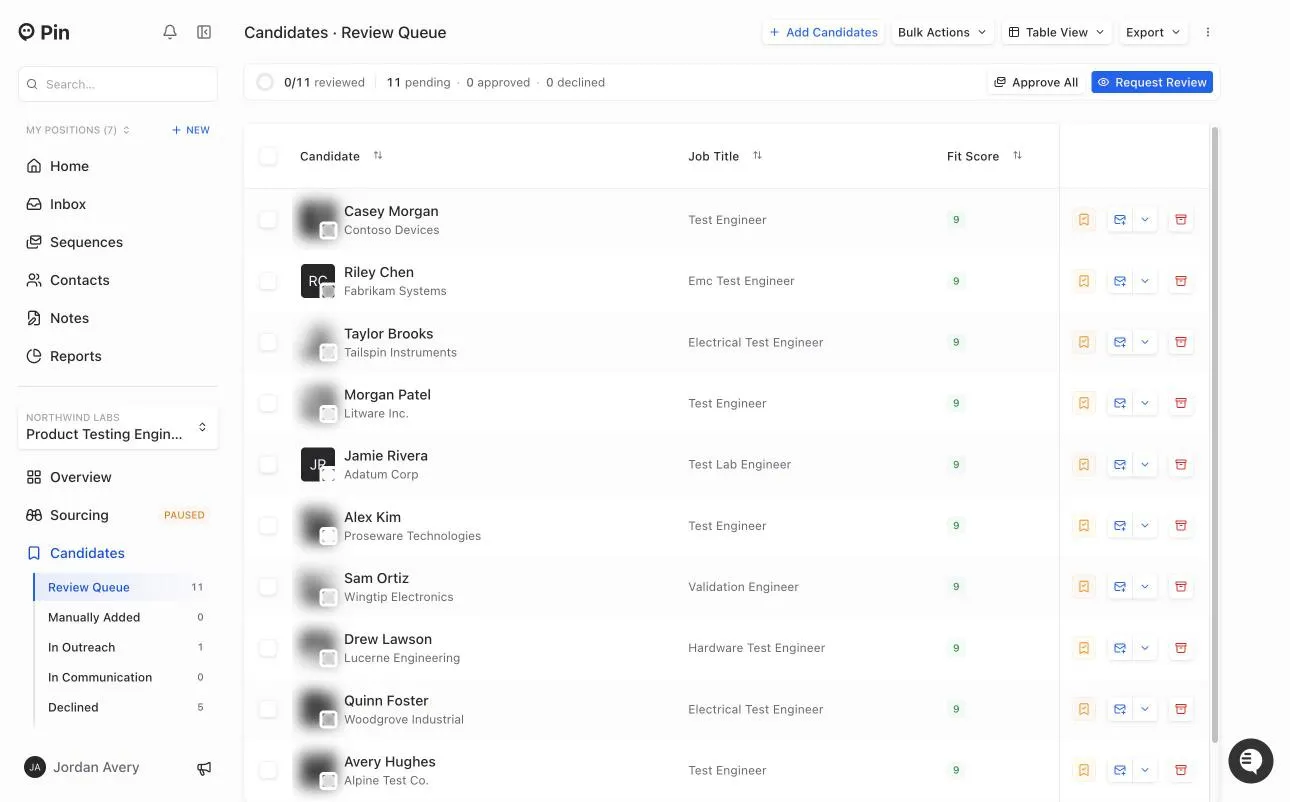
From here you can Add Candidates, use Bulk Actions (Approve All, Decline All), Export, Approve All, or Request Review. Select candidates with the checkboxes to Approve, Decline, Remove from Review, or Move them to another job.
Sequence
Each job's Sequence page now opens on an overview of how outreach is going, step by step, including how many candidates have been added, contacted, opened, replied, and are interested. Under Sequence in the sidebar you'll also find the job's Errors, Outreach Queue, Recently Sent, and Edit Sequence. Outreach Preferences, Outreach Automations, Outreach Errors, and Knowledge Base for the job are in the left panel of the sequence editor.
Quick Reference: Where Did It Go?
If you're looking for... | You'll now find it in... |
|---|---|
Candidates (across all jobs) | Contacts |
Replies from all your jobs | Inbox (top section) |
Replies for one job | Messages (inside a job) |
Outreach performance across jobs | Sequences (top section) |
The AI Agent for a job | Sourcing (inside a job) |
Your Maybes / shortlist | Candidates → Review Queue (inside a job) |
Candidates you're actively working | Candidates → In Outreach / In Communication |
Outreach for a job | Sequence (inside a job) |
A job's outreach performance | Sequence (inside a job) |
Job Settings → Position Details | Overview (right panel, inside a job) |
Archived jobs | Job picker → Archived |
Team, members, billing, presets | Settings (click your name, bottom-left) |
A specific position | Search at the top of the sidebar |
Frequently Asked Questions
Where did the Shortlist go?
It's now called the Review Queue. Open the job, select Candidates, then Review Queue. Candidates you Approve move to In Outreach and go through the job's sequence. Candidates you Decline move to Declined. To see everyone for the job in one list, select All Candidates.
Where are the candidates I sourced?
Your searches are listed under Sourcing in the job's sidebar, below Agent. Click a search to see its results. Candidates you've reviewed are on the job's Candidates page. To see candidates across all your jobs, use Contacts in the top section.
Do I have to use the AI Agent?
No, the agent is optional. If a job's Sourcing item shows Set up, the agent hasn't been set up for that job. To run a search yourself, open the job and click + New Search under Sourcing. You can then review candidates and add them to the sequence manually.
How do I pause or turn off the AI Agent?
Open the job and select Sourcing → Agent. The panel on the right shows whether the agent is on and what it's allowed to do:
- To stop new candidates being approved automatically, open Sourcing in the panel and turn off Auto-approve matches. Candidates will wait in the Review Queue for you.
- To stop outreach, open Sequence in the panel and turn off Send the sequence.
- To pause the agent completely, type pause in the agent chat. Type resume, or click Resume at the top of the panel, to turn it back on.
The sidebar shows PAUSED next to Sourcing or Sequence when they're stopped, and LIVE when they're running.
Can I close the AI chat or get more room for candidates?
The chat stays on the agent view, but you can give your candidates the whole screen:
- On Sourcing → Agent, click the Candidates button at the top right (or Review candidates below the chat).
- Click Fullscreen at the top of the Candidates panel. Click Exit fullscreen to go back.
- Use the view menu to switch between Compact View, Detailed View, and Table View.
You can also hide the status panel on the right with the Hide Agent panel button at the top right. To run a search without the agent, click + New Search under Sourcing.
How do I filter candidates by Fit score?
Open the Candidates panel from Sourcing → Agent, click the view menu (for example, Compact View), and choose a Minimum Fit Score, from All down to 5+. To change the minimum Fit score the agent uses, click Edit Criteria.
Where's the pipeline for all my jobs?
The all-jobs Pipeline board was removed in the new navigation. Pipeline is now per job: choose the job, then select Pipeline to see and drag candidates between stages. We're looking at bringing back an all-jobs version.
To see candidates across all your jobs, use Contacts in the top section. The Active card shows everyone who has replied or is interviewing. You can also use Filter → Stage or Filter → Project to narrow the list.
Where did Outreach go?
Outreach is now called Sequence. Inside a job, select Sequence to see how outreach is performing. Under it you'll find Errors, Outreach Queue (steps waiting for you, such as manual emails or calls), Recently Sent, and Edit Sequence. To see outreach across all your jobs, use Sequences in the top section.
Where are a job's settings (Position Details)?
On the job's Overview page. Use the panel on the right to change the job's owner, hiring company, visibility, project, ATS connection, job description, and company lists. Settings that affect outreach are in Sequence → Edit Sequence, in the left panel: Outreach Preferences, Outreach Automations, Outreach Errors, and Knowledge Base.
How do I stop Pin from answering candidates or scheduling meetings automatically?
These are set per job. Open the job, select Sequence → Edit Sequence → Outreach Automations, then:
- Set Answer candidate questions to Create drafts so Pin drafts replies for you instead of sending them.
- Set Schedule a meeting if candidate qualifies to Do not schedule.
Team-wide defaults for everything else, such as your calendar, event duration, and nudges, are in Settings → Global Preferences → Outreach Automations. Click your name in the bottom-left corner to open Settings.
How do I see replies for just one job?
Open the job and select Messages. You can also open Inbox in the top section and use the Position filter.
Where can I see open rates?
For open rates across your jobs, go to Reports → Communications Insights. Use the picker at the top to choose positions and a date range. For a single job, select Sequence: the overview shows how many candidates were contacted, opened, replied, and interested, step by step.
There isn't a filter for individual candidates who opened an email yet. In Contacts, you can filter by Contacted, Replied, Last contacted, and Last replied.
How do I duplicate a job?
Create the new job with + New next to My Positions. When the job's Sourcing page asks "Do you have an existing job description?", choose the Duplicate Existing tab and pick the job to copy.
To reuse a sequence from another job, open Sequence → Edit Sequence, click Clear All, and copy the steps from the previous job.
Where did Settings go?
Click your name in the bottom-left corner and select Settings. Your profile, connected email accounts, team members, billing, outreach defaults, integrations, block list, and company presets are all there.
Can I switch back to the old navigation?
No. There isn't an option to switch back to the previous layout, but we're actively improving the new one based on your feedback. If you'd like a quick walkthrough, reach out to our team and we'll set one up.
Need Help?
If you have questions about the new navigation, reach out to our team and we'll be happy to help.