
Notes: Pin's meeting notetaker
What is Notes?
Notes is where your candidate calls live in Pin. Pin's notetaker joins your Zoom, Google Meet or Teams calls, records and transcribes them, and writes a summary when the call ends. You can also write your own notes, dictate them, and get a set of interview questions drafted for the candidate before you start.
Every note can be linked to a candidate and a job, so the conversation sits next to the rest of the candidate's history in Pin.
Where to find Notes
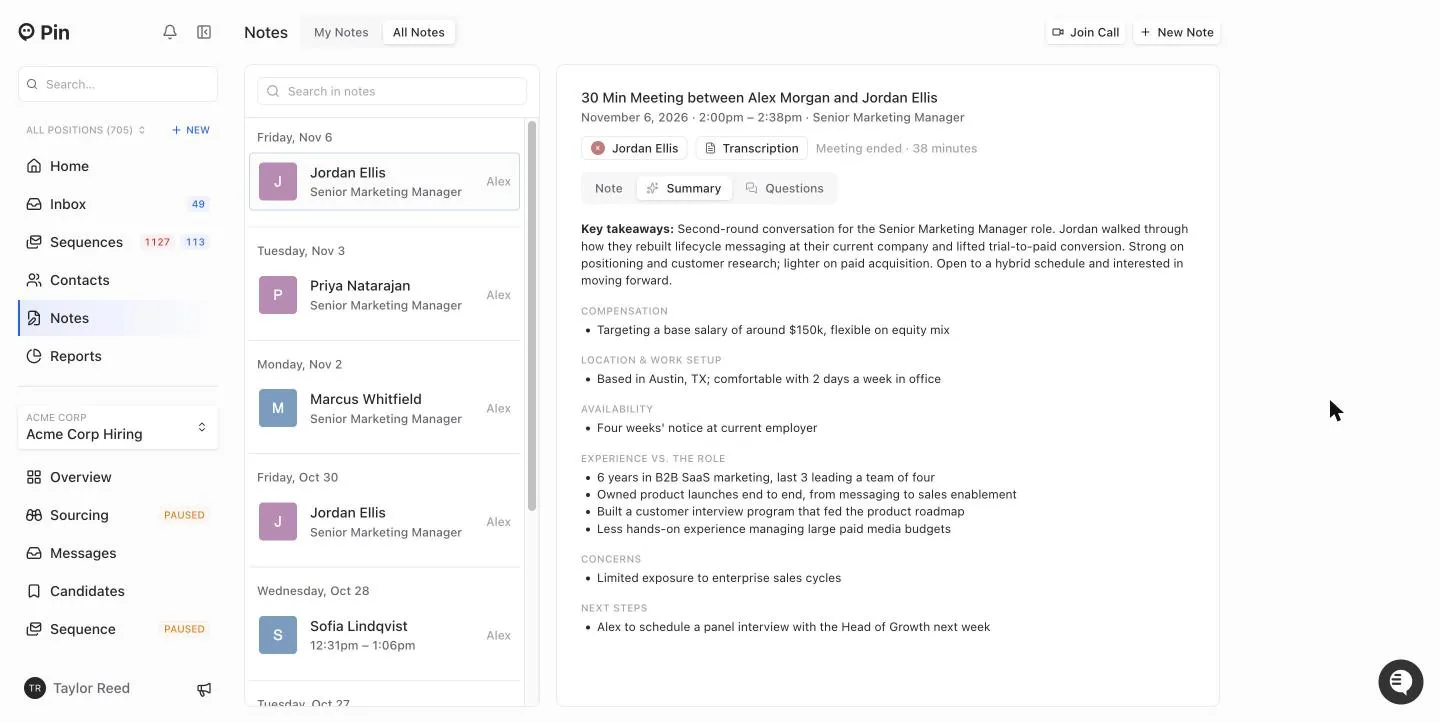
Click Notes in the left sidebar. The page has two tabs at the top:
- My Notes – only the notes you own.
- All Notes – notes your teammates own that you're allowed to see (see Who can see a note).
The list on the left is grouped by day, newest first. Meetings the notetaker is booked to join show at the top under Upcoming. Use Search in notes to filter by meeting title, candidate name or job title. A green dot next to a note means the notetaker is in that call and recording right now.
Meet your Notetaker
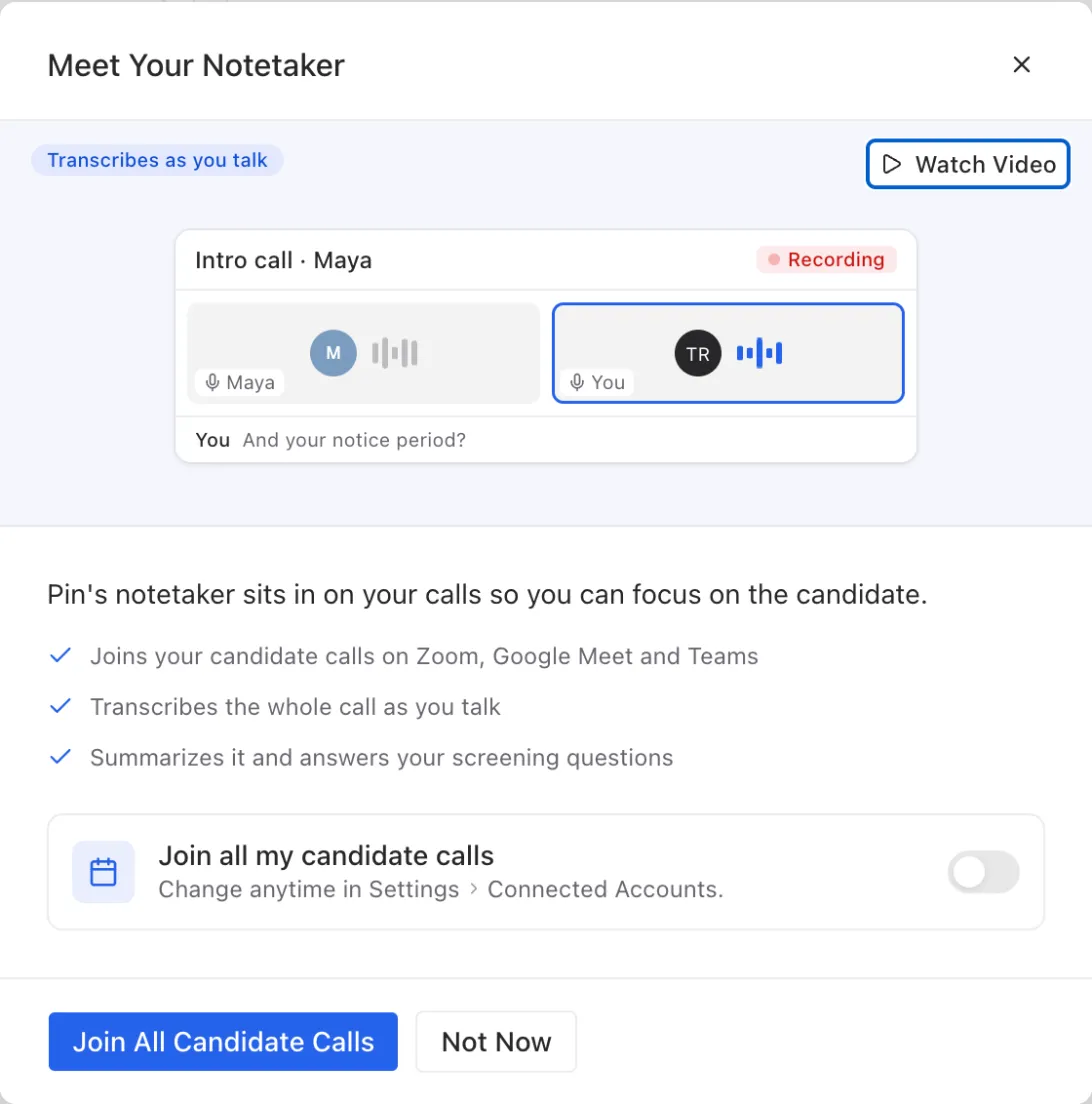
The first time you open Notes, Pin shows a short Meet Your Notetaker introduction. Click Watch Video for a quick walkthrough. If you've connected a calendar, you can turn on Join all my candidate calls right there, or choose Not Now and do it later in Settings.
Have the notetaker join your candidate calls automatically
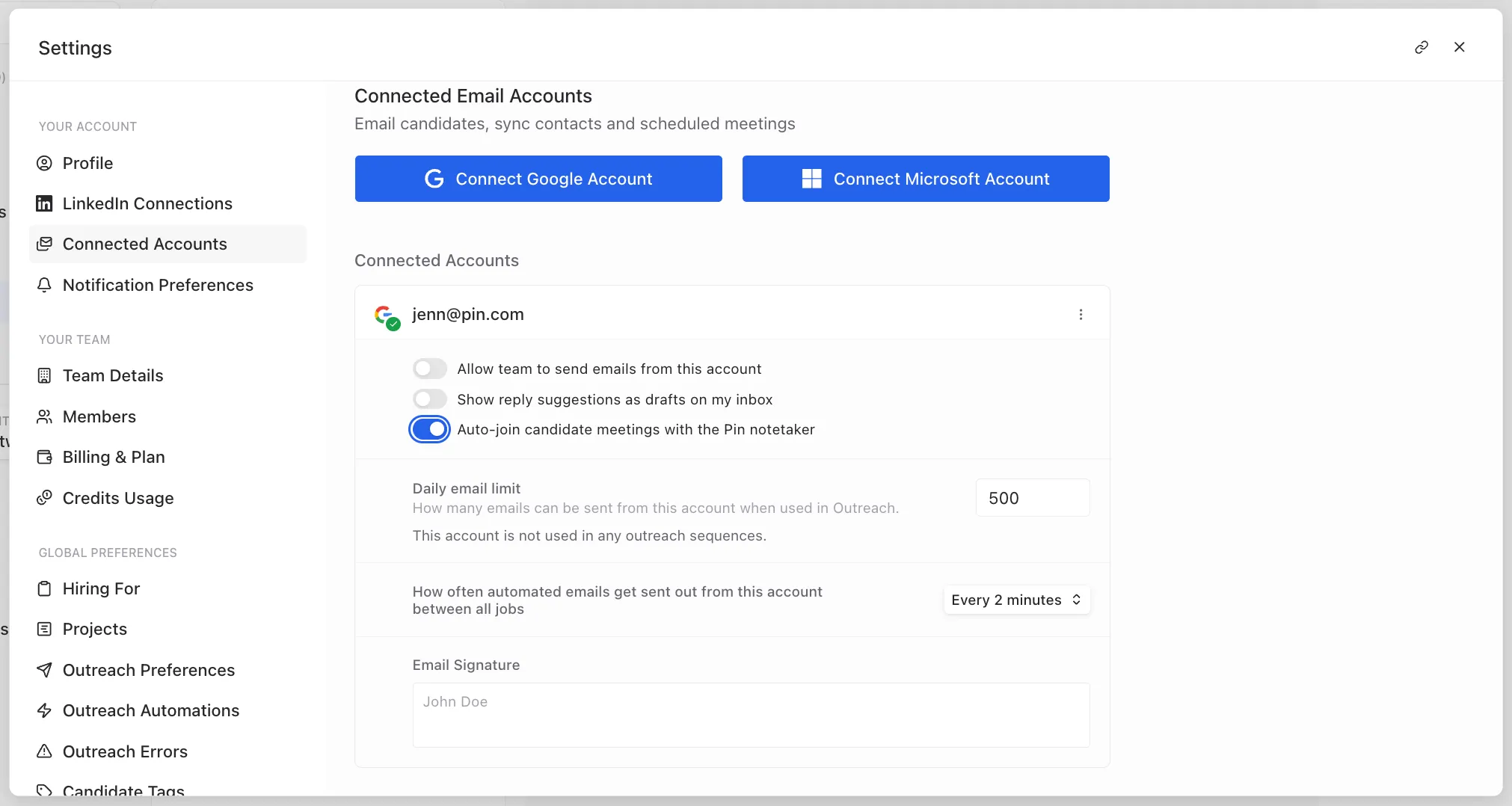
- Click your name in the bottom left and open Settings → Connected Accounts.
- Find your connected Google or Microsoft account.
- Turn on Auto-join candidate meetings with the Pin notetaker.
Once it's on, Pin books the notetaker into your candidate meetings for the next 14 days and keeps the schedule up to date as your calendar changes. A meeting gets the notetaker when:
- A candidate is on the invite. Pin matches attendees' email addresses to candidates in your account. Internal meetings, and meetings with people who aren't candidates in Pin, are skipped.
- It has a Zoom, Google Meet or Microsoft Teams link, either attached to the invite or pasted into its location or description.
- A meeting isn't cancelled.
- The candidate hasn't declined the meeting.
The notetaker joins about a minute before the meeting starts. If two recruiters are on the same call, or the meeting is on more than one calendar, Pin only sends one notetaker. If a meeting matches more than one candidate, the note isn't linked to anyone, and you can select the candidate with Add Candidate.
Note: The switch is greyed out until the account's calendar is connected. You'll see Auto-join candidate meetings (connect this calendar first).
How the notetaker appears in the call
The notetaker joins as "[Your first name]'s Pin Notetaker", for example Alex's Pin Notetaker. When it joins, it posts this message in the meeting chat: "Hi! I'm taking notes for this call. It is being recorded and transcribed."
If your meeting has a waiting room, let the notetaker in. The note will show In waiting room, let the notetaker in until you do.
Send the notetaker into a call now
For a call that isn't on your calendar, or one without a candidate on the invite:
- On the Notes page, click Join Call in the top right.
- Under Happening Now, click Join next to a meeting from your calendar, or paste a Zoom, Google Meet or Teams link (you can leave off the https://).
- Click Join Meeting.
Pin creates a new note and the notetaker joins right away.
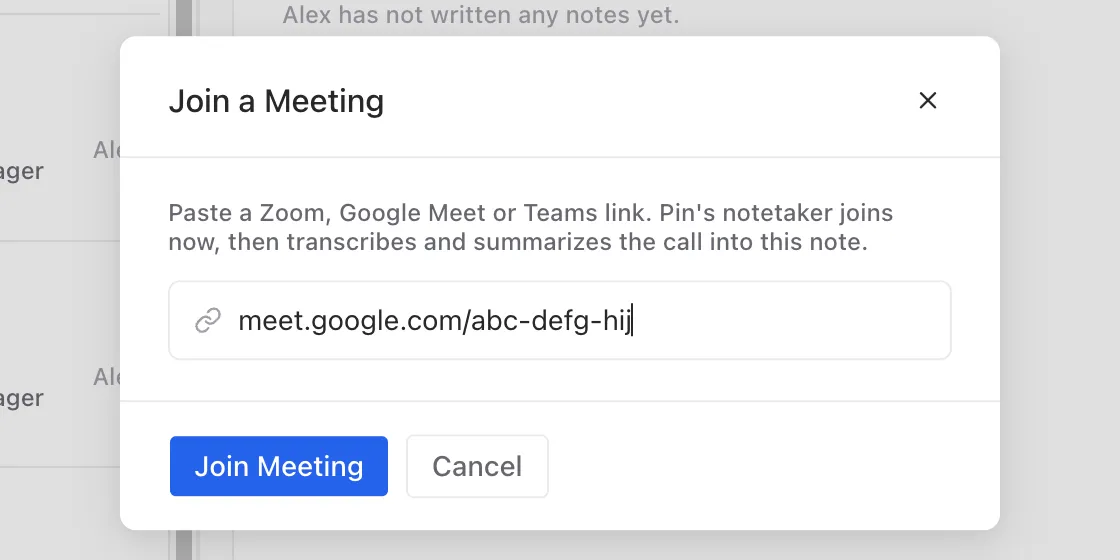
To record into a note you already have, open it and click Join a Meeting under the title.
Write notes without a recording
Click New Note in the top right to start a blank note. Type in the Note tab, or click Dictate to speak your notes and have Pin type them for you. Your notes save automatically as you type.
To link the note to someone, click Add Candidate and select the candidate.
What's inside a note
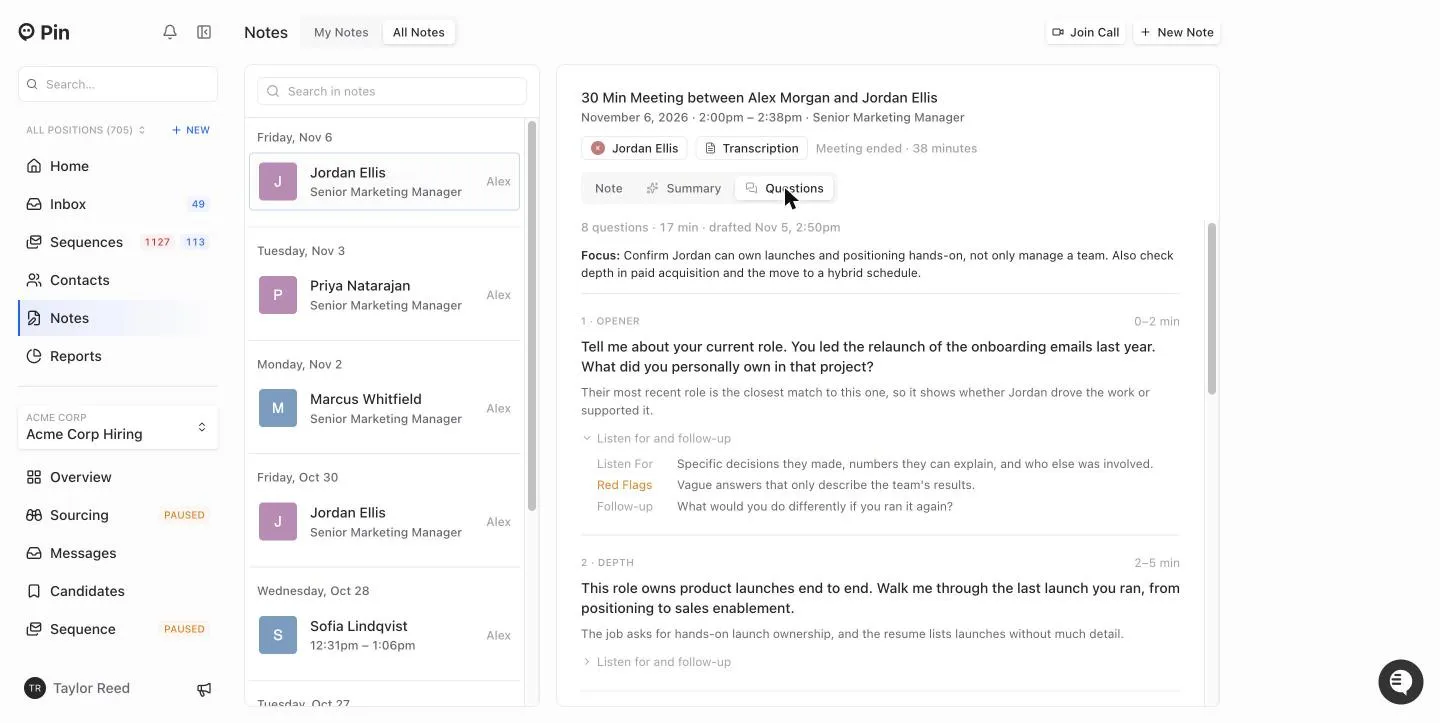
Each note shows the meeting title, date and time, and job, then a row with the candidate, the transcript and the notetaker's status. Below that are three tabs.
Note
Your own notes for the call. Only the note's owner can edit them. Teammates can read them.
Summary
After the call, Pin writes a summary from the transcript, the job description and your own notes. It focuses on what you need to act on: key takeaways, compensation, location and work setup, availability, experience against the role, concerns and next steps.
The summary usually appears a few minutes after the call ends. While it's being written you'll see Writing the summary from the meeting transcript. If a note has no title yet, Pin also names it from the conversation. Pin also notes whether the call was an interview or an intake call with a hiring manager (see Use intake calls to set up a job).
Questions
Pin drafts a 15–20 minute first-screen plan for the note's candidate, based on their profile and the job. Each question shows:
- Its type (Opener, Depth, Story, Risk, Motivation or Logistics) and its slot in the call, e.g. 0–2 min
- Why it's worth asking
- Under Listen for and follow-up: what a good answer sounds like, any red flags, and a follow-up question.
The first draft starts when you open the tab and takes about 30 seconds. Click Regenerate for a new set. Questions need a candidate on the note. Without one, you'll be asked to add a candidate first.
Recording and transcript
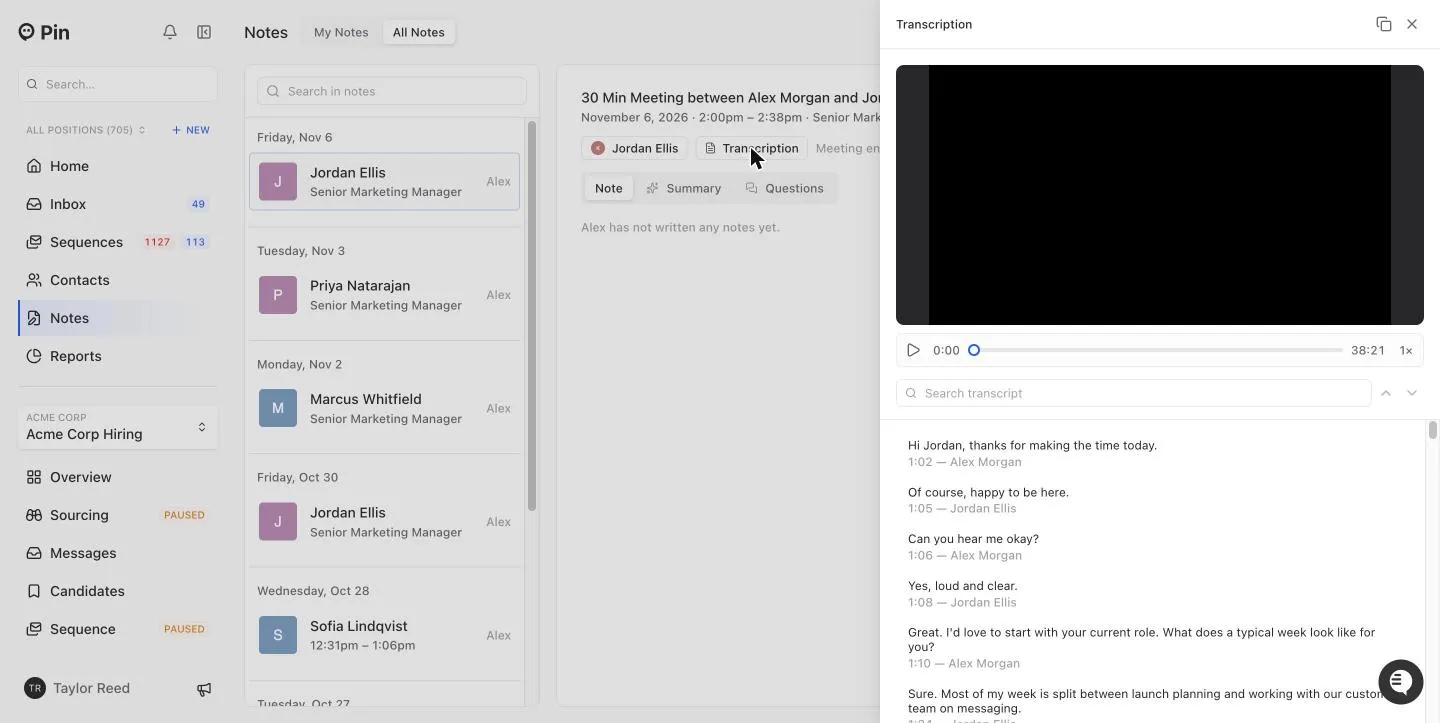
Click Transcription under the note's title to open the recording and the full transcript side by side. Each line shows who spoke and when. Search the transcript to jump to a moment, and play the recording at the speed you like.
You can also open the transcript from the candidate's activity timeline, where recorded calls appear alongside their other activity.
What the notetaker status means
Status | What's happening |
|---|---|
Notetaker joins when the meeting starts | The notetaker is booked for this meeting. |
Joining meeting… | The notetaker is on its way in. |
In waiting room, let the notetaker in | The meeting host needs to admit it. |
Transcribing… | The notetaker is in the call and recording. |
Processing transcript… | The call has ended and Pin is preparing the transcript. |
Meeting ended · 38 minutes | Done. The transcript, recording and summary are ready (or nearly ready). |
Lost meeting access | The notetaker couldn't join or was removed. Click Retry Joining to send it back in. |
Notetaker cancelled | The notetaker won't join this meeting. |
Manage a note
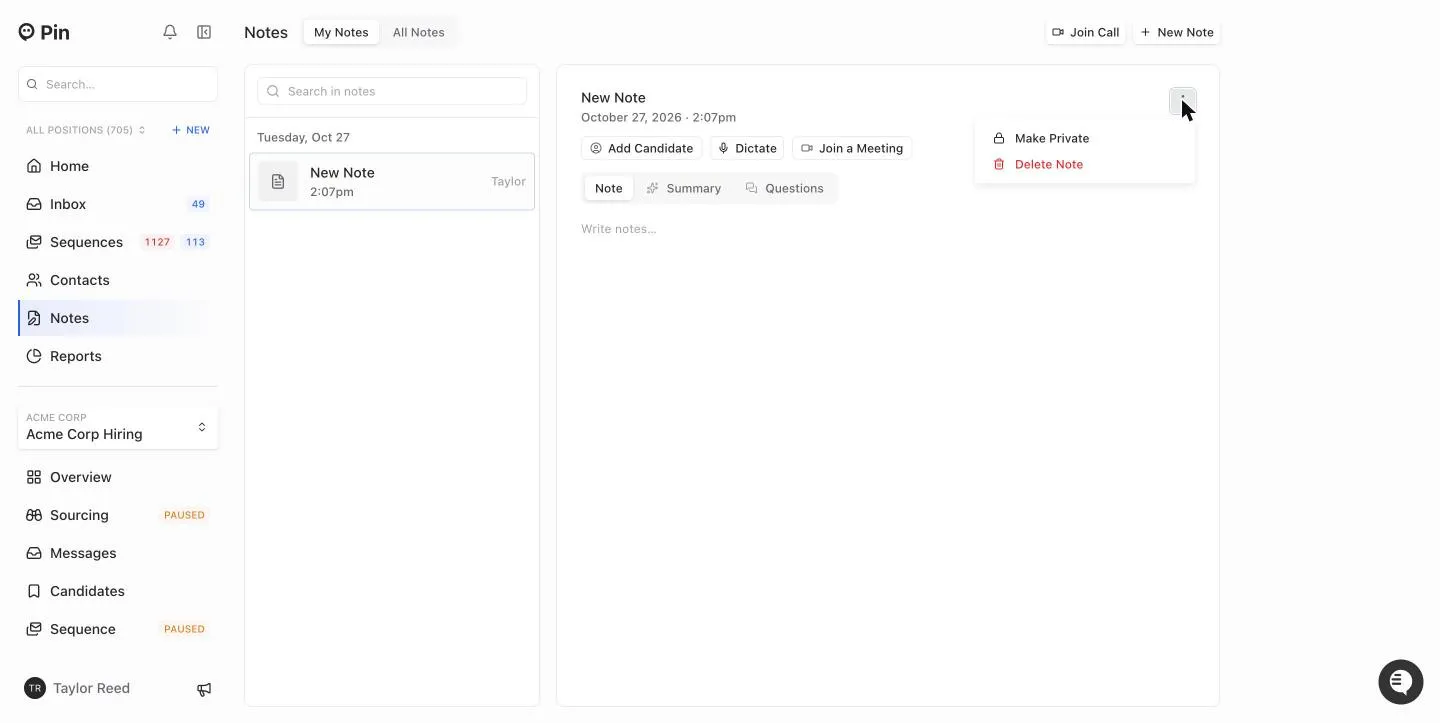
On a note you own, click ⋮ in the top right to:
- Change Candidate or Remove Candidate
- Make Private or Make Shared
- Delete Note
Deleting a note removes your notes, the transcript and the recording, and can't be undone. If you delete a note for an upcoming meeting, the notetaker won't join that meeting.
Who can see a note
- Private notes are only visible to their owner. Admins can't see them either.
- Notes linked to a job are visible to anyone who can see that job. Private jobs stay private.
- Notes linked to a candidate but no job are visible to your team, like candidate notes.
- Notes with no candidate and no job are only visible to their owner.
Only the owner can edit a note, change its candidate, make it private or delete it.
How long recordings are kept
Pin keeps a note's recording, transcript and summary until the note is deleted. There's no automatic expiration date. When you delete a note, its recording is removed straight away.
If a candidate is deleted from Pin, their notes stay but are no longer linked to them. If your company closes its Pin account, all notes and recordings are permanently deleted 30 days later.
Use intake calls to set up a job
When the notetaker records an intake call with a hiring manager, Pin marks it as an intake call when it writes the summary. You can then start a new job from that call:
- Create a job. On the Do you have an existing job description? screen, choose Your Notes.
- Your recent intake-call notes are listed with the first lines of their summary. Pin shows the last 10 days, and looks back up to 30 days if there's nothing more recent.
- Pick the call. Pin uses its summary, plus any notes you wrote during the call, to set up the search.
Only intake calls you recorded yourself, with a finished summary, are listed. Your other connected note apps (for example Notion or Granola) show up in the same list.
Frequently Asked Questions
Which meeting apps work? Zoom, Google Meet and Microsoft Teams. Auto-join only picks up links from these three.
Can I stop the notetaker from joining one meeting? Delete that meeting's note from the Upcoming list. The notetaker won't join. To stop it joining any meetings, turn off auto-join in Settings → Connected Accounts.
Will the notetaker join my internal meetings? Not automatically. Auto-join only books meetings that have a candidate on the invite. To record any other call, use Join Call.
The summary never appeared. What now? If a call was recorded but has no summary after about 10 minutes, the note shows No summary was written for this meeting. The transcript and recording are still there. Contact Pin support with the meeting's date and title, and we can generate the summary again.
Does the candidate know they're being recorded? The notetaker joins under your name and posts a message in the meeting chat saying the call is being recorded and transcribed.
How long are recordings kept? Pin keeps a note's recording, transcript and summary until the note is deleted. There's no automatic expiration date. When you delete a note, its recording is removed straight away. If a candidate is deleted from Pin, their notes stay but are no longer linked to them. If your company closes its Pin account, all notes and recordings are permanently deleted 30 days later.
Do the notes, summary, recordings, questions, or anything get synced to my ATS? No, only candidate profile and contact information gets synced to your ATS. No emails, messages, or notes will get synced over.
How much does this cost? It's included in your plan for now at no cost for now, but this will change in the future.
Can I add Notes to my call? Unfortunately, only Zoom, Google Meet or Teams calls is supported at this time